60
How do I save a NavPix to a POI?
Note: Only a NavPix with embedded GPS coordinates can be saved as a POI.
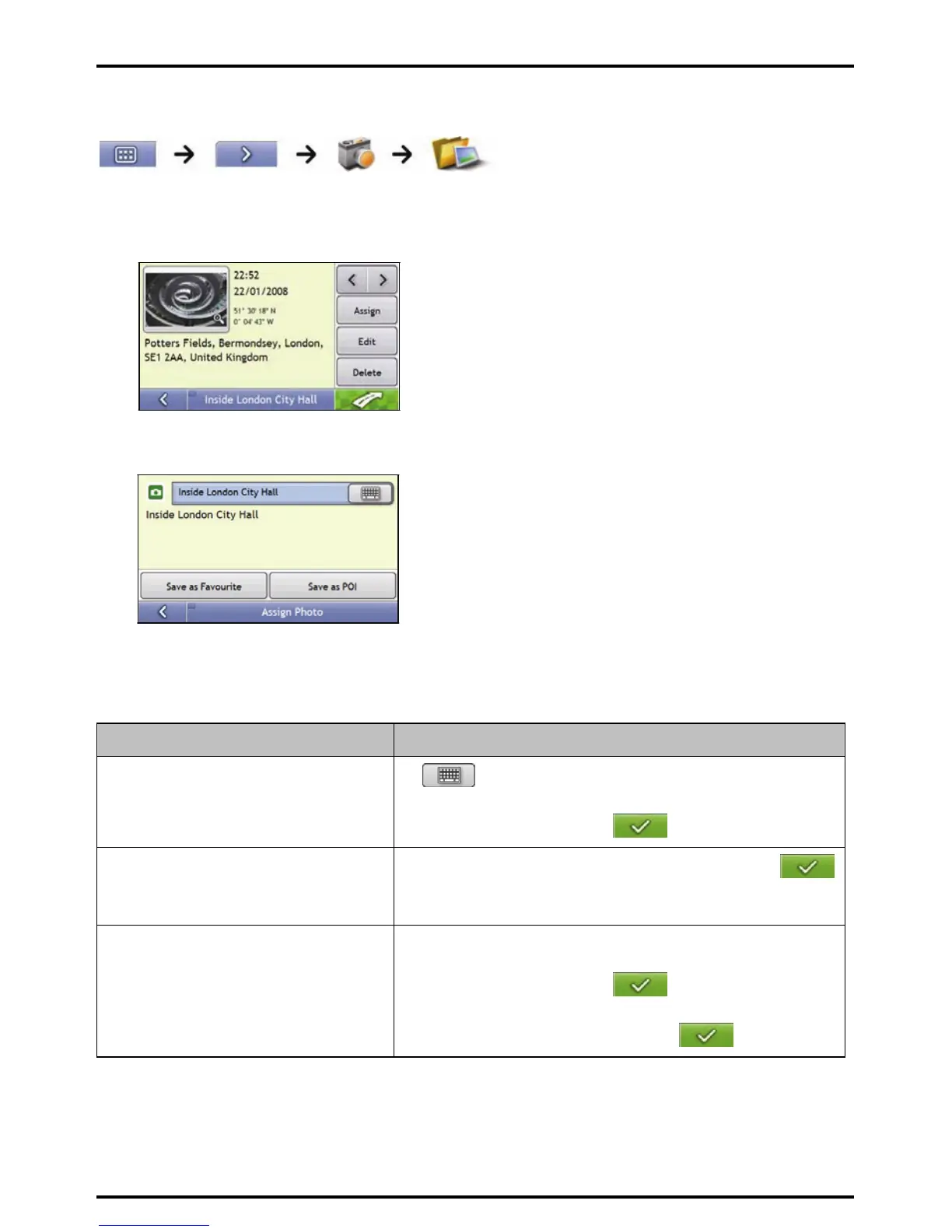
1. From the Album screen, select and tap a NavPix.
The NavPix Details screen will display.
2. From the NavPix Details screen, tap Assign.
The Save Photo screen will display.
3. Tap Save as POI.
The Select POI Categories screen will display.
4. Complete the following:
If you want to ... Then ...
edit the name of the POI
tap
.
The Keyboard screen will display.
Enter a name for your POI, then tap
save the NavPix as a POI (when GPS
coordinates are associated with a picture)
tap Save as POI and select POI Category from the list, then tap
.
Note: You cannot save a NavPix as a favourite if GPS coordinates are not
available.
create a new custom POI category and save a
NavPix as a POI
tap A new category to create a custom POI category.
The Keyboard screen will display.
Enter a name for your POI, then tap
.
The Select POI Categories screen will display the new POI category.
select the POI Category from the list, then tap
.






 To Next Page