32
4. Search for a POI
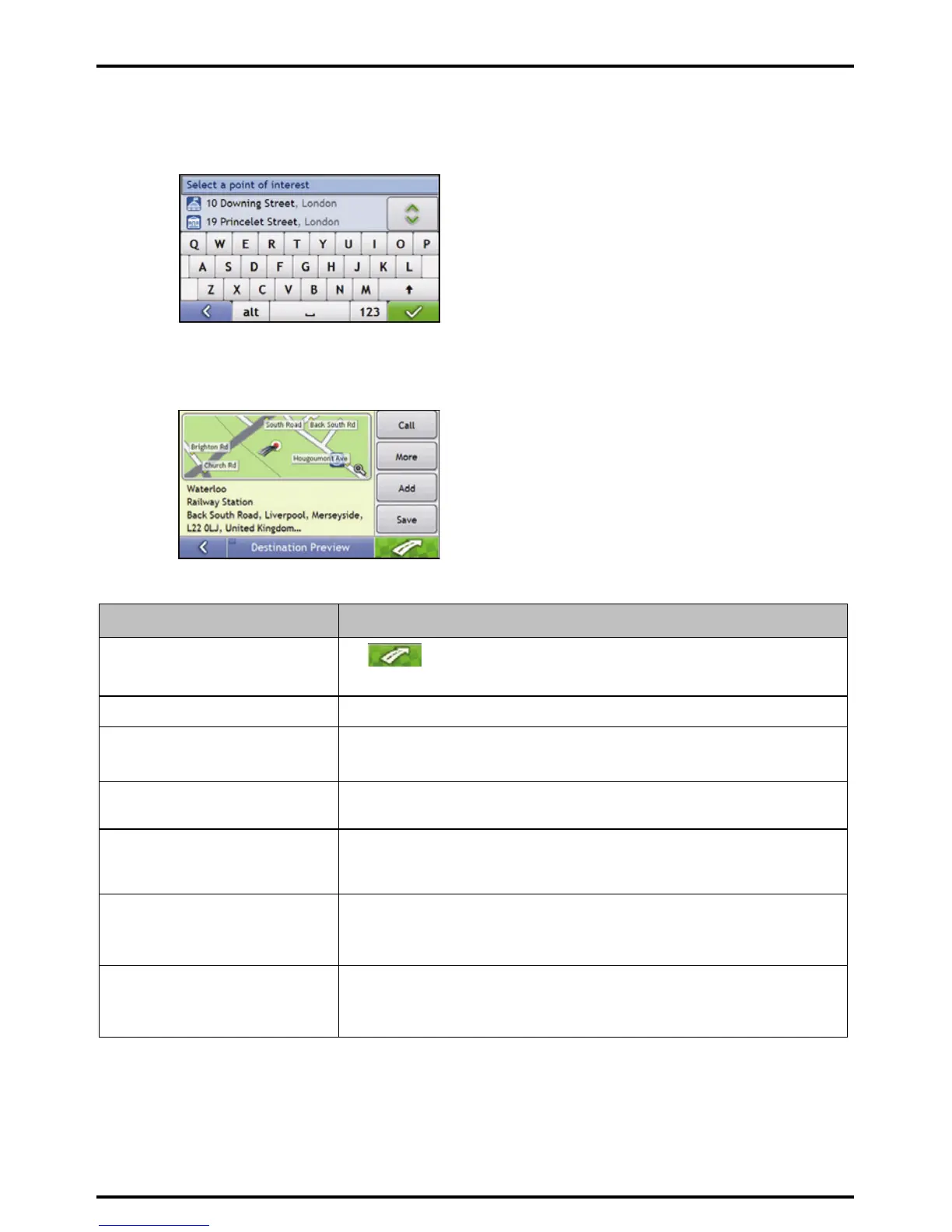
a) Either tap Search by name to search in all POI categories, or select a category from the list.
The Keyboard screen will display.
b) Use the Keyboard screen to search for Waterloo Railway Station as your destination, then tap the
search result.
The Preview screen will display.
c) Complete the following:
If you want to ... Then ...
navigate to your selected destination
tap
.
Your route is calculated and displayed on the 3D Map screen.
view your position on the map screen tap the map to display the position on the 2D Map screen.
make a phone call to the POI tap Call.
Note: This feature is not available on all models.
view more information about your
destination
tap More.
The Destination Details screen will display.
add the destination to a multi stop
trip
tap Add.
The Multi-stop Trip Planner screen will display. The address is listed as a waypoint on
the multi-stop trip. See “
How do I create a trip with multiple stops?” on page 26.
save the destination as My Home tap Save.
The New Favourite screen will display.
tap Save as My Home.
save the destination as a favourite tap Save.
The New Favourite screen will display.
tap Save as Favourite.











 To Next Page