EasyManua.ls Logo

Motorola VC70N0 - User Manual

Motorola VC70N0
258 pages
Print Icon
To Next Page IconTo Next Page
Loading...
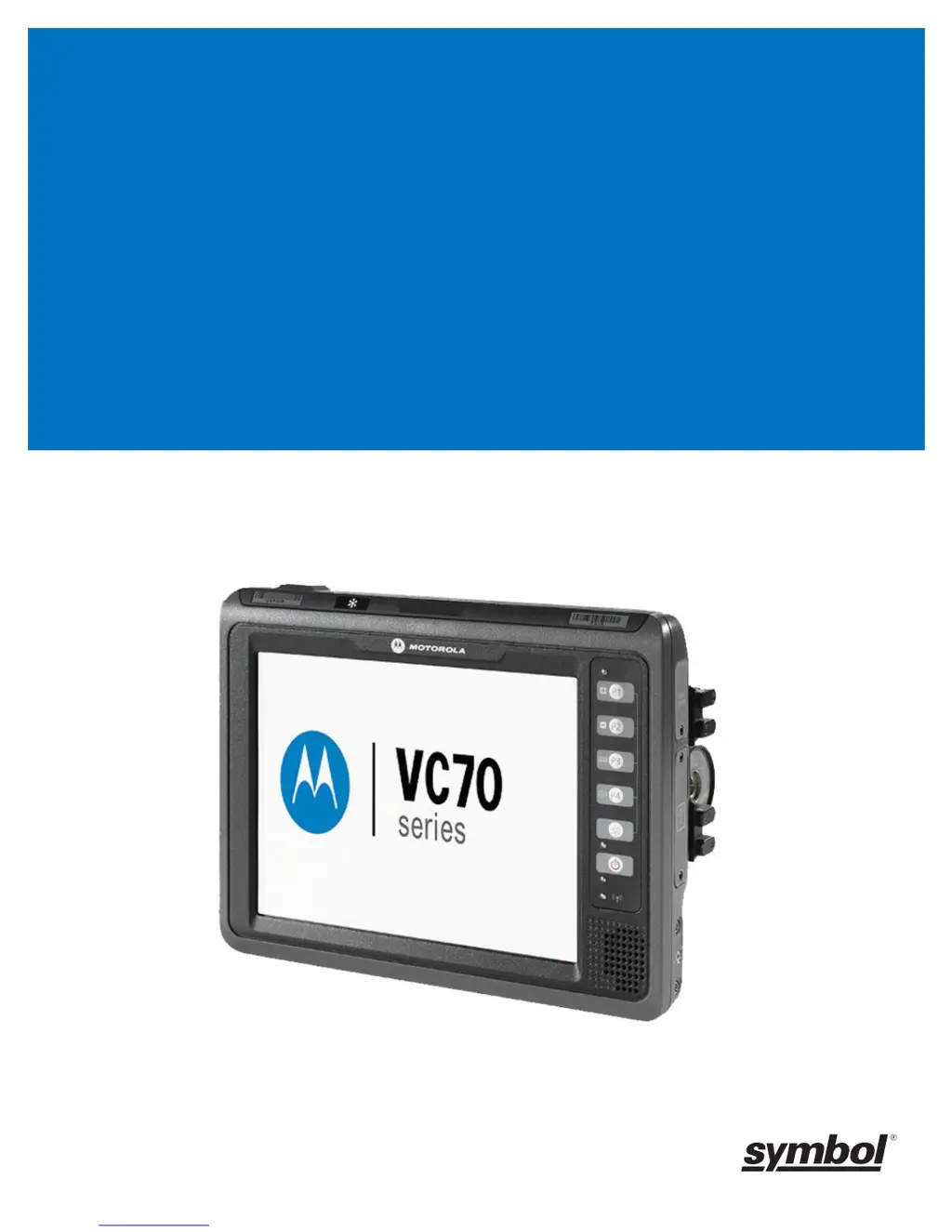
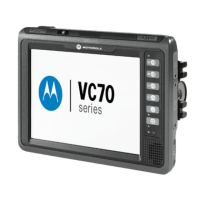
VC70N0 Vehicle Computer
Product Reference Guide
Draft 07-02-2014

Table of Contents

Other manuals for Motorola VC70N0

Questions and Answers

  • L
    Lori BakerSep 23, 2025
    Why is the scanner range shorter on some forklifts with Motorola Automobile Electronics?
    • C
      Charles ContrerasSep 23, 2025
      When the scanner range is shorter on some electric forklifts with Motorola Automobile Electronics, consult the forklift vendor about reducing electro-magnetic interference. They may suggest adding a capacitor between the forklift chassis and its battery's negative terminal, or provide another solution.
  • J
    Jonathan ThomasAug 25, 2025
    Why Motorola VC70N0 Automobile Accessories cannot find Bluetooth devices?
    • L
      Leroy HarrisonAug 25, 2025
      If your Motorola Automobile Accessories device cannot find Bluetooth devices, move closer to the other Bluetooth devices, within a range of 10 meters. Ensure that the Bluetooth devices are turned on and set to discoverable mode.
  • T
    Travis SavageAug 25, 2025
    What to do if my Motorola VC70N0 Automobile Accessories VC70 does not power on?
    • K
      Kyle WigginsAug 26, 2025
      If your Motorola Automobile Accessories VC70 doesn't power on, there are several possible causes: * The power cable ignition sense wire (yellow) may not be properly connected. Ensure the power cable is correctly connected. * The main power switch on the right side of the vehicle computer might be off. Turn the main power switch to the on position. * The power cable may not be connected or might be unplugged. Connect the power cable to the power cable port on the bottom of the vehicle computer and press the power button. * If the VC70 is powered by a vehicle battery, the battery could be depleted. Replace or charge the vehicle battery.
  • B
    brandijamesAug 26, 2025
    What to do if I cannot see characters on the Motorola VC70N0 VC70 display?
    • K
      knewmanAug 27, 2025
      If you cannot see characters on the display of your Motorola Automobile Accessories VC70, consider the following: * The VC70 might not be powered on. Check that the main power switch on the top of the VC70 is in the on position and press the power button. * The screen brightness may be improperly adjusted. Adjust the brightness of the screen. * The VC70 could be in Suspend mode (indicated by the green power LED being off). Press the power button to wake up the VC70.
  • H
    Holly AndersonAug 27, 2025
    What to do if the optional scanner does not operate with Motorola VC70N0 Automobile Accessories?
    • J
      Jesse CookAug 27, 2025
      If the optional scanner is not operating with your Motorola Automobile Accessories VC70, check the following: * Ensure the scanner is properly connected to the COM1 port and that the vehicle computer is powered on. * Verify the external power connection.
  • A
    Alexis WilsonSep 15, 2025
    Why is the COM1 or COM2 port not working on my Motorola Automobile Electronics?
    • A
      arroyosarahSep 15, 2025
      If the COM1 or COM2 port is not working on your Motorola Automobile Electronics, another application like ActiveSync or SerialWedge might be using the port. Stop the application, disconnect the ActiveSync cable, or change the SerialWedge COM Port Settings.
  • B
    brooksjaneSep 12, 2025
    What to do if the touchscreen is not working on Motorola Automobile Electronics?
    • P
      Peggy ScottSep 13, 2025
      If the touchscreen is not working on your Motorola Automobile Electronics, recalibrate the screen through the Control Panel Calibration utility. Also, check if the replacement screen protector was correctly applied, and replace or re-apply it if necessary.
  • T
    Teresa Stephens MDSep 14, 2025
    What to do if there is no response when ActiveSync is initiated on Motorola Automobile Electronics?
    • M
      Michael MarshallSep 14, 2025
      If ActiveSync is not responding on your Motorola Automobile Electronics, ensure the ActiveSync cable is properly connected. Also, verify that ActiveSync is correctly configured in the Control Panel.
  • R
    Ralph MontesSep 5, 2025
    What to do if COM1 or COM2 port is not working on Motorola VC70N0 Automobile Accessories?
    • H
      hallericSep 5, 2025
      If the COM1 or COM2 port on your Motorola Automobile Accessories device is not working, stop any application that might be using the port. Disconnect the ActiveSync cable from the host, or change the SerialWedge COM port setting.
  • J
    James SimpsonSep 2, 2025
    Why are no keys working on Motorola VC70N0 keyboard?
    • V
      Virginia LoganSep 2, 2025
      If no keys are working on your Motorola Automobile Accessories keyboard, check the cable connections between the keyboard and the vehicle computer. Ensure the application you are using requires keyboard input and configure it accordingly. If the computer is not responding, warm boot the vehicle computer.

Summary

About This Guide

Introduction

Provides information about the VC70 vehicle computer using Microsoft Windows CE 7.0.

Chapter Descriptions

Summarizes the topics covered in each chapter of the guide.

Chapter 1 Getting Started

Introduction

Overview of the VC70 as an ultra-rugged forklift-mounted computer.

Features

Lists the key features of the VC70, including integrated WLAN and display.

Accessories

Lists the available accessories from Symbol for the VC70.

Chapter 2 Installation

Introduction

Describes how to install the vehicle computer and connect it to a power source.

Electrical Power Wiring

Provides guidelines for routing and securing power cables.

Installing the VC70 on a Cart, a Wall, or a Desktop

General instructions for mounting the VC70 on various surfaces.

Installing a Micro SD Card

Procedure for installing a micro SD card for storage expansion.

Chapter 3 Operating the VC70

Introduction

Explains buttons, icons, and basic operating instructions for the VC70.

Quick Access Panel

Describes the buttons and LEDs on the Quick Access Panel for device control.

Resetting the Vehicle Computer

Provides instructions for performing warm boot and cold boot.

Power Status

Describes the different power states of the VC70 and methods of suspension.

Chapter 4 DataWedge Scanner Connection

Introduction

Describes how to install scanners and accessories for the VC70 vehicle computer.

Installing a Scanner

Provides instructions on connecting various types of scanners to the VC70.

Connect LS3408-ER Corded Scanner to a Serial Port of the VC70 (SSI)

Step-by-step guide for connecting the LS3408-ER scanner via SSI.

Chapter 5 TelnetCE Configuration

Introduction

Provides instructions for connecting serial scanners in a Wavelink TelnetCE session.

Wavelink TelnetCE

Details on configuring Wavelink TelnetCE for serial scanner connections.

Connect LS3408-ER Corded Scanner to a Serial Port of the VC70 (SSI)

Guide for connecting LS3408-ER scanner to VC70 via serial SSI port.

Chapter 6 Wireless LAN Applications

Introduction

Explains how mobile computers communicate wirelessly using WLAN.

Turning the WLAN Radio On and Off

Instructions on how to enable or disable the WLAN radio on the VC70.

Chapter 7 Using Bluetooth

Introduction

Overview of Bluetooth technology and its applications on the VC70.

Pairing Cordless Scanners

Steps to pair cordless Bluetooth scanners with the VC70.

Chapter 8 Sync with Host Computer

Introduction

Explains the process of synchronizing the VC70 with a host computer.

Setting Up an ActiveSync Connection on the Host Computer (Windows XP)

Procedure for establishing an ActiveSync connection on Windows XP.

Chapter 9 Application Development and Deployment

Introduction

Lists tools and procedures for developing and deploying applications on the VC70.

Platform SDK

Instructions for downloading and installing the Windows CE Platform SDK.

Chapter 11 Software Configuration

Introduction

Provides instructions for upgrading VC70 software and registry settings.

VC70 Operating System - Image Upgrade

Details on updating the VC70 operating system image.

Power Suspend

Information on configuring power suspend settings via registry.

Chapter 12 Maintenance

Introduction

Instructions on cleaning, storing, and troubleshooting the vehicle computer.

Troubleshooting

Lists common vehicle computer problems and their possible causes and actions.

Appendix A Specifications

Technical Specifications

Summarizes the vehicle computer's operating environment and hardware specifications.

Glossary

A

Glossary terms starting with the letter A.

B

Glossary terms starting with the letter B.

C

Glossary terms starting with the letter C.

D

Glossary terms starting with the letter D.

E

Glossary terms starting with the letter E.

F

Glossary terms starting with the letter F.

H

Glossary terms starting with the letter H.

I

Glossary terms starting with the letter I.

L

Glossary terms starting with the letter L.

O

Glossary terms starting with the letter O.

P

Glossary terms starting with the letter P.

Q

Glossary terms starting with the letter Q.

R

Glossary terms starting with the letter R.

S

Glossary terms starting with the letter S.

Index

Numerics

Index entries for numerical terms.

A

Index entries starting with the letter A.

B

Index entries starting with the letter B.

C

Index entries starting with the letter C.

D

Index entries starting with the letter D.

E

Index entries starting with the letter E.

Motorola VC70N0 Specifications

General IconGeneral
ModelVC70N0
Wireless LAN802.11a/b/g
BluetoothBluetooth v2.1 with EDR
GPSIntegrated GPS
AudioIntegrated microphone and speaker
Expansion SlotSD slot
Operating Temperature-10°C to 50°C (14°F to 122°F)
Storage Temperature-40°F to 158°F / -40°C to 70°C

Related product manuals