SUPREMATouch
24
Operation of the System
MSA
US
The system is delivered with the default password “AUER” for all three password levels. MSA rec-
ommends to change the passwords immediately.
All of the user functions are available through the integral operation/display unit and the PC, if con-
nected. However, certain actions such as changing parameters or calibration cannot be per-
formed simultaneously through both, the integral operation/display and PC. Therefore, to perform
an action of that type, the relevant password authorisation will be required and verified. It will re-
main exclusive for that control unit until measurement mode is activated either through user input
or automatically due to inactivity or alarm, after which it will again be possible to switch between
the integral operation/display and PC. If a user with modification authorisation is logged in at the
PC and there has not been any communication between the PC and SUPREMATouch system for
more than 5 minutes, password authorisation will be automatically released.
In the “Measure” and “Diagnosis” submenus, data is only displayed, and no password access con-
trol required.
Measure Menu
When the system configuration is successfully completed, the “Measure” menu will appear auto-
matically after the system is started. For display of measured values, it is possible to choose from
three display types:
- List [default after start-up]
- Bars
- LEDs
Displayed measurement and status values are updated once per second.
Unlike the common alarm LEDs on the MDO front panel, the touchscreen display of alarms and
failures do not flash.
If the operator is in the “List”, “Bars” or “LEDs” window and does not tap any key for 60 seconds,
the window automatically starts scrolling [one page per 5 seconds]. To scroll through the list man-
ually use the arrow buttons in the lower left corner of the window or move the list while touching it.
It is possible to manually switch between different modes of displaying the measured information.
In one mode all inputs are shown, in the other modes only the inputs in alarm or fail status are
shown.
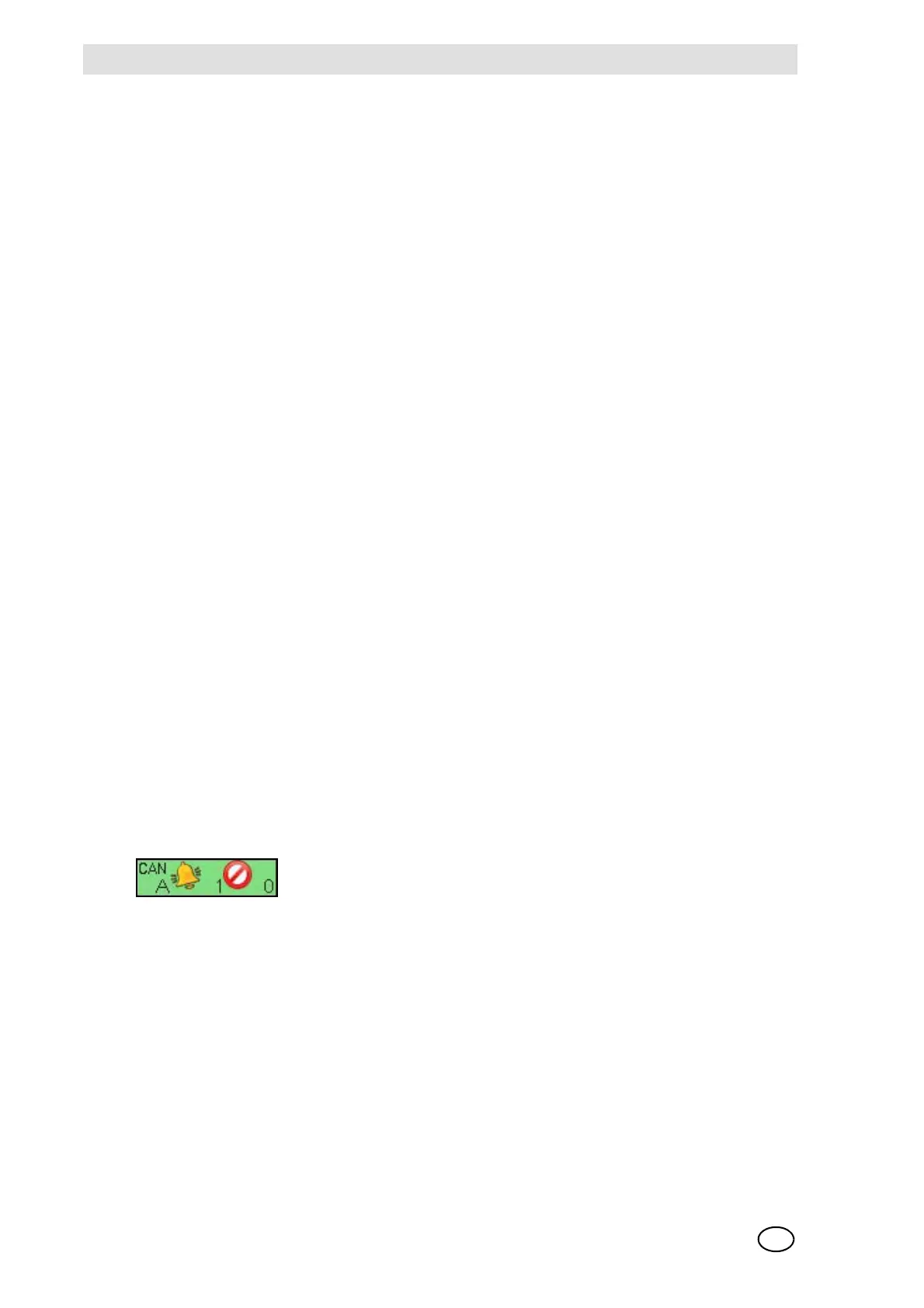
To switch between the modes touch the bell or the sign symbol in the lower right corner of the
measure window. If one of these selection modes is chosen, the corresponding symbol has a yel-
low background. The number of measuring points in alarm and in fail and the CAN bus, A or B,
currently selected as the information source is also shown in this area.
It is possible to switch the CAN bus by touching the “CAN” symbol. If the CAN bus is manually
selected, the CAN symbol has a yellow background. If the CAN bus is automatically selected, the
CAN symbol has a green background.



 To Next Page