HYDROCAL 1005 Manual for Installation and Operation Page 103/111
7.2.1.1 Connection Scheduler Dialog
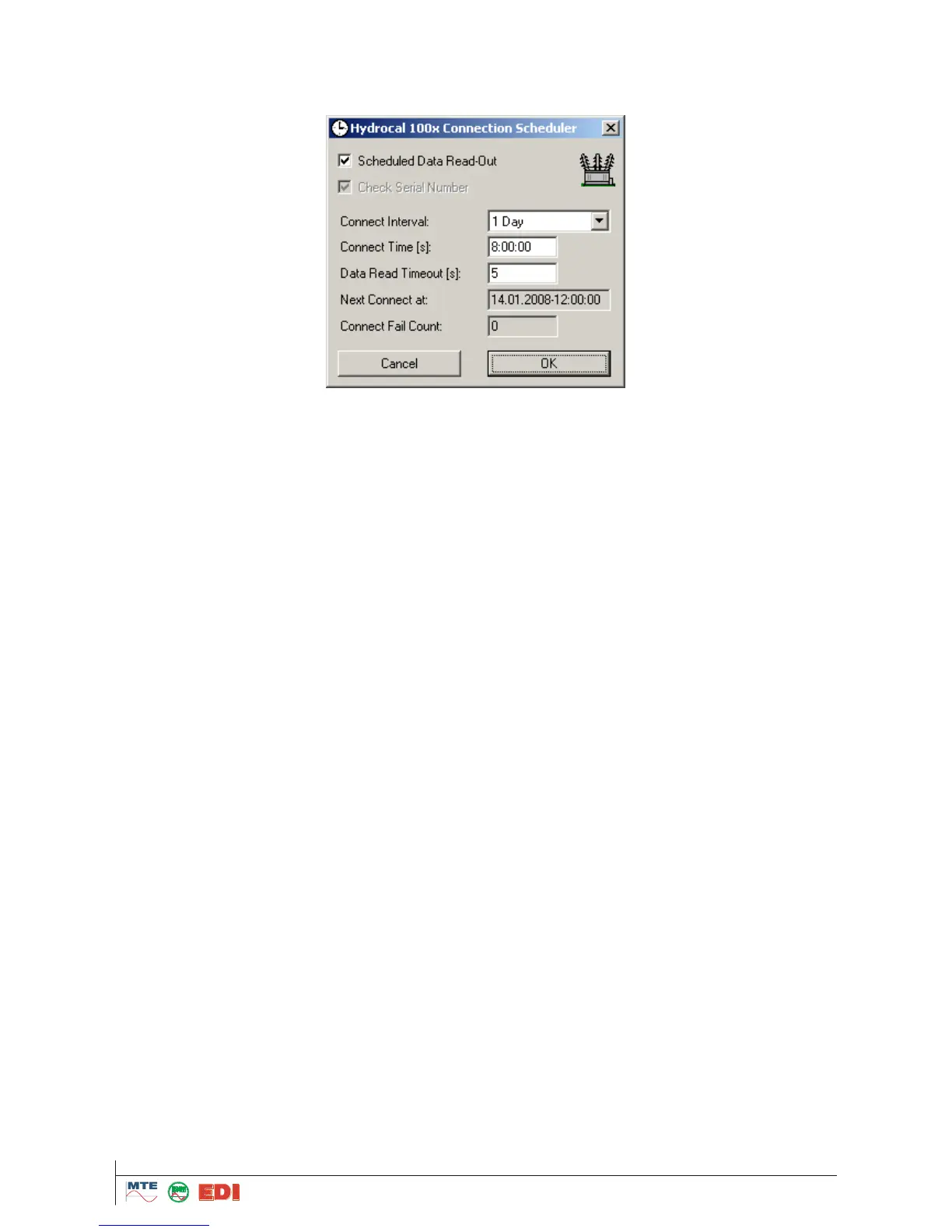
The connection scheduler dialog allow to configure the automatic history data read-out. (For further
details on the setting see 7.2.4, Internal Operation.)
The checkbox Scheduled Data Read-Out en- or disables the automatic history data update.
The combo box Connect Interval allows the selection of the time span between read-out actions.
After a successful history data update the next connection time is calculated by adding the se-
lected interval time span to the current time.
If the Connect Interval is at least one day, a connection time can be set in the text box Connect
Time. The format for the time is hh:mm:00 (seconds must be zero). When a connect time is set,
the time-of-day for the next connection will be set to the specified value. If no special time-of day
is required, a dash must be entered ('-').
The Data Read Timeout has the same meaning as in the manual communication and defines a
time when the connection has to be regarded as broken - leading to an error abort of the commu-
nication. For direct connections 5 seconds should be used - for a modem connection at least 15
seconds are reasonable.
The text box Next Connect at shows the date and time of the next connection.
Remark: If a test of the scheduler communication is desired, a double-click on the text box will
change the date and time so that the communication will be scheduled in the near future (dialog
must be closed with OK to accept the change).
The text box Connect Fail Count shows the number of connection failures.
Remark: A double-click on this text box can be used to reset the failure counter to zero (dialog
must be closed with OK to accept the change).
7.2.2 Scheduler Status Visualization
The status of the scheduler is visualized in the tree view by changing the icons of the customer, the
stations and the transformers.
7.2.2.1 Status Icons
The status of transformers, stations and the customer is reflected by special icons. The following de-
scription explains the meaning of the different icons.


 To Next Page