20
When to use this feature?
The two most common cases are when you are:
Using an Ethernet cable between your computer and the robot (the IP will be
169.254.200.200 and port is 9090 by default).
Developing on the robot directly, or on your computer with the simulation mode (for
advanced users). You could for example set the IP to “localhost”. In case you have
modified the web-socket server port of the robot, you’ll have to change it here so the
connection can be successful.
When using a custom IP address, don’t forget to click on the “Choose” button to select
this IP.
3.5.7 Give a custom name to the robot
You can give a custom name to your robot. This name will be used:
When the robot is in hotspot mode. If a custom name for the robot exists, this name
will be used to create the Wi-Fi network name.
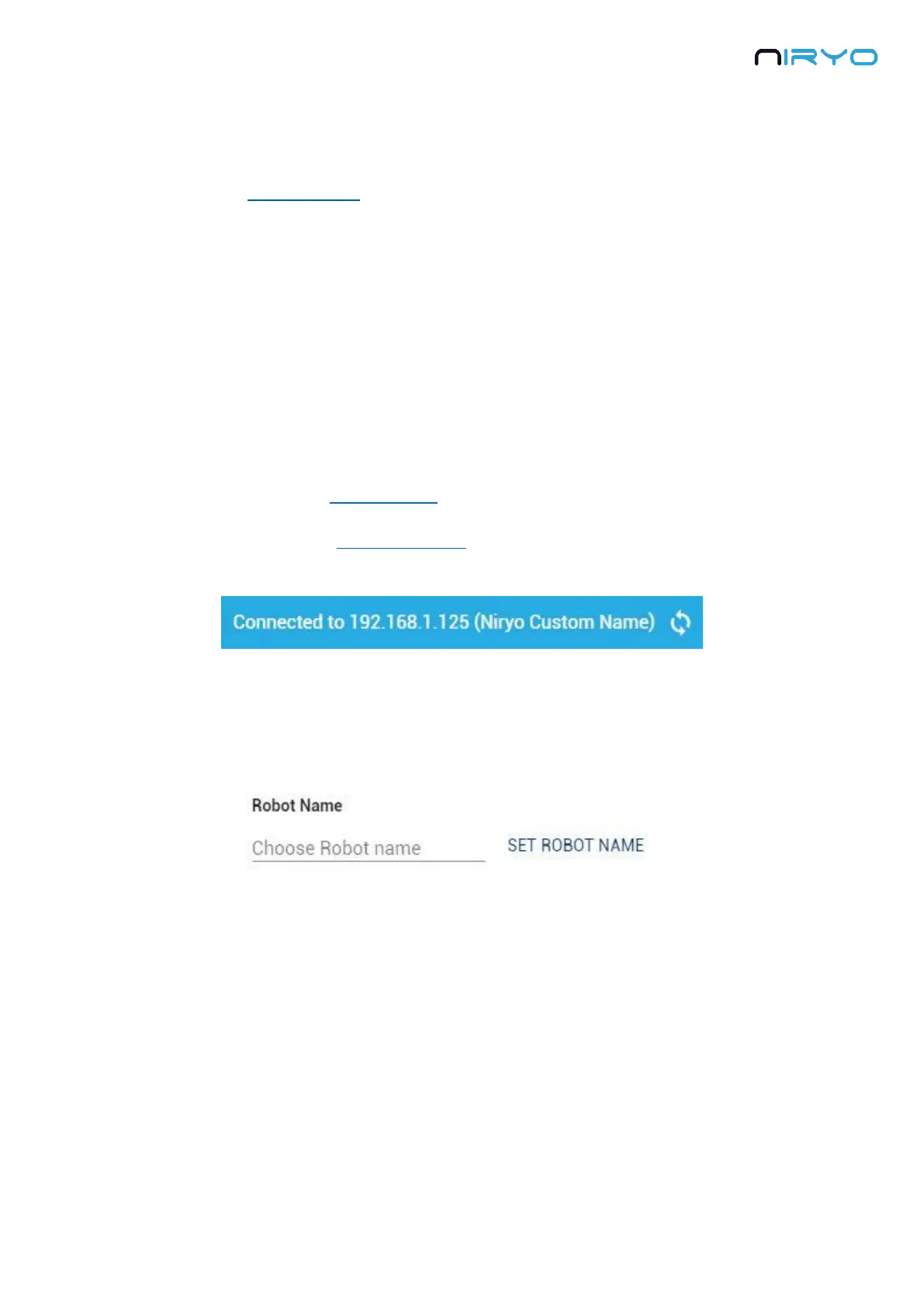
When the robot is in connected mode. In Niryo One Studio you will see the robot
represented both by its IP address and its custom name (if any).
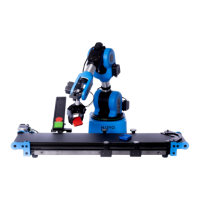
To change the name of your robot, go in the “Robot Wi-Fi Settings” panel of the “Settings”
tab.
Fill in the input text box and click on “Set robot name”.
You will have to reboot the robot so the new name can be applied.
3.6 Robot Calibration
After the robot has been successfully launched (LED green or blue), and before you can give a
move command to the robot, you will need to calibrate it. Also, if a Niryo Stepper motor was
disconnected and reconnected, a calibration will be required.
Make sure that you are connected to the robot (“hotspot mode”, “connected mode”, or with
an Ethernet cable).


 To Next Page