41
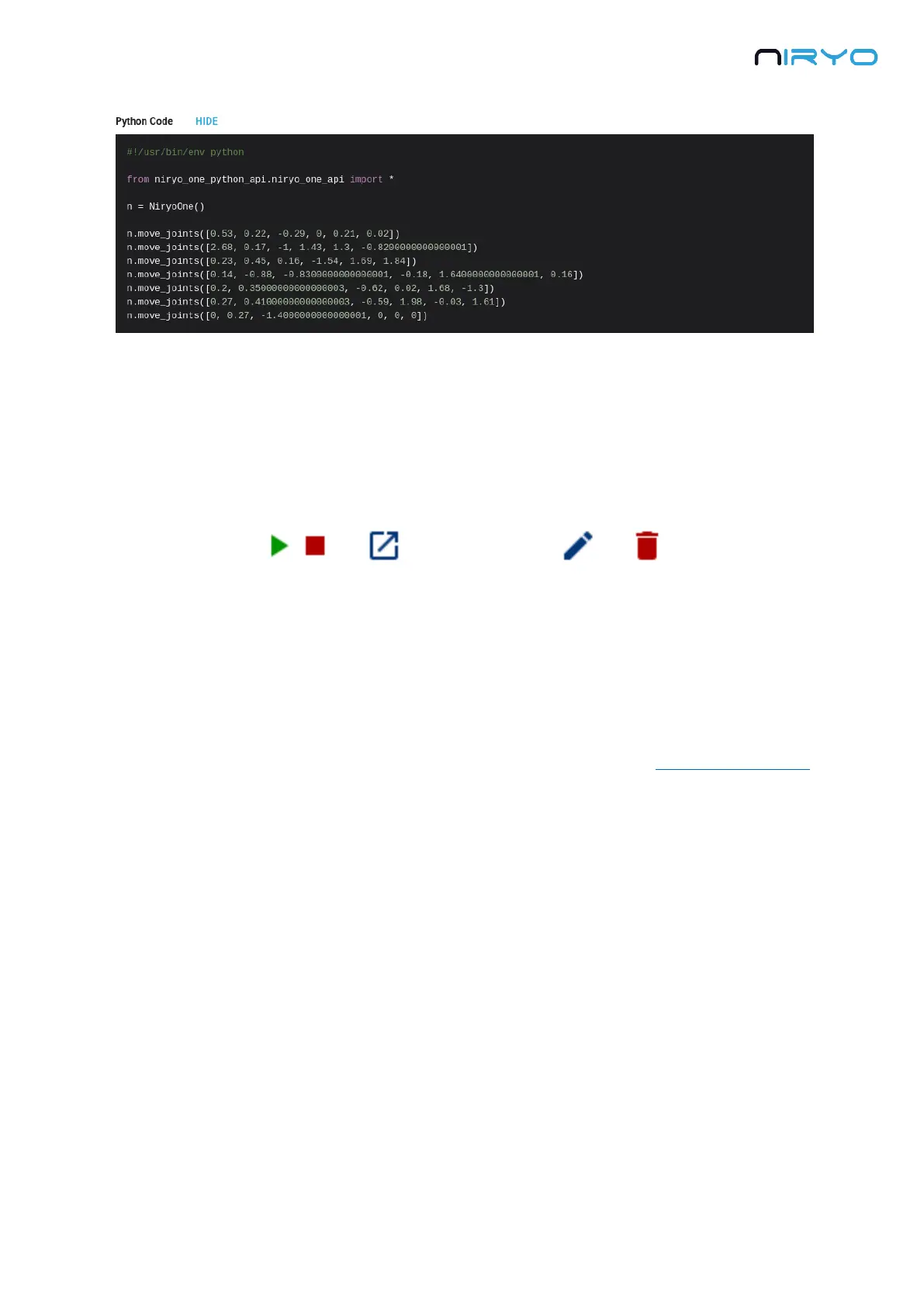
If you plan on using the Python API to control Niryo One, using Niryo Block first can be
helpful to get started with no programming language. You can see what Python code is
generated from your sequence, and when you feel more confident, you can switch to Python.
After the sequence details, you get a series of available actions.
From left to right:
1. Play the selected sequence (same as the “play” button on Niryo Blocks)
2. Stop the current sequence execution (same as the “stop” button on Niryo Blocks)
3. Open the sequence in Niryo Blocks. This will make you switch to the “Niryo Blocks” panel,
and the sequence will be added to the current workspace.
This functionality is very useful when you want to duplicate and create a new sequence
from an existing one.
4. Edit the sequence. You can modify the name, the description, and the Blockly XML.
5. Delete the sequence
4.7.2 Save a sequence from Niryo Blocks
When you click on the “import/export” icon button below Niryo Blocks workspace and then
choose “Save as a Sequence directly on the robot”, you will be redirected to the “Sequence”
panel to create and save a new sequence.


 To Next Page