19
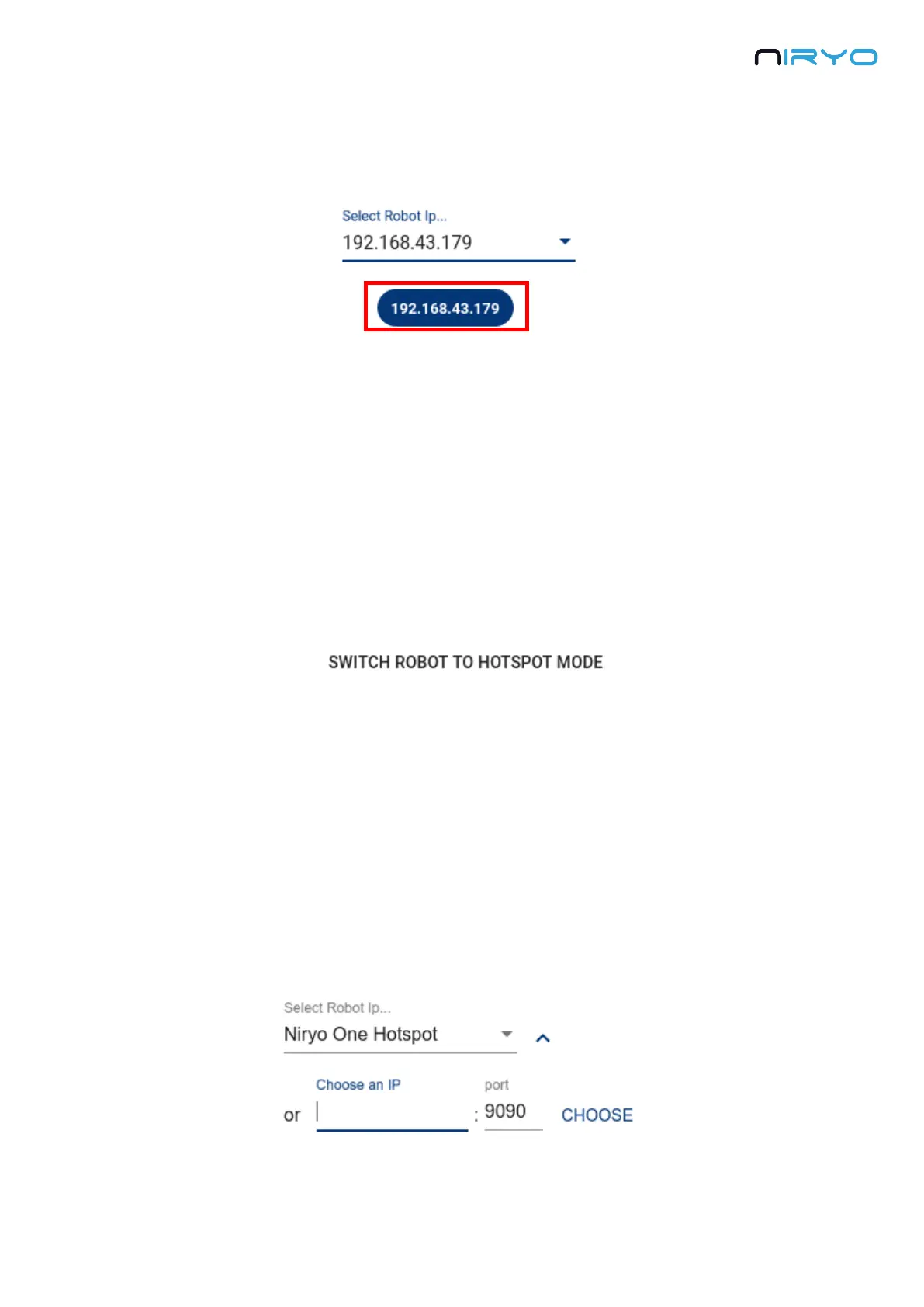
You can now click on the new displayed IP address (or name) to select it. Make sure that the IP
address is correctly shown in the deep blue chip. (The IP address you see here is the one used
for the entire application)
Now, click on “Connect to Niryo One” to connect Niryo One Studio to the robot.
3.5.5 Make the robot go back to “hotspot mode”
If, at any time, you want the robot to go back to “hotspot mode”, you can:
1. Press the top button for 7 consecutive seconds. Once the LED becomes blue, release the
button and the robot will switch to “hotspot mode”.
2. Or you can click on the “Switch robot to hotspot mode” button inside Niryo One Studio ->
“Settings” → “Robot Wi-Fi Settings”.
The robot will create its own Wi-Fi network and its IP address inside this network will be
10.10.10.10.
Using the top button can be useful if you “lost” the robot (you don’t know on which Wi-
Fi network the robot is connected to, or your computer doesn’t have access to the Wi-Fi
network to which the robot is connected)
3.5.6 Use another IP address (custom)
In the connection panel, you can click on the arrow to display more options. There is an input
box that you can use to choose any IP address and port you want.


 To Next Page