51
5.4.2 Debug motors one by one
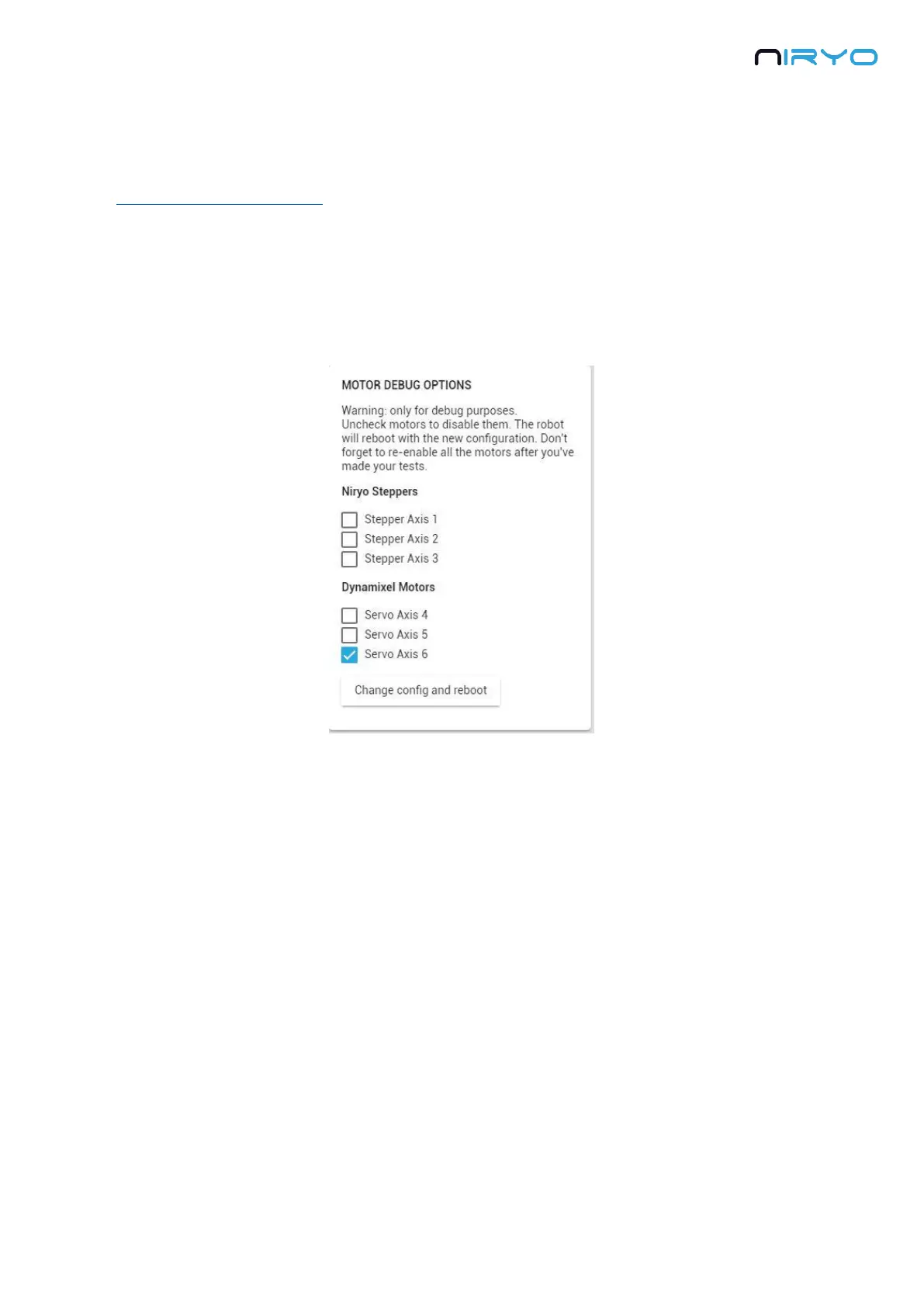
The “Motor debug options” section allows you to easily debug your robot when you have a
“Motor connection problem”, or any other kind of error due to a motor. If you are not sure
which motor is faulty or damaged, use this functionality to disable all motors but the one you
want to test.
For example, you noticed that the robot is not able to communicate with Dynamixel motors.
What you can do is disable all motors, try to launch the robot, and then enable one motor at a
time.
Click on “Change config and reboot” to apply the new configuration. The robot will then
reboot, don’t power it off.
When you disable a motor, the axis corresponding to the motor will be in simulation
mode. Hence, you’ll see the robot moving in the 3D view, but the physical motor won’t be
connected and won’t move.
⚠ If you debug some motors, make sure that you re-enable all motors after that, or else
some axis will not work.
⚠ Only for debug purposes, not for normal use of the robot.


 To Next Page