PROPlus / PRO Series Automated Dispensing Systems
84 www.nordsonefd.com info@nordsonefd.com +1-401-431-7000 Sales and service of Nordson EFD dispensing systems are available worldwide.
How to Use Marks to Dispense onto a Plain Workpiece (continued)
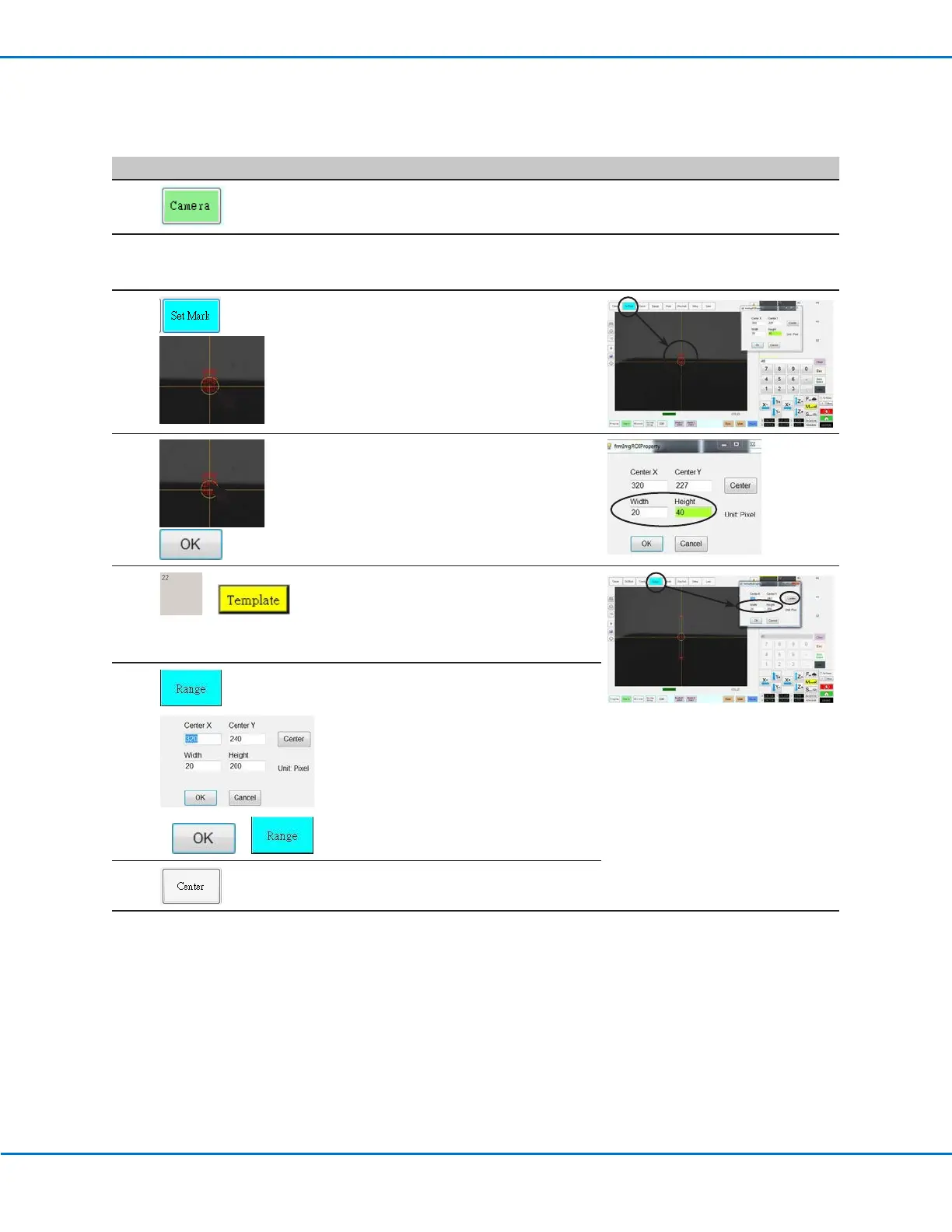
To Create Horizontal and Vertical Marks on a Plain Workpiece
# Click Step Reference Image
1
• Click CAMERA to go to the camera
screen.
2
• Bring the image into focus. Refer to
“Camera” on page17 as needed for
instructions on focusing the camera.
3
>
• Click SET MARK, then click and drag a
red rectangle over the first horizontal
target on the workpiece.
• Center the red rectangle on the edge of
the workpiece by clicking and dragging
a corner.
4
>
• Double-click the crosshairs in the center
of the red rectangle and then enter the
desired values for Width and Height (20
and 40 in this example).
• Click OK to save the values.
5
>
• Click a socket in the Mark Library to
save the mark, then click TEMPLATE
when the Template Match window
appears.
• Make a note of the Mark No.
6
>
> >
• Click RANGE to set where the system
searches for the mark.
• Double-click in the center of the mark
and enter Width and Height values.
NOTE: For horizontal marks, the Width
value must be the same as the Width
specified previously (20 in this example).
• Click OK.
• Click RANGE again to save.
7
• Click CENTER.
Continued on next page


 To Next Page