NOVA chat User’s Guide Page 137
Updating the Application
Be sure to check for available software updates on a regular basis. You
must be connected to WiFi to download updates automatically. To enable
WiFi, be sure that Kiosk Mode is disabled, choose Home > Settings > WiFi,
and turn WiFi on.
Downloading and Installing Updates Automatically
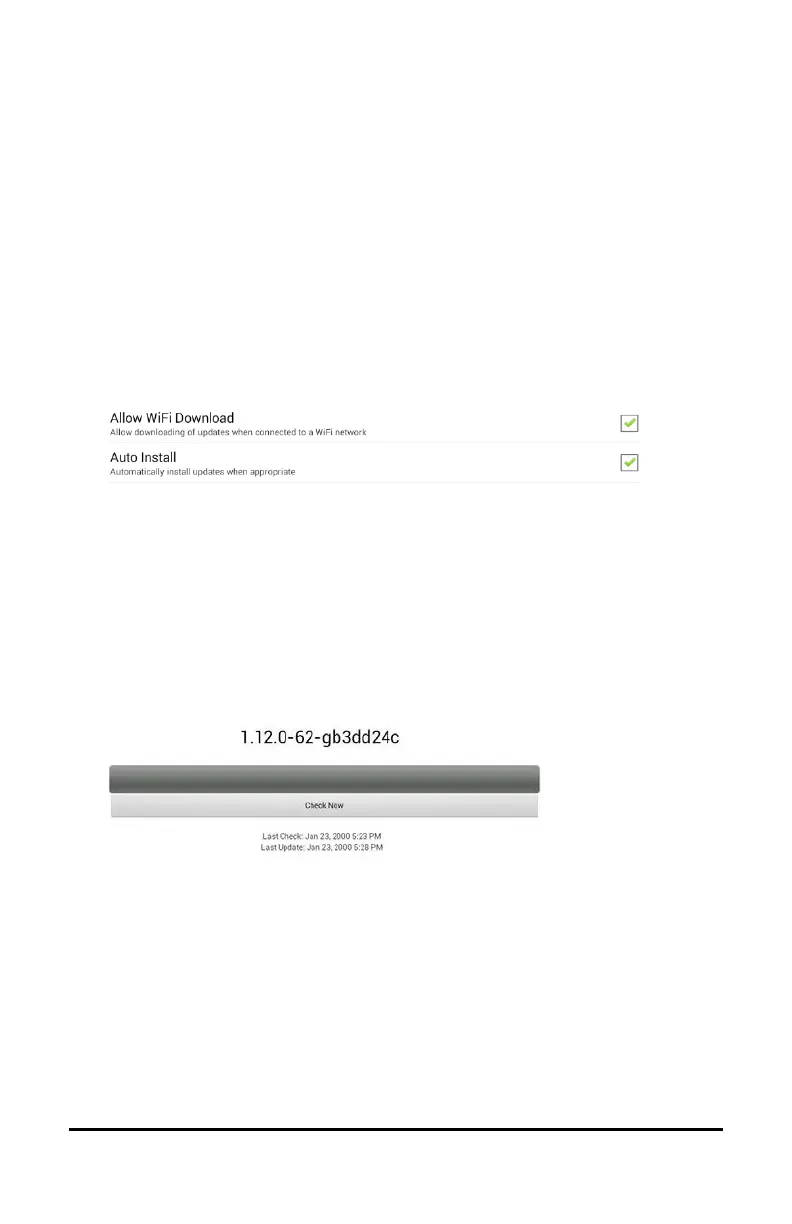
The “Allow WiFi Download” and “Auto Install” options are selected by
default on your device. Leave both options selected. To verify that the
options are selected:
1. Choose Menu > Help > Check for Updates > Menu.
2. If either option is not selected, select the box to insert a green
checkmark.
To check for, download, and install updates:
1. Choose Menu > Help. The Help screen will be displayed.
2. Choose Check for Updates. A screen will show “Check Now” along
with the current software version, when you last checked for
updates, and the date and time of the last update.
3. To check for available updates, choose Check Now.
4. When the system finds one or more updates to install, a window
will give you the option to install the update software or cancel.
5. Choose Install. “Installing” will be displayed below a progress bar
while the installation is in progress.
Note: The number of updates to install can vary. When prompted,
follow the on-screen instructions.
6. When the installation is complete, the screen will show “The Update
Completed Successfully”.



 To Next Page