NOVA chat User’s Guide Page 60
Notes on Capturing Button Sequences
If you need to try several sequences to find the one you want, turn off
Capture Selections. Once you decide what you want to capture, turn
Capture Selections back on. If you make a mistake, select Clear and start
capturing the sequence again. Keep in mind that Clear removes all
captured content from the Button Capture window.
Turning Edit Mode On
To edit a vocabulary file or any resource linked to it (pages, buttons, etc.),
you must activate Edit Mode. You can edit a vocabulary file on the device
or by using Chat Editor.
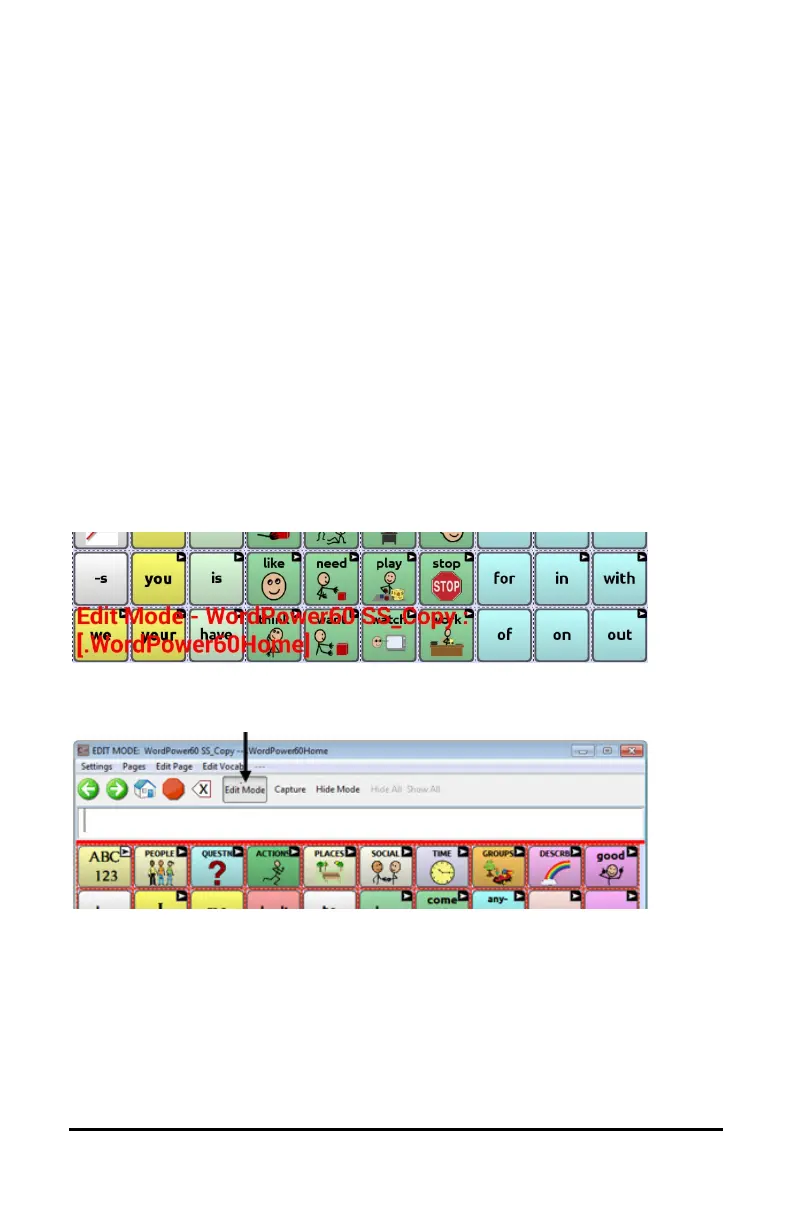
Device: Choose Menu > Edit Mode. All the buttons are outlined, and the
words “Edit Mode”, followed by the current vocabulary and page names,
appear in red across the bottom row of keys.
Editor: Choose Edit Mode from the menu bar. All the buttons are
outlined and “Edit Mode” is selected.
Important! Before you start editing a vocabulary file:
Copying a file from one platform to another will overwrite the existing
file. To avoid overwriting others’ changes, coordinate with anyone else
who may edit vocabulary files to make sure that you are working with
the current copy. Always copy the file with changes to the other platform.
This will ensure that both the device and the Editor are current.



 To Next Page