NOVA chat User’s Guide Page 88
Example: Add a Smiley Face and Laugh Sound to a
Button
A button can be set up with the command in the message. However, if
you use the “speech message” action, the command appears in the
Speech Display Bar (SDB), which isn't ideal. A better way may be to set
up a button with an emoticon symbol in the message.
For example, you could use a smiley face symbol. Note that you may
need to go to Settings > Keyboards and add the Emoji keyboard so that
you can type emoticon symbols. Once the button is set up with the
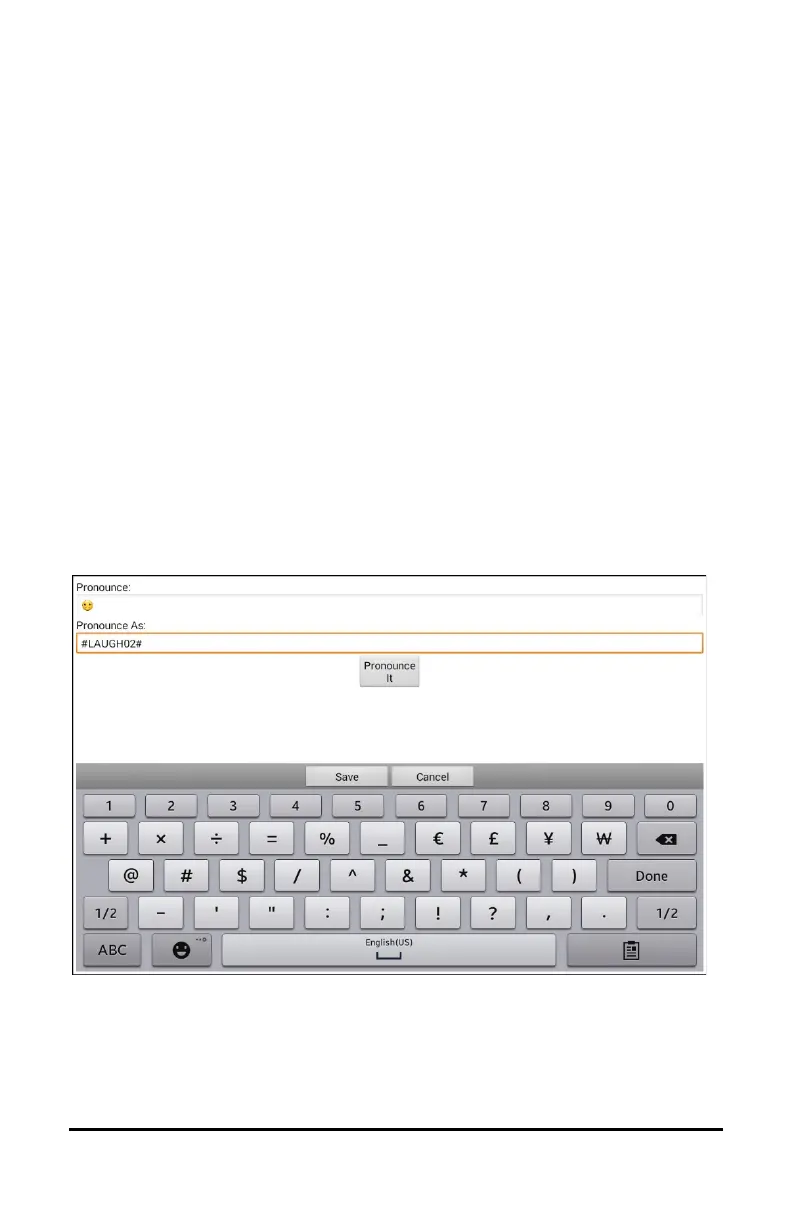
emoticon and speech message, go to Pronunciations and add a
pronunciation for the smiley face emoticon. Enter a command such as
#LAUGH02# for the pronunciation.
The Pronunciation Editor can be found in Settings > Speech Output >
Voice > Pronunciations. Choose Menu and New, Add the same
Emoticon used on the button to the Pronounce box and add the
command—for example, #LAUGH02#—to the Pronounce As box.
Now when you touch the button, the emoticon will appear in the
Speech Display Bar and the laugh sound will be heard.



 To Next Page