NOVA chat User’s Guide Page 112
11. Choose Menu. Two menu options are displayed: Set as Default and
Delete Scan Pattern & Quit. Choose Set As Default. The following
prompt will be displayed:
Setting this scan pattern as the default will overwrite the scan patterns of other
pages. Are you sure you wish to continue?
12. Choose Yes to confirm that you want to use this pattern.
13. Choose Save. The scan pattern you created will be applied to all
pages in the vocabulary.
Deleting a Custom Scan Pattern from One Page
If you no longer need a custom scan pattern that you applied to a page,
follow these steps to delete it.
1. Choose Menu > Edit Mode > Pages.
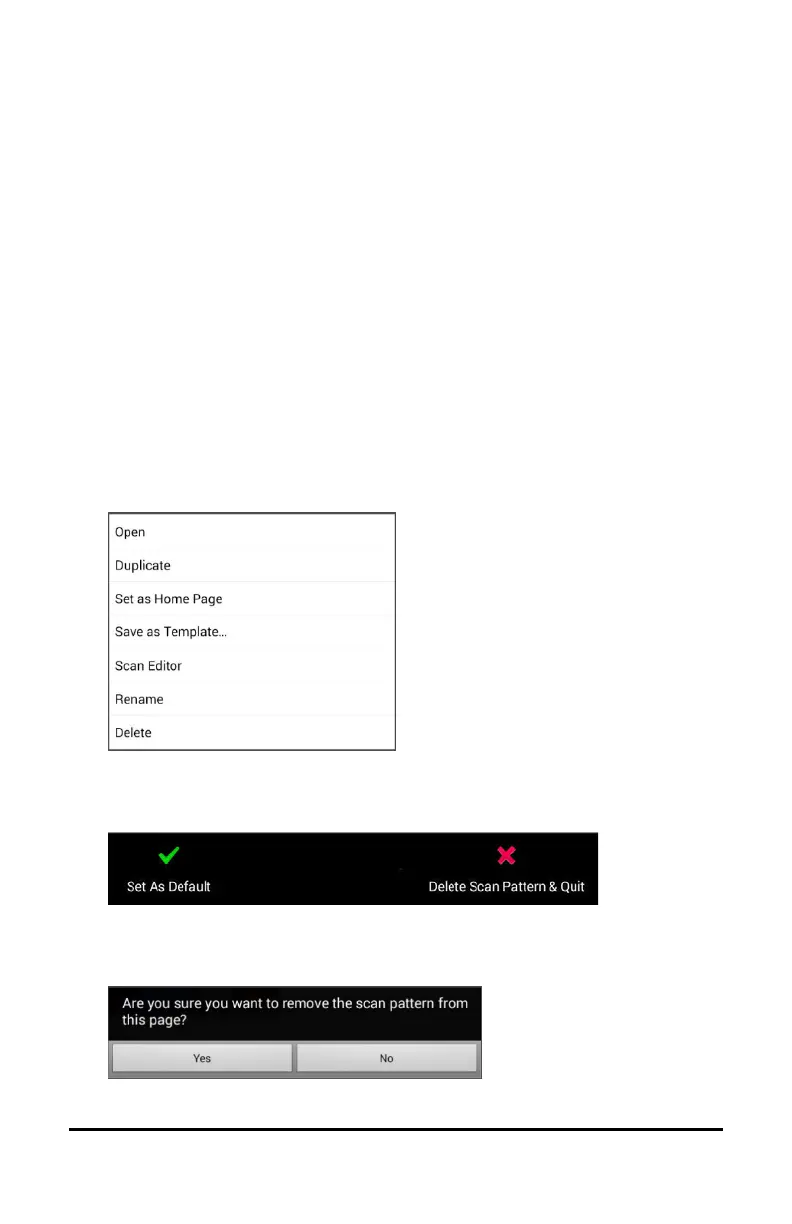
2. Choose the page that has the custom scan pattern. The following
menu will open:
3. Choose Scan Editor. The custom scan pattern will be displayed.
4. Choose Menu. An additional menu will open.
5. Choose Delete Scan Pattern & Quit. A confirmation prompt will be
displayed.
6. Choose Yes.



 To Next Page