NOVA chat User’s Guide Page 59
Using Chat Editor to Create Instructional Materials
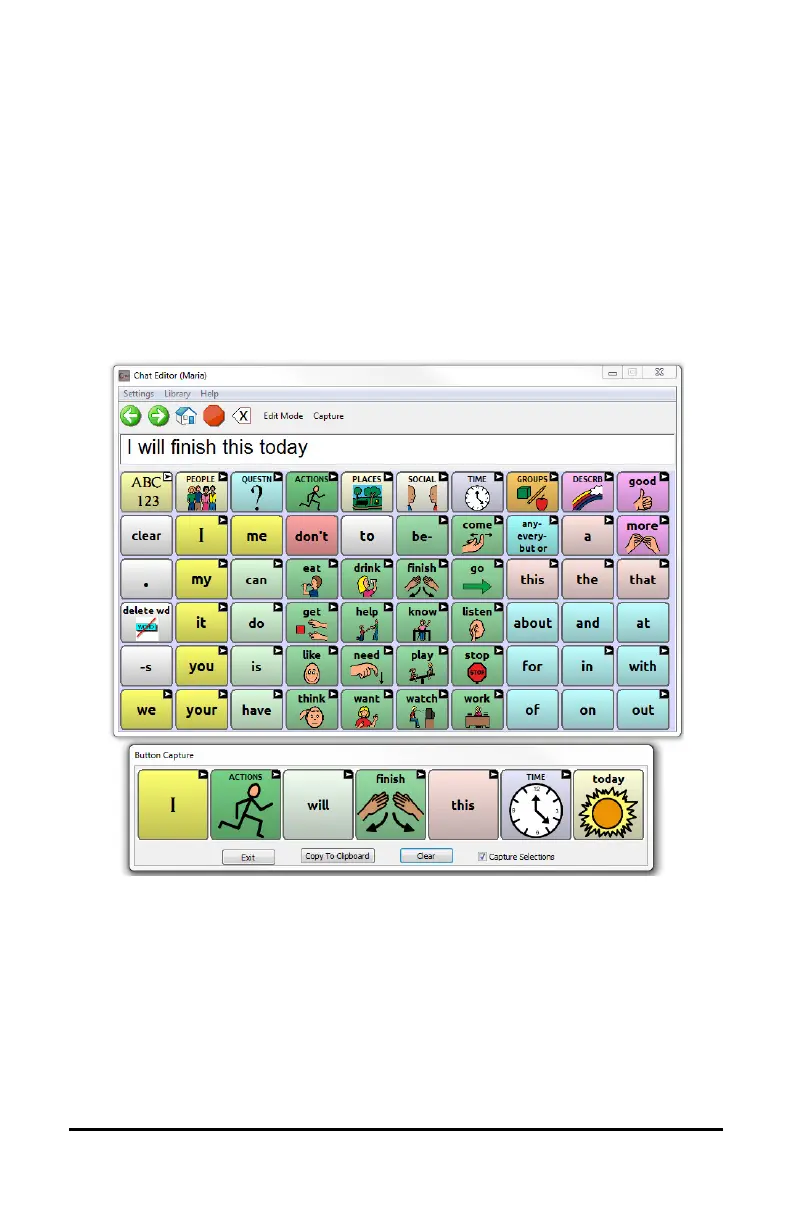
Capture sequences of buttons from screens in Chat Editor to paste into
instructional materials you create such as Word documents, PowerPoint
presentations, flash cards, etc.
1. In Chat Editor, choose Capture in the top section of the Editor
window. The Button Capture window will open.
2. With Capture Selections selected, start selecting the buttons you
want to appear in your document. Each button you select will be
captured in the Button Capture window.
3. When you finish capturing a sequence of buttons, choose Copy to
Clipboard. The sequence will be cleared from the Button Capture
window.
4. In your document, insert the cursor and select Paste. The sequence
will be pasted into the document.
5. Capture the next sequence.
6. When you finish capturing sequences, select Exit to close the Button
Capture window.



 To Next Page