NOVA chat User’s Guide Page 105
Choosing a Voice
When choosing a voice to use for the auditory prompts, it can be helpful
to choose a different voice than the one the system uses for speaking
messages.
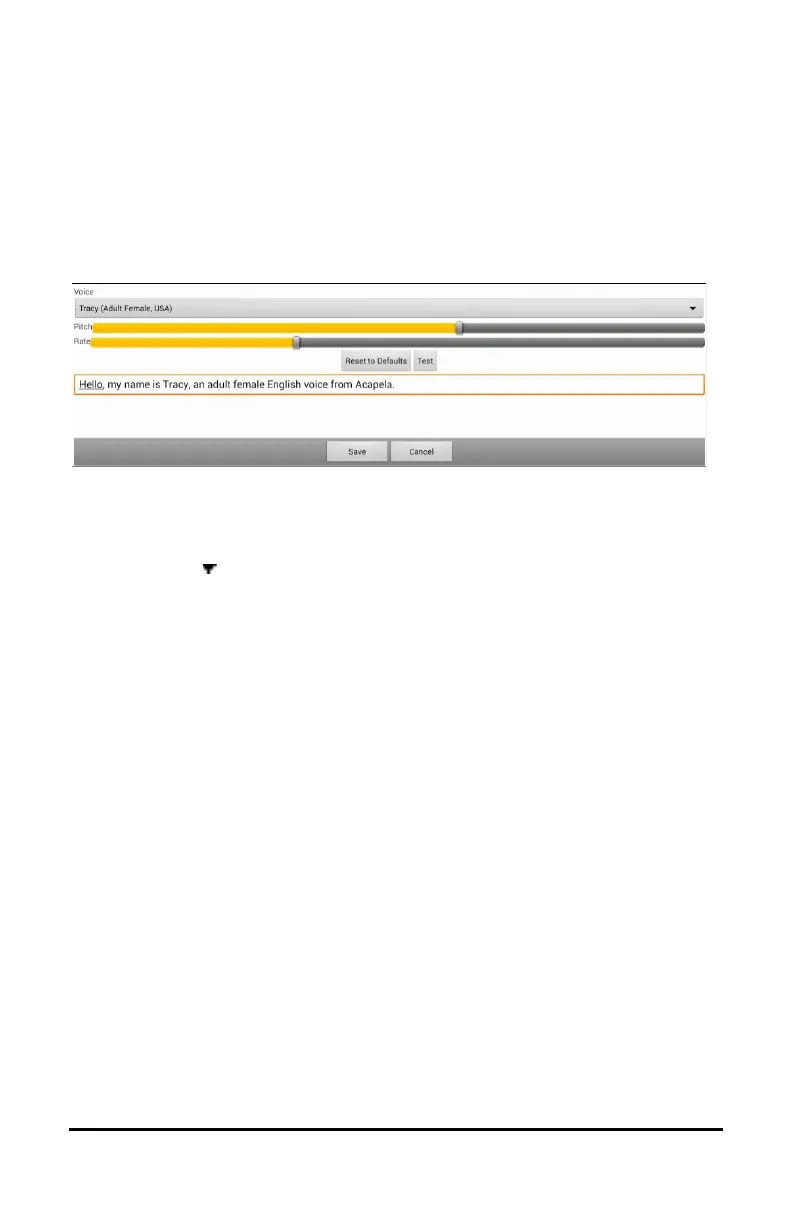
To change the voice, choose Menu > Settings > Input > Scanning >
Auditory Prompts > Voice Settings.
Note: Pitch is available as an option only if Acapela is selected as the
synthesizer.
Tap the arrow to the right of the currently selected voice to open a list
of voices. Choose the voice you want. If necessary, adjust the voice’s
pitch or talking speed:
1. Slide your finger along the Pitch or Rate bar or tap a bar at a specific
point.
2. Tap Test to make sure that you selected the pitch or rate you want.
3. If not, adjust the setting and tap Test again.
4. When the voice is set the way you want, tap Save.
Note: If you want to name an auditory prompt for a row or group, see
“Configuring Custom Scan Patterns” on page 105.
Configuring Custom Scan Patterns
Use the Scan Editor to create and save custom scan patterns for the user.
You can set up a scan pattern for all pages in a vocabulary, then set up
different patterns for specific pages, such as keyboard pages.
Note: If you also want to set up visual effects for the user, see
“Configuring Visual Effects for Scanning” on page 114.



 To Next Page