NOVA chat User’s Guide Page 92
Using Orientation Tilt with the SDB
We know there are times that using the voice output might not be
appropriate but communication is still needed. This might be a library or
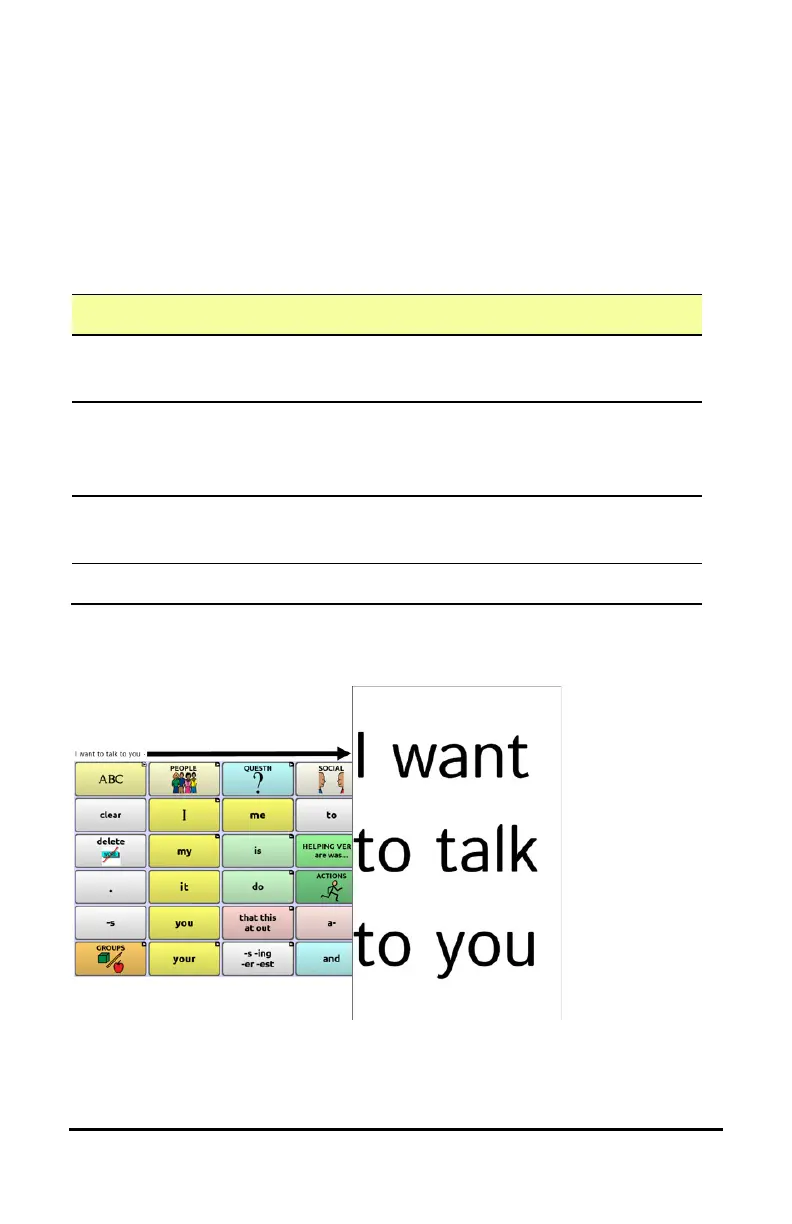
church setting. The tilt option offers an Expand option of the Speech
Display Bar to offer the communication partner an expanded version of
the text. This might also be of value in an extremely loud environment.
To set the tilt options, choose Menu > Settings > Input > Tilt > Action.
Option Description
Expand and
Speak
When the device is tilted, the text in the speech
display bar will fill the screen and be spoken.
Expand Only When the device is tilted, the text in the speech
display bar will fill the screen and no sound will be
made.
Auto Change
Orientation
The screen will shift orientation automatically when
the device is tilted.
No Action The screen will be locked in the current orientation.
If you select Expand and Speak or Expand Only, you can expand the
Speech Display Bar for easier viewing by tilting the device.
Tilting the device back will redraw the vocabulary page. For information
on using and customizing the Speech Display Bar, see “Using the Speech
Display Bar” on page 43.



 To Next Page