NOVA chat User’s Guide Page 70
Modifying Button Styles
You can modify styles and color saturation for individual buttons, all
buttons on a page, or all buttons in a vocabulary file. You can also override
button styles set up for pages and vocabulary files for a single button.
Modifying a Button Style
You can only modify a button’s style in Edit Mode.
1. Choose Menu > Edit Mode
.
2. Press and hold a button. (Right-click if you are using the Editor.) A
list of button options appears.
3. Choose Edit Button to display the Button Properties.
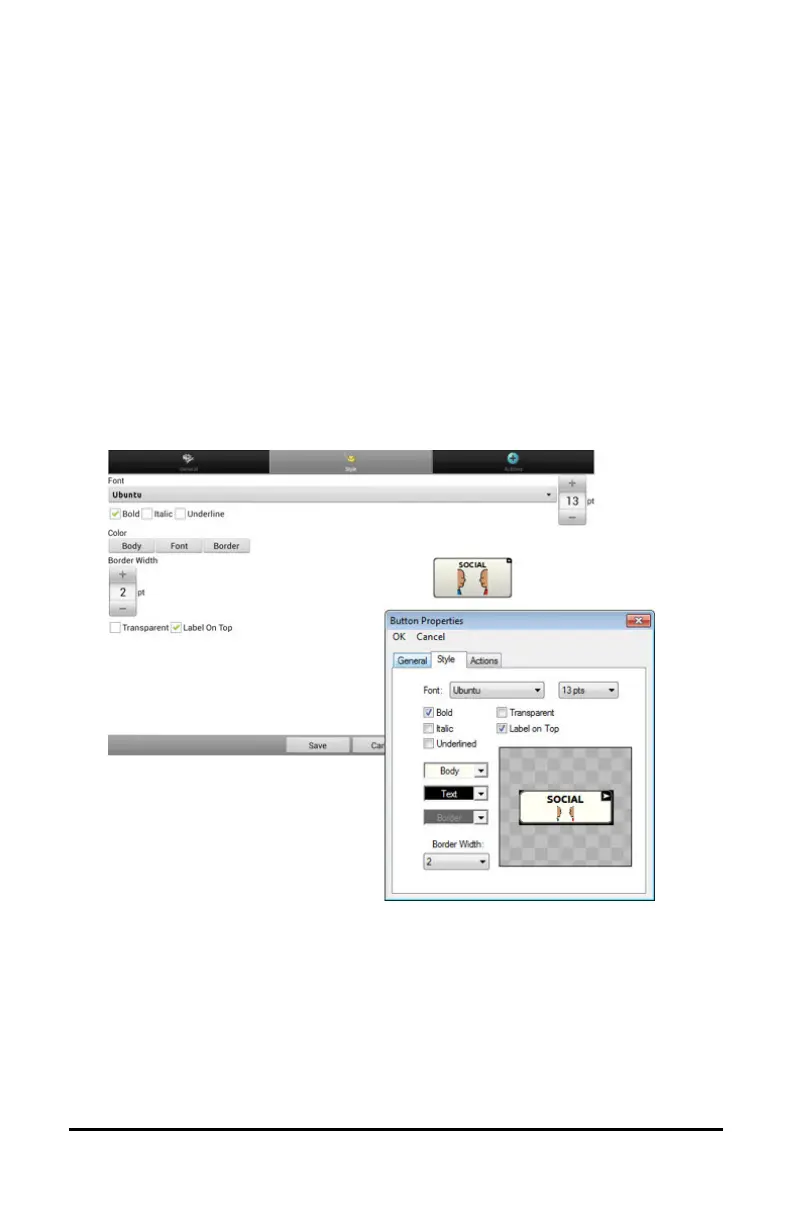
4. Choose the Style tab. The button style properties are displayed.
5. Use the pull-down lists to select the font color, body color, border
color, font, size, shape, and border width for the button.
6. Check Label on Top to define the label position.
7. Check Bold, Italic, or Underlined to modify label text.
8. If you want to create a visual scene in which the location speaks but
the button itself does not appear, choose Transparent.
9. When you finish making changes, choose Save.



 To Next Page