NOVA chat User’s Guide Page 73
Modifying a Button Arrow Link
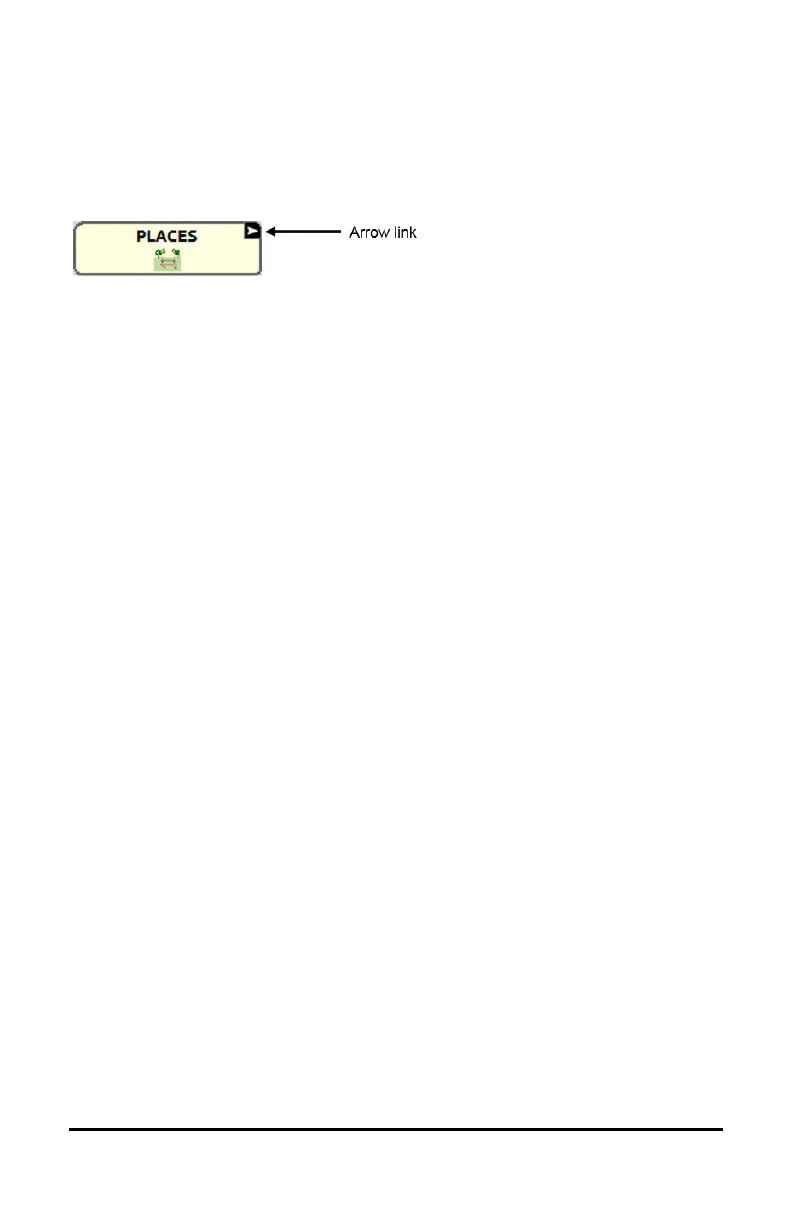
Linking buttons display a linking arrow in the upper right corner of the
button. The arrow indicates that the button will take you to a different
page. You can resize or hide the linking arrow.
To resize a linking arrow:
1. Choose Menu > Settings > Style.
2. Under “Modifiers”, choose Size. The Select a Size menu opens.
3. Choose Smallest, Small, Normal, Large, or Largest.
If you are using the Editor, select Settings > Style > Button Style. The
Button Style menu window opens. Under Button Modifiers, select the
size you want and select OK.
To hide a linking arrow:
1. Choose Menu > Settings > Style.
2. Under “Modifiers”, choose Size. The Select a Size menu opens.
3. Choose Hide.
If you are using the Editor, select Settings > Style > Button Style. The
Button Style menu window opens. Under Button Modifiers, select No
Show and select OK.



 To Next Page