- 94 -
Video/H.265/H.264 to AVI/MP4 Conversion Utility
To run the Video/H.265/H.264 to AVI/MP4 Conversion Utility under MS-Windows,
please select Start → Programs → Hyper Electronics Mappers → Media Converter or
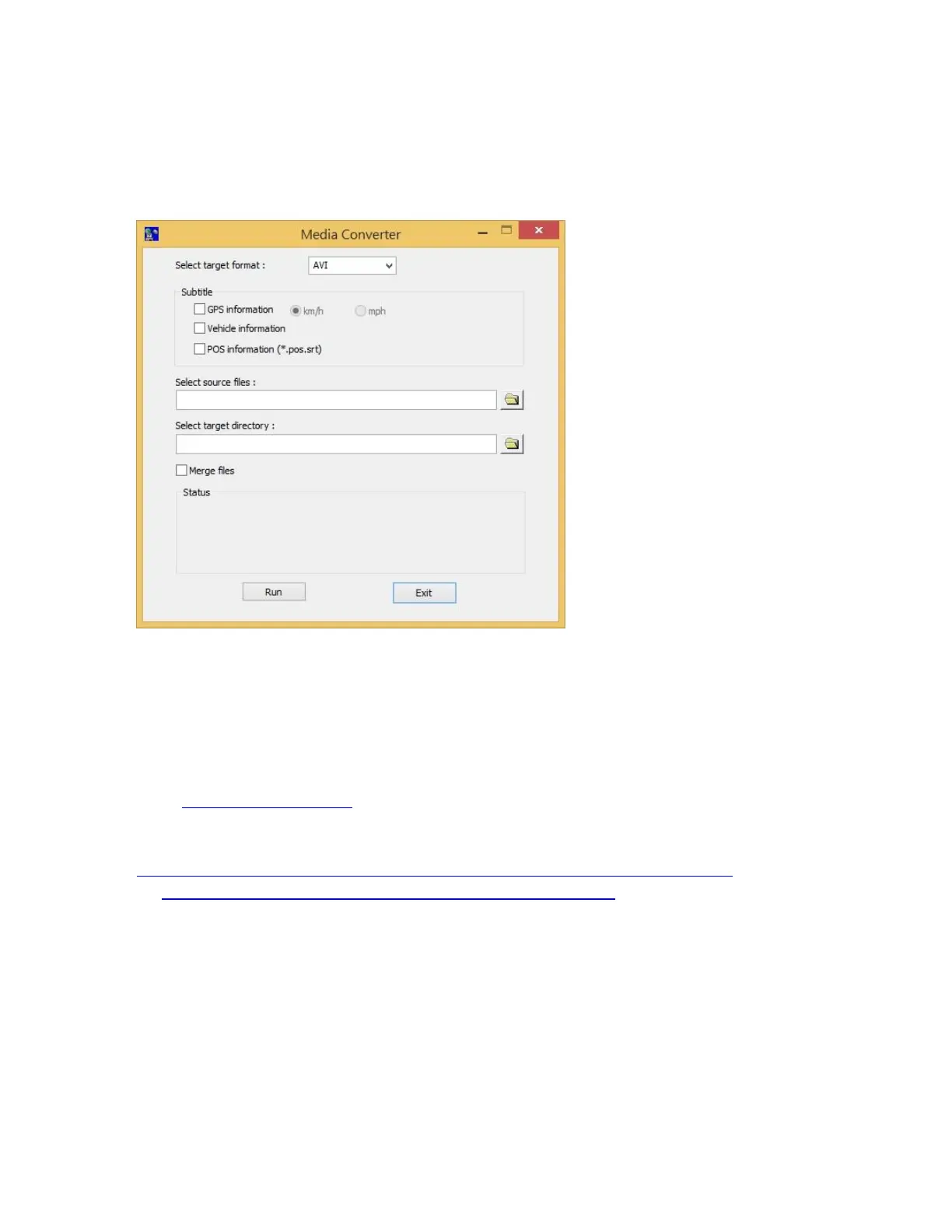
double-click on the file Media_Converter.EXE, and the screen will be shown as below.
Please select the target format – AVI or MP4, the source files – .Video/H265/H264 files
archived from DVR, remote I.E., HEM, and FTP file transfer – to be converted from, the
target directory to save the converted files, and check “Merge files” if you want chained
backup files to be converted into one AVI/MP4 file, and then click on OK to do the
conversion. If there’s POS/GPS data for the files, please check the related items in
[Subtitle]. The converted .AVI or .MP4 files can be played by Windows Media Player if
DivX (http://www.divx.com/) or the other H.265/264 decoder is installed in the PC.
To display subtitle in Media Player, please refer to
http://www.brighthub.com/computing/windows-platform/articles/41466.aspx and logon
to http://www.videohelp.com/software/VSFilter-DirectVobSub to download and install
VSFilter / DirectVobSub. In Media Player, right click to display the menu and select
[Lyrics, captions and subtitles] → [On if available] and enable it.
To display subtitle in VLC Player, please select [Tools] → [Preferences] → [Subtitles/OSD]
and check [Enable subtitles].



 To Next Page