10 Conducting the Examination with a Computer/Laptop
38 / 86 Instruction Manual Mesotest II (G/62800/0715/en)
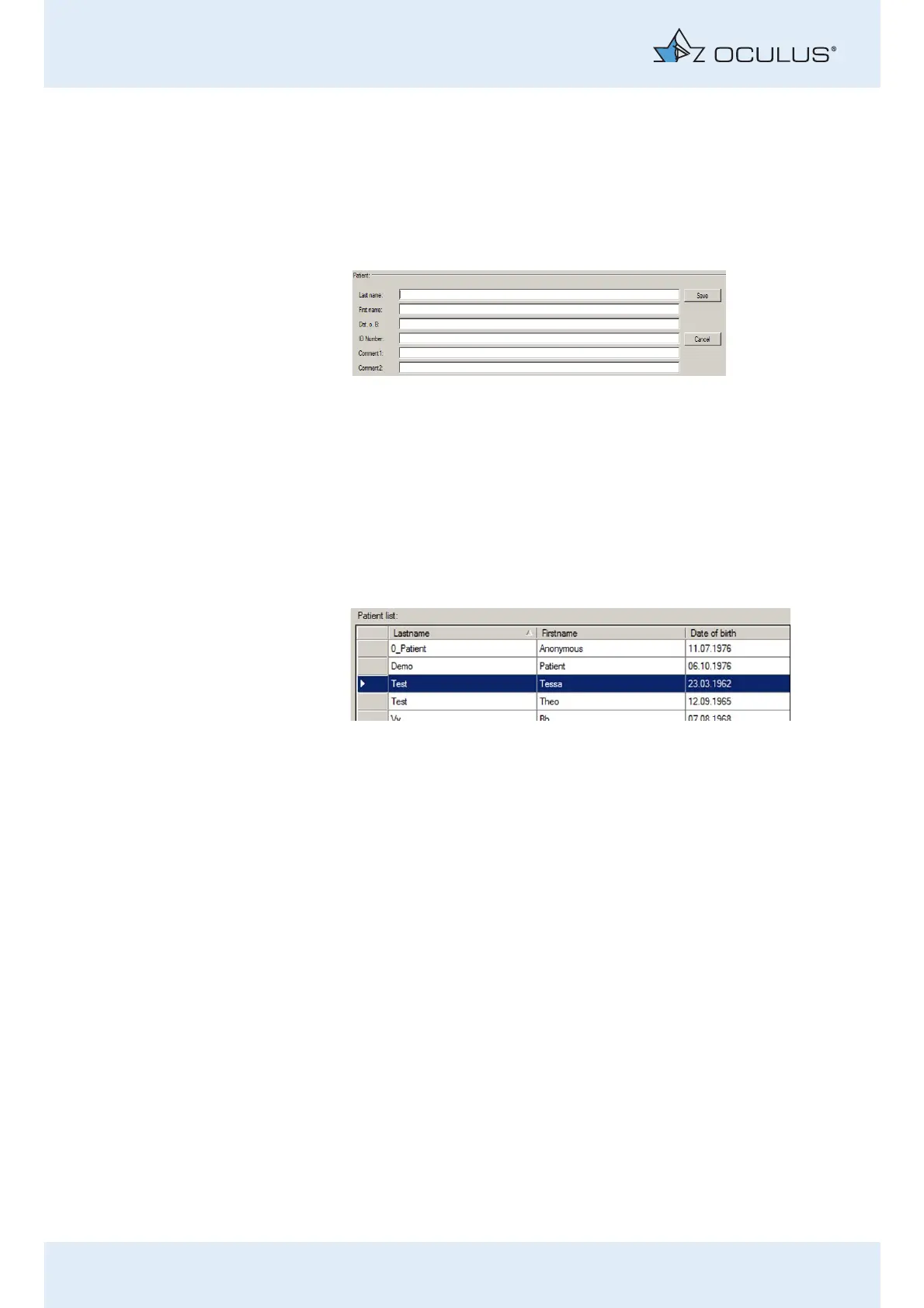
10.3.2 Entering a New Patient
Press the [New] button to enter a new patient in the Patient Data
Management system.
Enter the patient’s last name, first name and date of birth in the
patient window.
Optionally you can enter an ID number for the patient.
To save the data you entered, click [Save].
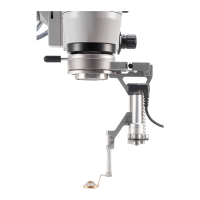
The patient you have just entered now appears in the patient list.
10.3.3 Selecting an Existing Patient
The patient data list on the left-hand side of the screen displays all
previously examined patients in alphabetical order.
Choose [Search] to quickly find the patient you are looking for in the
list.
Enter the patient’s name or the first letter of the name in the “Last
name” field.
Alternatively, you can search for the patient using an ID number,
first name or date of birth, assuming that one was assigned when the
patient was first recorded.
To transfer the patient’s name to the patient window, click the entry
that you need in the list. This also brings up a list of any previous
examinations for that patient in the examination window (bottom
right side).
Fig. 10-13: Entering patients
Fig. 10-14: Patient list


 To Next Page