10 Conducting the Examination with a Computer/Laptop
46 / 86 Instruction Manual Mesotest II (G/62800/0715/en)
10.6 Finishing the Exam
Press the button [Back] to end the examination.
In the dialogue, select whether the data are to be saved or not.
You are then returned to the Mesotest II main menu. You can now
Start a new examination (sec. 10.4, page 39).
Change patients. To do this, press the button [Select patient].
Clean and disinfect viewer enclosure after each exam, sec. 13.2,
page 69.
10.7 Load Existing Examination
You can load an existing examination, e.g. in order to print it out.
If you are working with the OCULUS Patient Data Management, you can
load an existing examination from there.
Double click on the desired examination in the list of examinations,
fig. 10-12, page 37, item 2.
The examination is displayed in the examination menu
If you are not working with the OCULUS Patient Data Management, you
can nevertheless load an existing examination. To do so, you must have
activated the appropriate button in the settings, (fig. 10-7, page 32, item
9).
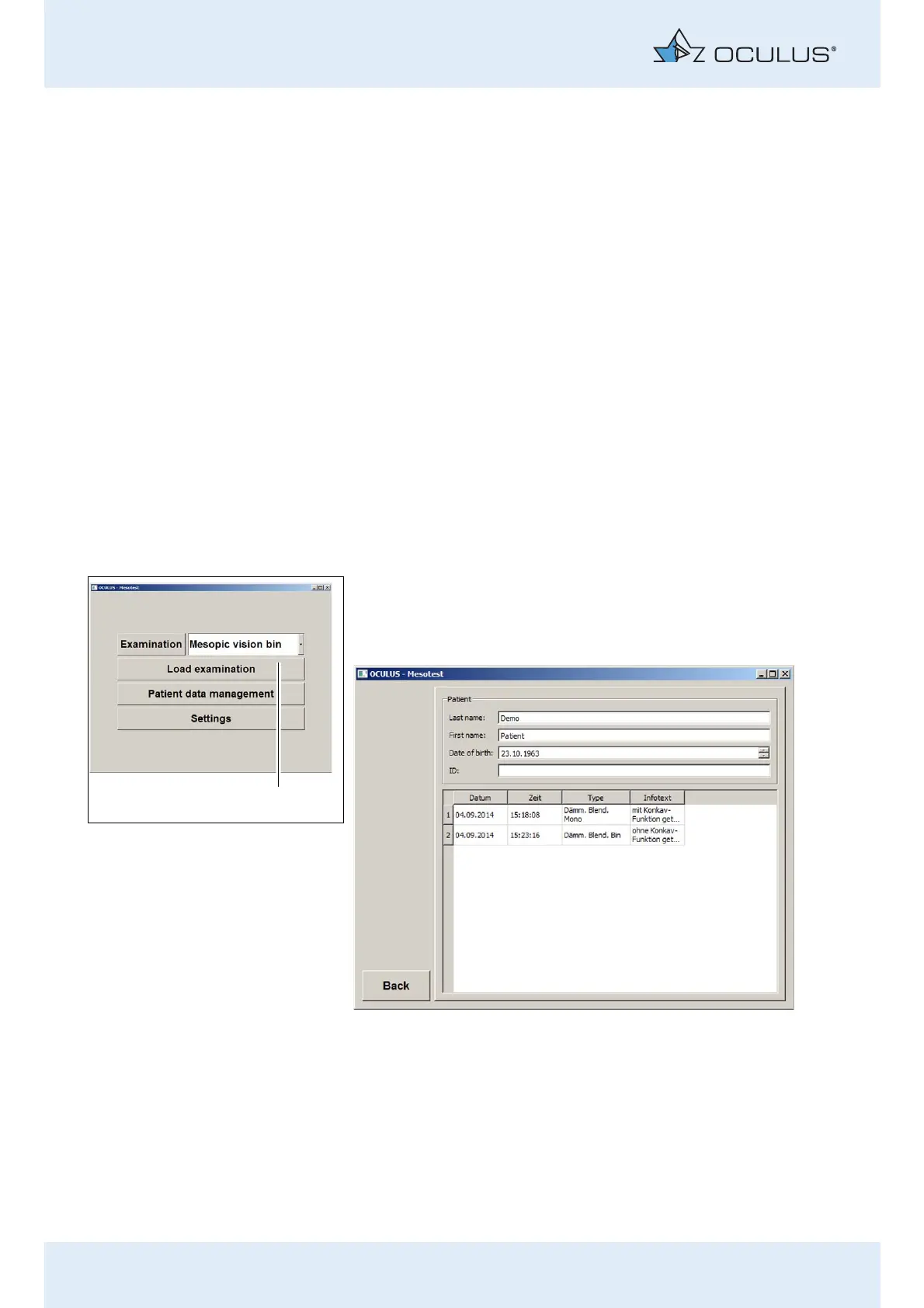
Press the button (1).
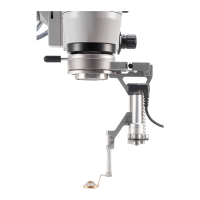
Move the cursor to the desired examination.
Double-click on that examination.
The examination is displayed in the examination menu.
If you do not want to load any of the examinations, press the [Back]
button. This returns you to the Mesotest II menu.
Fig. 10-21: [Load examination] button
Fig. 10-22: Loading an examination without using the OCULUS Patient Data Management


 To Next Page