range Pi 用户手册 深圳市迅龙软件有限公司版权所有
www.orangepi.cn 16 www.xunlong.tv
2) Then use a card reader to insert the TF card into the computer
3) Download balenaEtcher software, the download address is
https://www.balena.io/etcher/
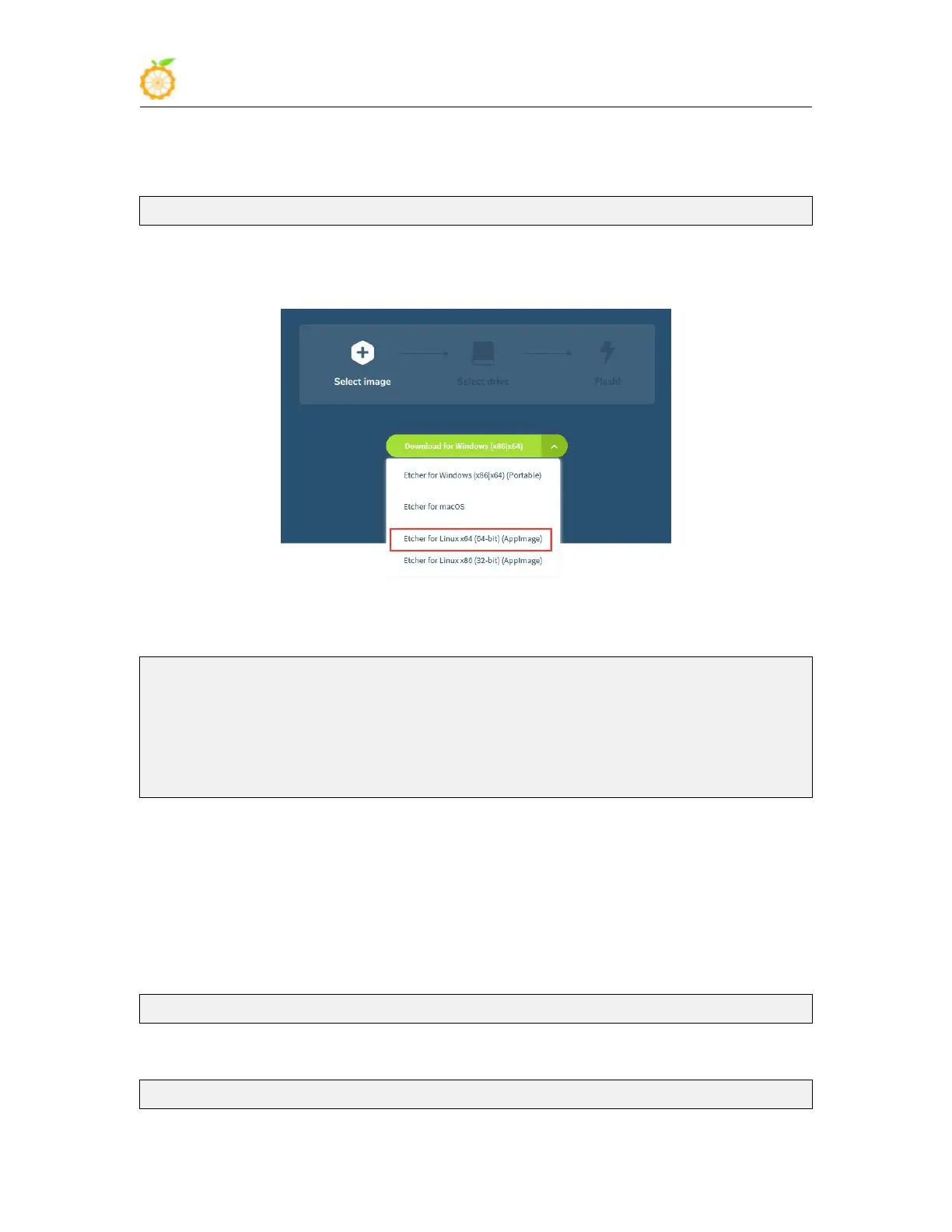
4) After entering the balenaEtcher download page, please select the Linux version of the
software through the drop-down box to download
5) After downloading, use unzip to decompress, the decompressed
balenaEtcher-1.5.109-x64.AppImage is the software needed for burning
test@test:~$ unzip balena-etcher-electron-1.5.109-linux-x64.zip
Archive: balena-etcher-electron-1.5.109-linux-x64.zip
inflating: balenaEtcher-1.5.109-x64.AppImage
test@test:~$ ls
balenaEtcher-1.5.109-x64.AppImage balena-etcher-electron-1.5.109-linux-x64.zip
6) Download the Linux operating system image file compression package you want to
burn from the Orange Pi data download page, and then use the decompression software to
decompress it. In the decompressed file, the file ending with ".img" is the operating
system image file. The size is generally above 1GB
a. The decompression command of the compressed package at the end of 7z is as
follows
test@test:~$ 7z x image_filename.7z
b. The decompression command for the compressed package at the end of tar.gz is
as follows
test@test:~$ tar -zxf image_filename.tar.gz


 To Next Page