45
1
2
3
4
5
6
7
8
1
2
3
4
5
6
7
8
Stand
NO
Drive
Stand
and
Drive
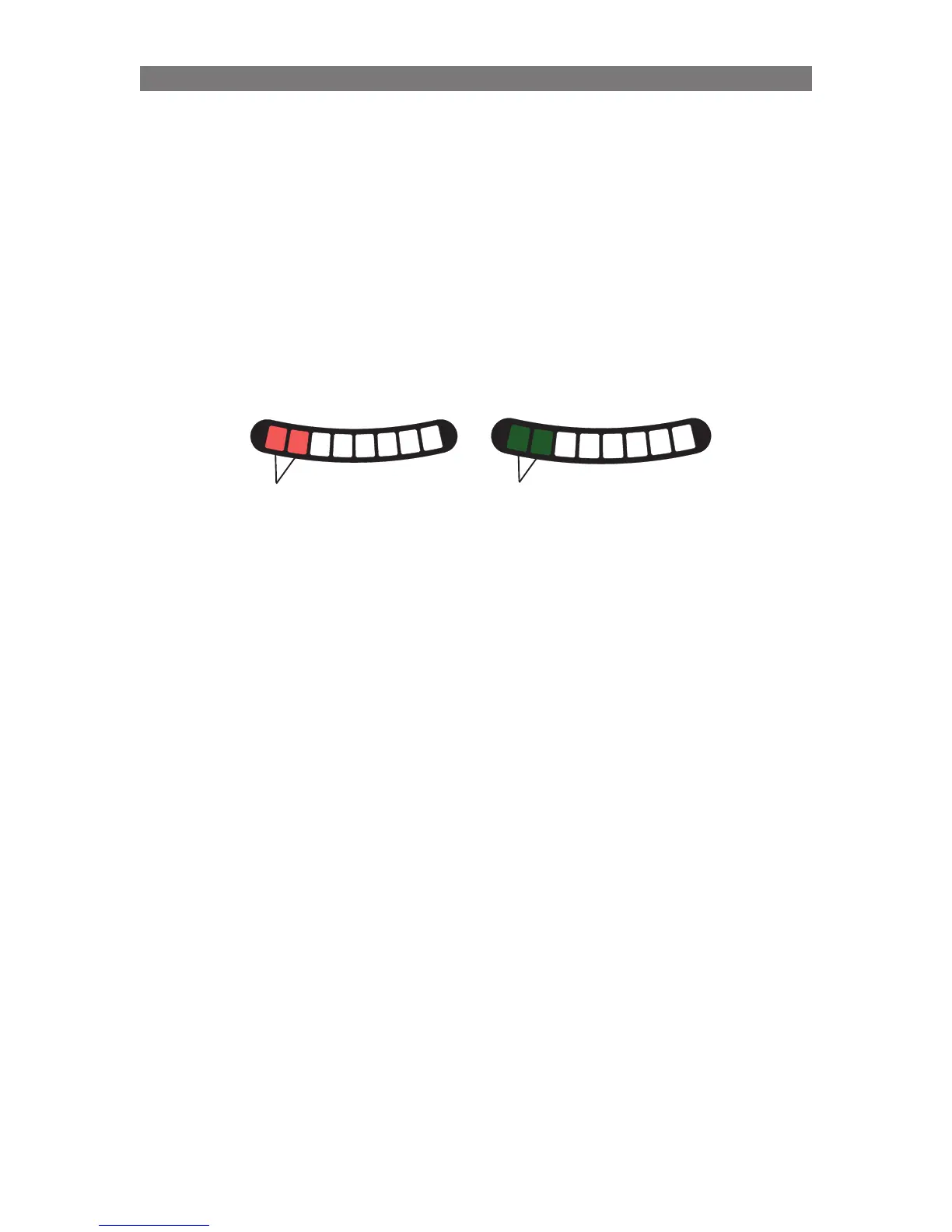
Solid Green
Solid Red
6. Enabling/Disabling stand and drive (Only Corpus VS)
By default, the seat system is set with the “Stand and Drive” option for Corpus VS.
To change to Stand NO drive the system needs to be started up with a combination of pressed Buttons
Press and hold Button 1, 2 and 7 on the ICS Switchbox, while holding these buttons, turn on the wheelchair
with the Power Button on the Joystick (or other Input Device).
Once all LEDs on the ICS Switchbox turn green, release Buttons 1, 2 and 7.
• LED #7 flashes RED and LED #8 flashes GREEN to signify Selection mode.
The status is represented with LEDs 1, 2 on the ICS Switchbox. Ignore LEDs 3-6 when adjusting
this setting.
Press Button 1 or Button 5 to change the status and press and hold Button 8 for two seconds to save the
setting.Turn the wheelchair off and back on to continue normal usage
VS - Specific Attributes
NOTE! Do NOT apply for Corpus VS
Choosing a Standing Sequence
The ICS System allows the standing sequence to be selected from one of three pre-defined sequences.
The standing sequence is chosen to best suit the user’s needs. The system always requires a seat height
adjustment when changing from one sequence to another, this is a safety precaution.
To successfully program the Standing Sequence or Sequences, the seven steps below MUST be
completed properly.
1. Enter the Standing Sequence Selection mode using the ICS Switchbox:
a) Turn off the wheelchair.
b) Press and hold Button 5 and Button 7 on the ICS Switchbox
c) While holding these buttons turn on the wheelchair with the Power Button on the Joystick (or
Input Device).
d) Once all LEDs on the ICS Switchbox turn green, release Buttons 5 and 7.
LED #8 will toggle between GREEN and RED to signify Standing Sequence Select mode.
IF LED #8 does not toggle GREEN/RED, the system is not in the programming mode, begin again.
2. Choose the desired standing sequence:
a) Look at the descriptions of the Pre-Defined Standing Sequences shown on the following pages.
b) Select one or two sequence(s) that is/are appropriate for the end-user.
c) Determine which button needs to be activated to select this sequence using the switchbox.
• If you wish to use Pre-Defined Sequence 1, button 1 or 5 will be used in the next step.
• If you wish to use Pre-Defined Sequence 2, button 2 or 6 will be used in the next step.
• If you wish to use Pre-Defined Sequence 3, button 3 or 7 will be used in the next step.
Programming VS - Specific Attributes


 To Next Page