Directions For Use
EN 23DVDR70 & DVDR75/0x1 3.
36
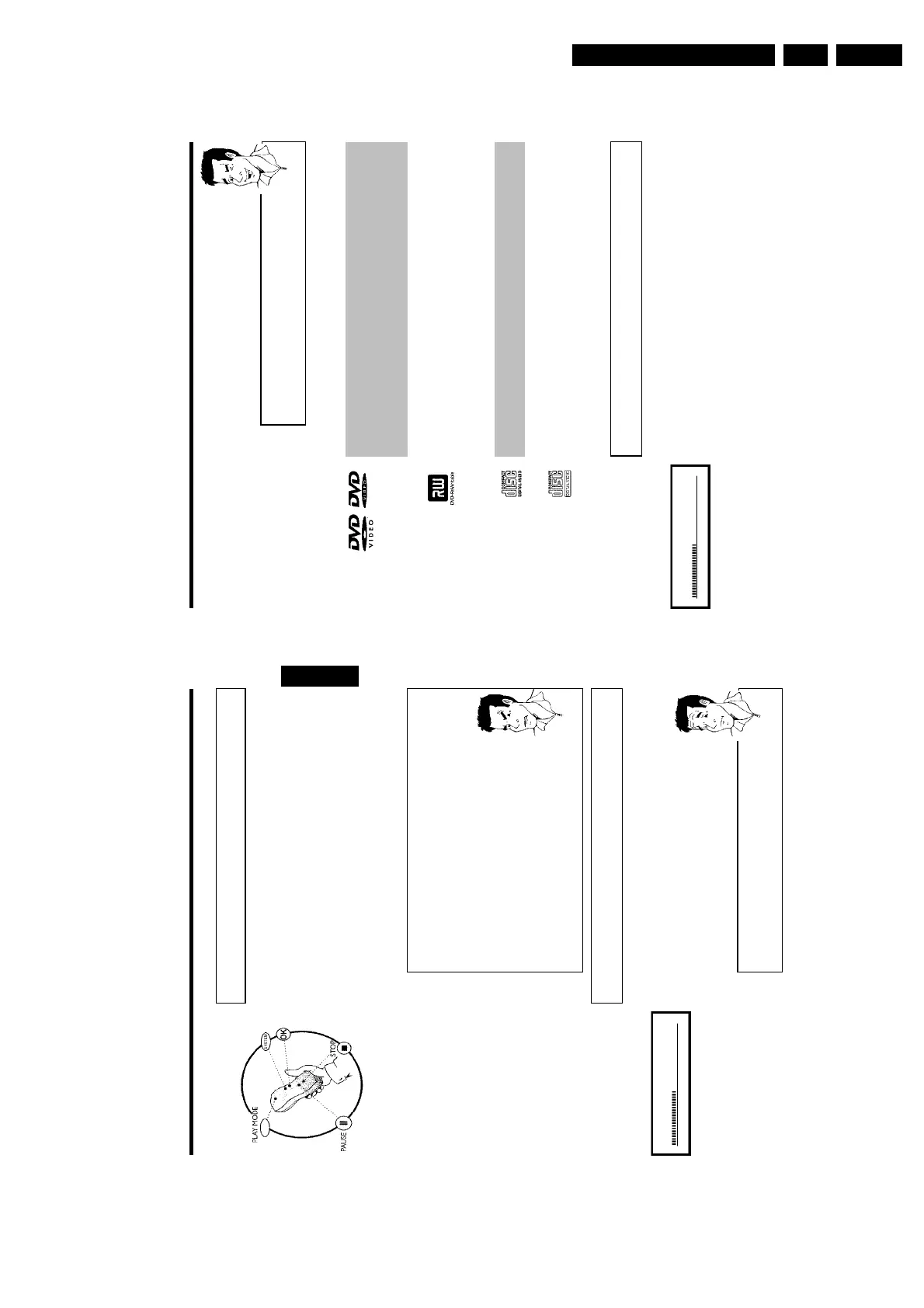
Opening/closing the tray using the remote control
You can open and close the disc tray using the remote control.
Press and hold the STOP h button on the remote control until the dialog
box shows 'OPENING'or'CLOSING'.
Tip
3 Playback starts automatically.
A menu may appear when a DVD is played back. If the titles and chapters are numbered, press a
number button on the remote control. You can also use the D , C , CH+ A ,
CH- B buttons or number buttons 0..9 to select a menu item and confirm with OK .
You can also access the menu using DISC-MENU on the remote control.
For further information see 'Playing a DVD video disc'.
When a DVD+RW is played back the index overview appears. Using CH- B , CH+ A , N ,
O select the title you want to play back.
Confirm with OK .
For further information see 'Playing back a DVD+RW/+R Disc'.
If playback does not start automatically, press PLAY G .
For further information see ' Playing an audio CD'.
If the 'h' symbol appears in the display, start playback by pressing PLAY G .
If a menu appears on the screen, use the remote control buttons indicated on the screen to select
the menu option you want (PREV= N , NEXT= O ) or with the number buttons 0..9 .
For further information see ' Playing a (Super) Video CD'.
Playing a DVD video disc
C01 2:04
1 If playback does not start automatically, press PLAY G .
This will appear on the display:
title, chapter, elapsed time.
2 To stop playback, press STOP h on the remote control or h on
the DVD recorder.
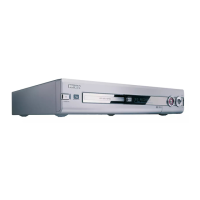
3 To eject the disc, press OPEN/CLOSE J on the front of the DVD
recorder.
playback
35
F
playback
General notes on playback
With this DVD recorder you can play back the following systems:
•) DVD Video
•) (Super)Video CD Disc
•) DVD+RW Disc
•) DVD+R Disc
•) DVD-RW (video mode, finalised)
•) DVD-R
•) CD-R
•) CD-RW
•) Audio CD
•) MP3 CD
You can operate the video recorder using the remote control or the buttons on the front of the
DVD recorder.
a The display will read 'PIN'
b The child lock has been activated for the inserted disc. Read the sections
on 'Child lock' and 'Releasing a disc' in the chapter on 'Access control
(child lock).
a
The menu on the screen is showing an 'X'
b Some DVD discs can be manufactured so that certain steps are required
before the disc can be played, or so that only limited operation is possible
during playback. When an 'X' appears on the screen the selected feature is
not possible.
a
The screen is showing regional code information
b Since DVD films are not normally released in all parts of the world at the
same time, all DVD players have a specific regional code. Discs can be given
a regional code. If the regional codes differ between the player and the
disc, playback is not possible.
b The regional code is shown on the label on the back of the machine.
b The regional code does not apply to recordable DVD discs.
Problem
Inserting a disc
OPENING P01
1 Press the OPEN/CLOSE J button on the front. The disc tray will
open. While the disc tray is opening, 'OPENING' and then 'TRAY OPEN'
when the tray is fully open.
2 Carefully place the disc in the tray with the label facing up and press
PLAY G or OPEN/CLOSE J .'CLOSING' and then 'READING' will
appear in the display. The information on the disc will be read.
How do I insert a doublesided DVD?
Double-sided discs do not have labelling over the whole surface. The labelling
for each side is in the centre of the disc. To play a side its label must be
facing up.
?
ENGLISH
playback











 To Next Page