4.4 Display
Touch All Apps > Settings > Display from the screen to set the touch screen
Brightness level, Turn on keyboard backlight on or off, Wallpaper, turn Auto-rotate
screen on or off, adjust the touch Screen timeout settings, set the on display Wakeup Source,
set the on screen Font size, and
enable or disable some Power button functions.
4.5 Using Screen Protectors
Pointmobile defines proper use of the terminal touch panel display as using a screen protector and
proper stylus. Screen protectors maintain the ongoing integrity (i.e., prevent scratching) of the
touch panel, which is why their use is recommended for applications that require a high to medium
level of interface with the touch panel.
Pointmobile also mandates use of the proper stylus, which is one that has a stylus tip radius of no
less than 0.8mm. Use of the stylus included with the terminal is recommended at all times.
4.6 Installing Your Screen Protector
When installing a screen protector, use a flat plastic card (e.g., credit card) to apply the screen
protector smoothly and remove any air bubbles.
1. Press the Power key to put the terminal in suspend mode.
2. Clean the touch panel thoroughly with a clean, non-abrasive, lint-free cloth, Make sure nothing
is on the touch panel.
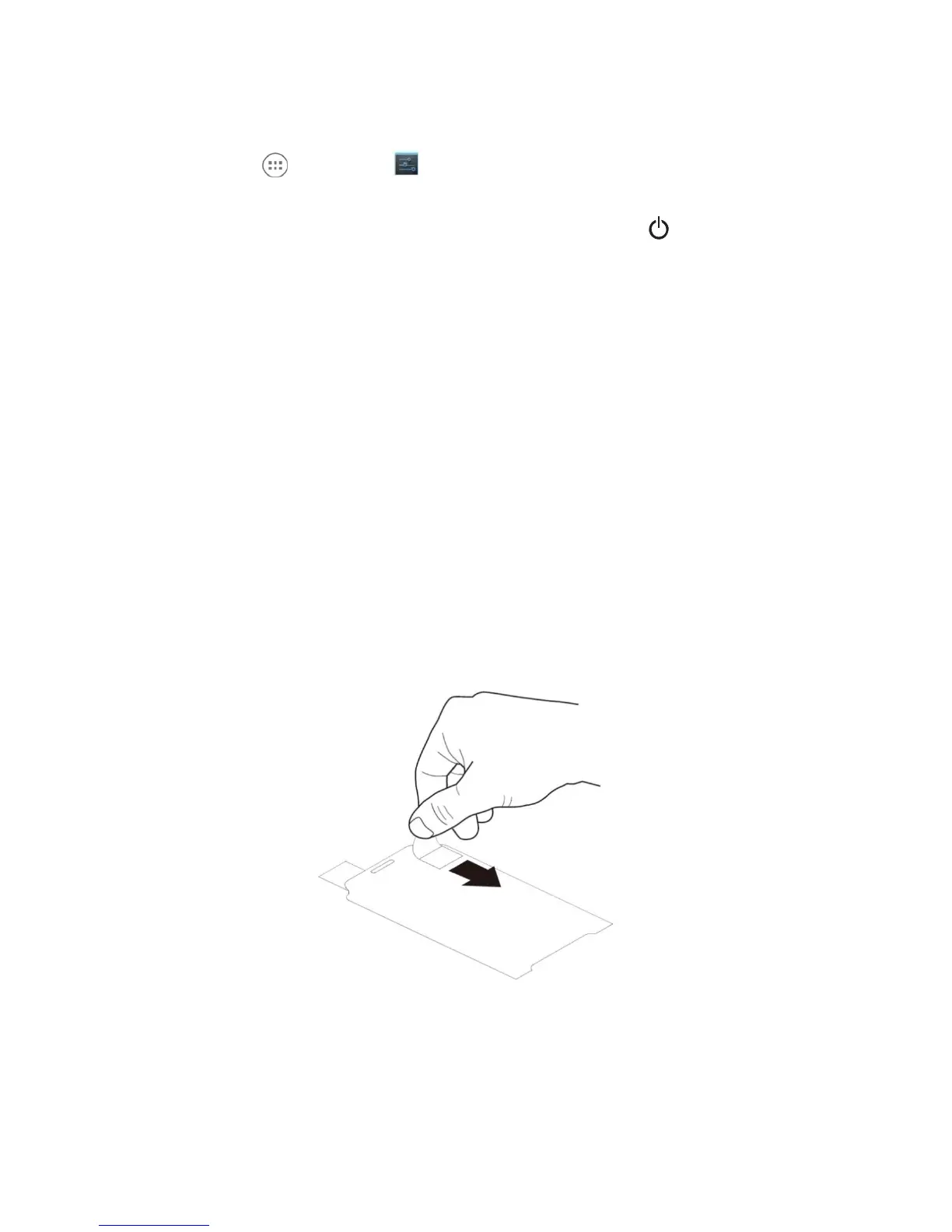
3. Blue tag with backing film: Peel off this mask before application.
4. Align the exposed edge of the screen protector along the left edge of the touch panel.
Make sure that it lies flush with edges of the touch panel.


 To Next Page