engine: Image Demo and Scan Demo.
To access these demos, tap All Apps -> Demos.
• Select Scan Demo to verify decoding, or
• Select Image Demo to verify imaging (not available on device using the N4313 laser engine).
6.7
Decoding
The Handy Terminal supports Full-area Imaging decode mode.
Full-area Imaging
With full-area imaging the Handy Terminal supports omni-directional aiming meaning that a
positive read can be obtained from many positions. For details, see Omni-Directional
Scanning Positions on paragraph 6.10.
6.8
To Decode a Bar Code
1. Tap All Apps -> Demos -> Scan Demo.
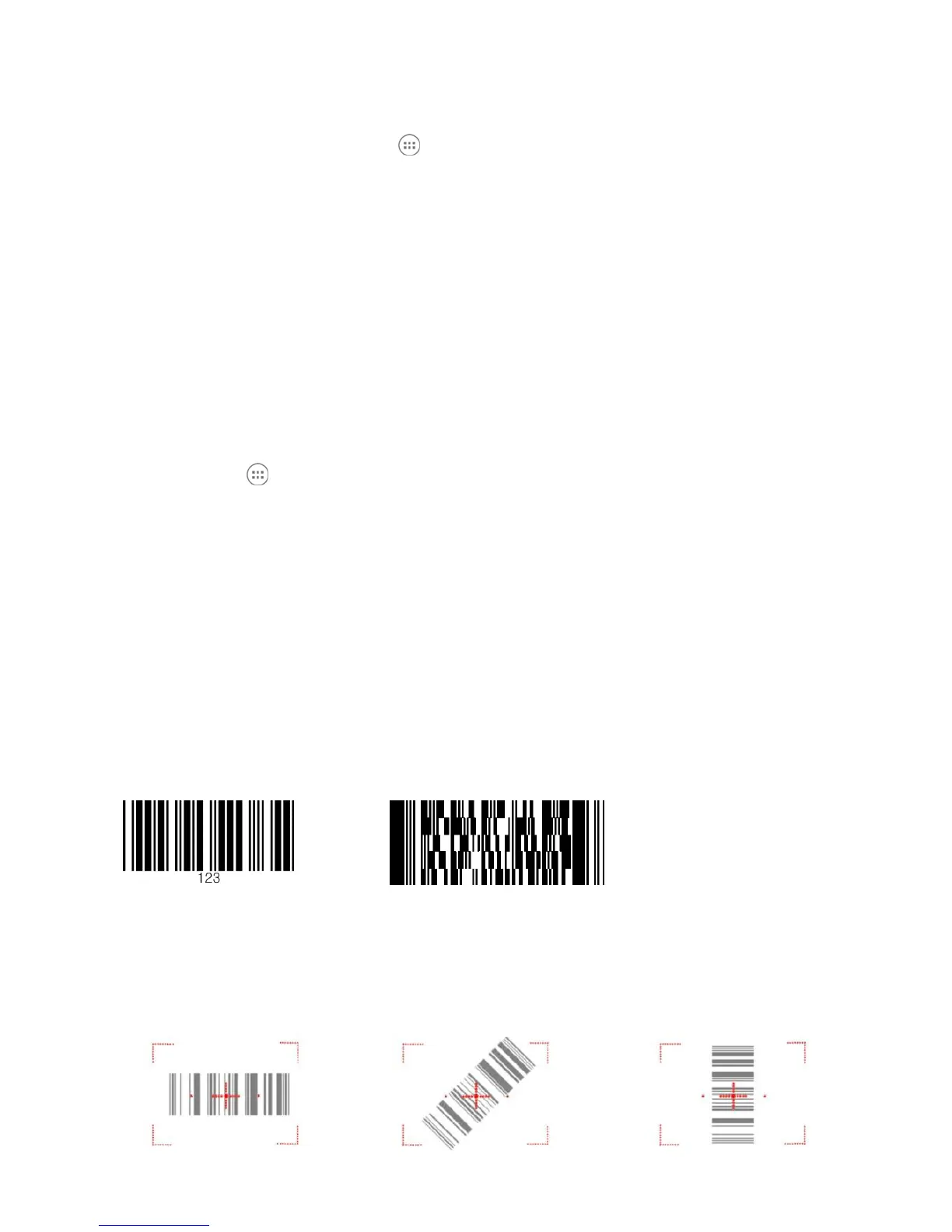
2. Position the Handy Terminal over one of the Sample Bar Codes on paragraph 6.9.
A range of 4–10 inches (10–25 cm) from the bar code is recommended.
3. Project the aiming brackets by pressing and holding the Scan key. The Scan LED lights red.
4. Center the aimer crosshair over the bar code. The aiming beam should be oriented in line with
the bar code to achieve optimal decoding; Omni-Directional Scanning Positions on paragraph
6.10.
5. When the bar code is successfully decoded, the decode LED lights green and the terminal beeps.
6.9
Sample Bar Codes
You can use the following bar codes to verify decoding:
Code 39 PDF 417
6.10
Omni-Directional Scanning Positions
The high-vis aiming pattern frames the bar code to provide you with the best scanning
performance.


 To Next Page