Please on/off to let apps that have asked your permission use your location information.
9.1.3.2 Security Settings
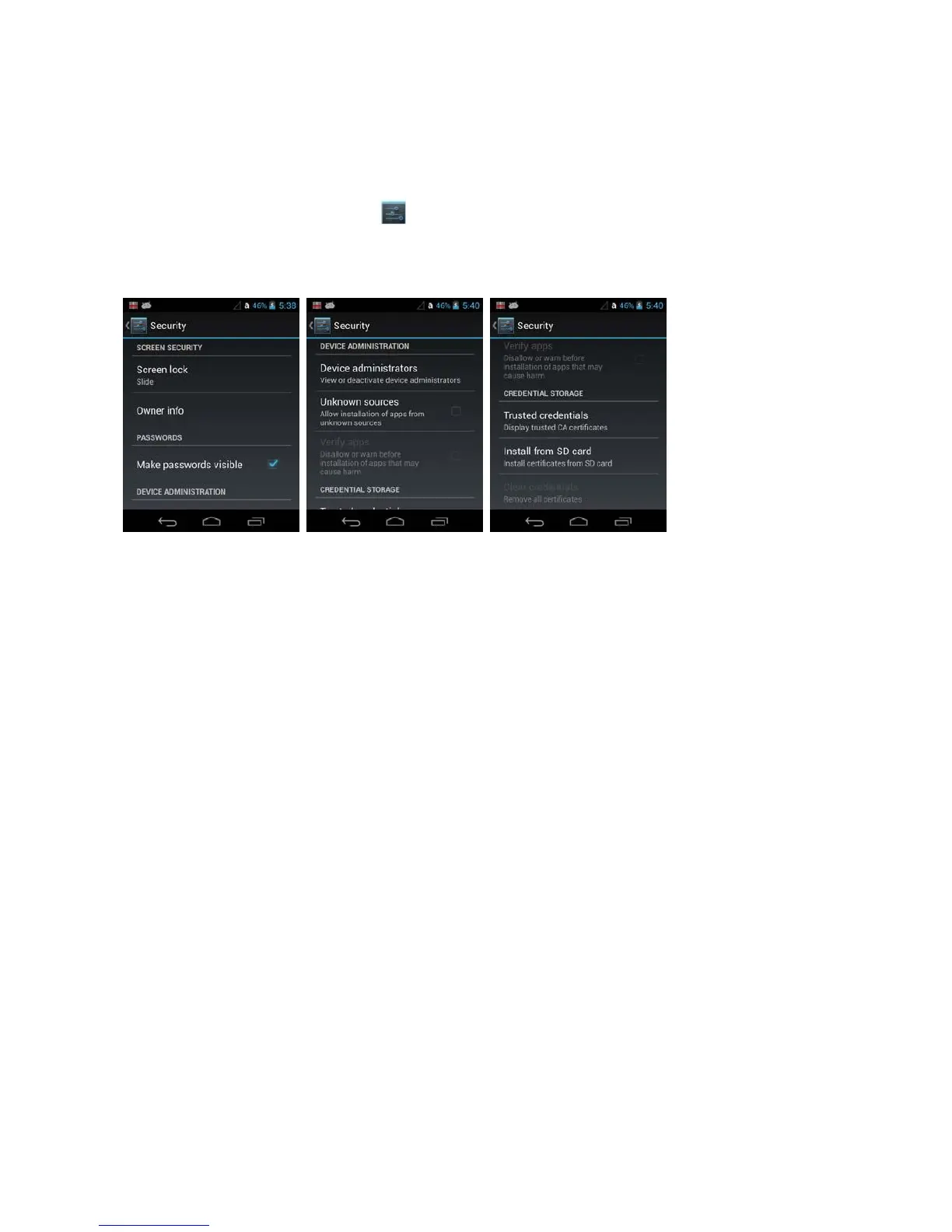
Touch Security from the Settings menu to manage terminal security parameters (e.g.,
authorization for device administration, setup a screen lock, setup a SIM card PIN, enable/disable
visible
passwords, load security certificates, and setup a password to protect the terminal's
credential storage).
Screen Security
The Screen Lock settings provide access to additional security features that enable you to prevent
an
unauthorized person from unlocking the touch screen and accessing the terminal. Select from
five
security options: None, Slide, Pattern, PIN or Password.
•
To enable a screen lock:
Touch on Pattern, PIN or Password to access additional dialogue screens that step you
through
setting up or updating the security feature.
•
To disable a screen lock:
Touch Security from the Settings screen. Select Screen Lock, and then enter your
existing
Pattern, PIN, or Password. Touch Next and then select None to remove the
security setting.
Once you have established a screen lock, additional settings may appear under the Screen
Security
heading depending on the type of security you implemented. The additional settings
allow you to adjust
the time increment for the screen to Automatically lock after entering.
Turn On Power button instantly lock to lock immediately to Power Button.
The Owner Info setting allows you to designate custom text you want displayed on the lock
screen. You
can also disable owner information from displaying
SIM card lock
Touch Set up SIM card lock to establish or modify a SIM card PIN so unauthorized individuals
cannot
use the terminal as a phone or modify data on the SIM card.
Passwords


 To Next Page