802.11b/g/n, Wi-Fi compliant products including access points (APs), workstations via PC card
adapters, and other wireless portable devices.
By default, the 802.11b/g/n radio is powered-off (i.e., disabled) “out of the box” To power it on
(i.e., enable), press the vertical arrow (bottom right corner of screen) and select Turn Wireless
LAN On. The enable/disable state of the radio will survive subsequent soft and hard resets. The
next step is to configure the connection parameters of the radio to connect to a wireless network.
Configuring the WLAN Radio
The WLAN radio is configured in the Pointmobile WLAN Client, which you access by the program
icon in the status bar.
11 Bluetooth Handler
Bluetooth wireless technology is a short-range communications technology to connect portable
and/or fixed devices while maintaining high levels of security.
11.1
Enabling the Bluetooth Radio
1.
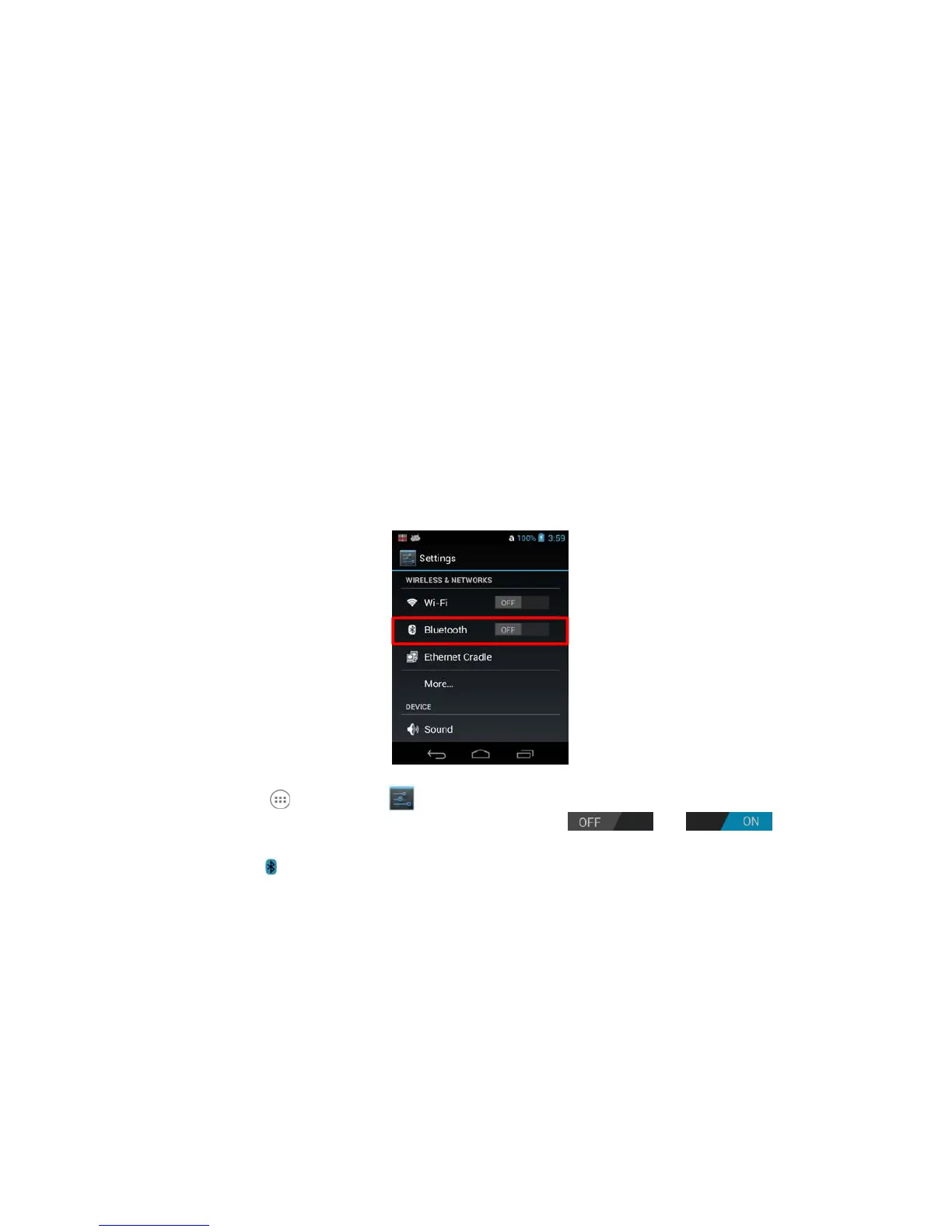
Tap All Apps > Settings
2.
Tap the Bluetooth OFF/ON toggle box to turn the radio or .
The Bluetooth icon appears in the status bar.
☞
NOTE:
In order to avoid wasting energy, the Bluetooth, module is off by default. If you need to have Bluetooth
working, the module must be powered on using the Wireless Communications applet.
☞
NOTE:
Suspending the terminal powers off the Bluetooth radio and drops the Bluetooth connection. When the
terminal resumes, it takes approximately 10 seconds for the Bluetooth radio driver to re-initialize the radio.
☞
NOTE:
Area coverage and Bluetooth radio performance may vary, due to environmental conditions or interference
caused by other devices (microwave ovens, radio transmitters, etc.).
11.2
Connecting to Other Devices
Before connecting to another device, make sure that the Bluetooth connection on the other device is
enabled.


 To Next Page