1.
Tap
All Apps > Settings
>
Storage
>
Menu
>
USB Computer connection
2.
Select Media device(MTP) or Camera(PTP)
☞
NOTE: it can be set up on “
Notification panel > Connected as a media device”
10.5
Exploring the Terminal from the Workstation
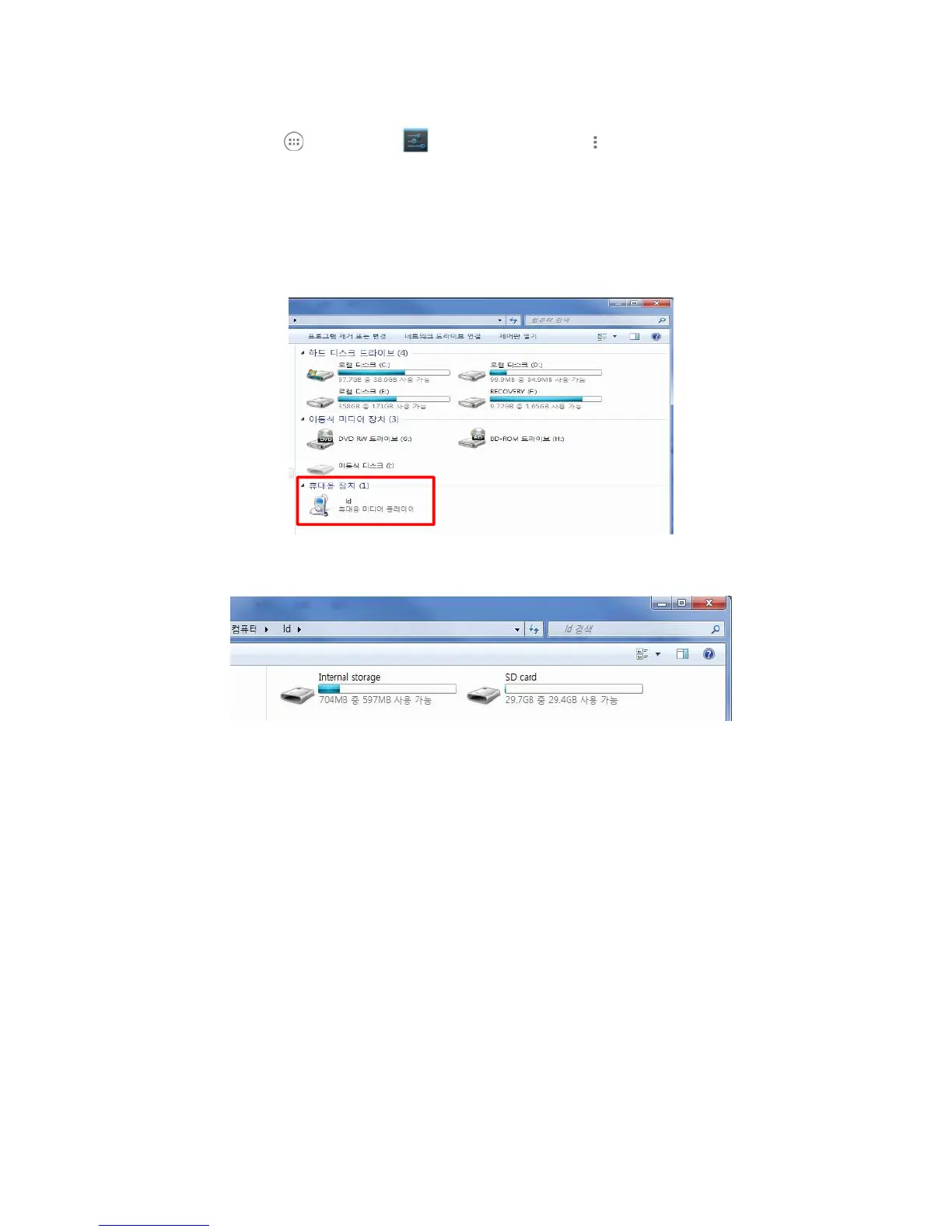
After PDA is connected to computer, Portable device is shown up on my computer
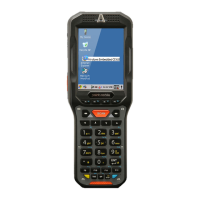
After open the Media Player, internal storage and (SD card)External Storage is shown up.
The Handy Terminal is now treated as a mass storage device, and transferring files is as simple as
dragging and dropping or copying and pasting as you would for moving files between folders on
your
10.6
Wireless Radios
There are four radio options: 802.11b/g/n Bluetooth, Phone and GPS.
1. 802.11 b/g/n (WLAN configuration): Integrated Wi-Fi (802.11b/g/n Radio), up to 72.2Mbps
2. Bluetooth (WPAN configuration): Integrated Bluetooth v2.1+EDR
3. Phone (WWAN configuration): 3G WWAN HSPA+Module
4. GPS: Module inherent to HSPA+ Module
☞
NOTE:
PM60 does not provide all Bluetooth profiles.
10.7
Connecting the Terminal to a Wireless Network
You connect the terminal to a wireless network through the on-board radio (802.11b/g/n Bluetooth


 To Next Page