and/or Phone).
Each radio has its own configuration program and requires specific information about the wireless
network to connect. Successful connection depends on your network infrastructure about which you
will need specific information from your network administrator.
☞NOTE:
802.11 b/g/n radio module is off by default, in order to avoid wasting energy, you can switch it off using the
Wireless Communications applet
☞NOTE:
Suspending the terminal powers off the 802.11 b/g/n radio and drops the radio connection. When the
terminal resumes, depending on the radio power mode and security protocol selected, it may take up to 30 seconds
for the 802.11 b/g/n radio drivers to re-associate the radio to the network.
☞NOTE:
Area coverage and radio performance may vary, due to environmental conditions, access points types or
interference caused by other devices (microwave ovens, radio transmitters, etc.). If necessary, please turn off the
WALN or Bluetooth.
☞NOTE:
Radio performance may vary if using WLAN, Bluetooths and Phone and phone imultaneously. If necessary,
please turn off either WLAN or Bluetooth and/or Phone..
10.7.1
Wi-Fi Network Connections
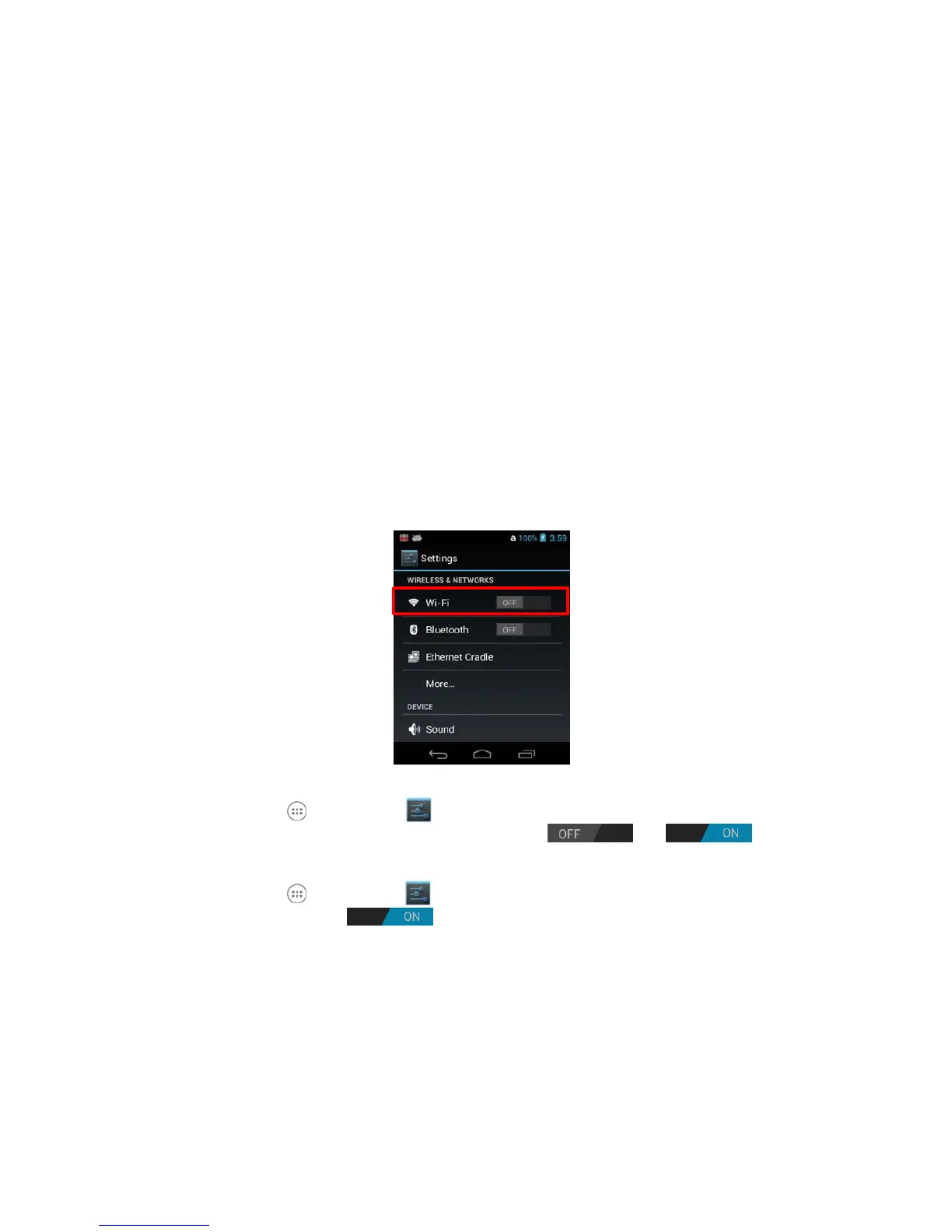
Turning Wi-Fi Networking On or Off
1.
Touch All Apps > Settings
2.
Touch the Wi-Fi OFF/ON toggle box to turn the radio or .
Connecting to a Wi-Fi Network
1.
Touch All Apps > Settings > Wi-Fi.
2.
Verify the Wi-Fi is turned .
3.
The terminal searches for available Wi-Fi access points within range of the device. If the
terminal
previously connected to a Wi-Fi network, it automatically reconnects to the same
network.
☞NOTE:
To remove a Wi-Fi network the terminal previously connected to, touch the network name, and then
touch Forget, to delete the stored network information.
4.
Touch the network name you want to connect to from the available network list.
5.
If the network is secured, a dialog box appears requesting information relevant to the
network
security protocol (e.g., password, key, or certificate). Enter the required
information.
6.
Touch Connect.


 To Next Page