Create New Print
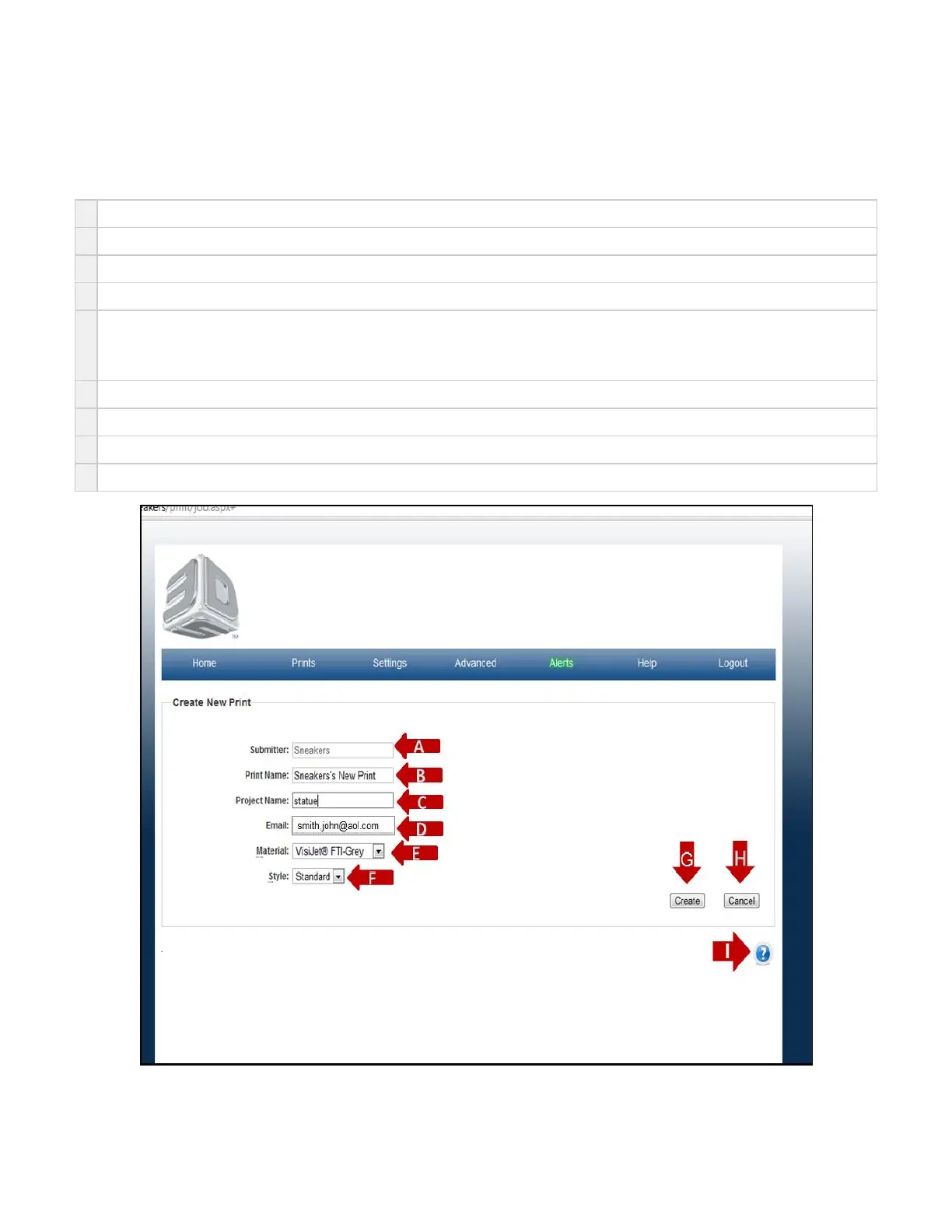
On the "Home" page, click on "Prints" and select "New" in the drop down menu to view "Create New Print" screen.
The purpose of the New Print Create Page is to allow users a method for naming prints, projects, and choosing the materials and print styles
before printing.
A
Submitter is defaulted to the printer hostname.
B
Print Name is entered by the User. Note the print name cannot be a duplicate of an already submitted build.
C
Print Name: Project Name is entered by the User.
D
Email defaults to the User logged into the printer and emails are sent with print start, pause, and print completed information.
E
The material cartridge currently in the printer is shown in black. All other materials are shown in grey print. A print job may be created from
any material in the Material List, but only the print job that matches the material currently in the printer may be printed at any time. If a print
job created in a material NOT currently in the printer, simply replace the material cartridge, material tray, gasket, and coater bar for the
desired print
F
Some materials have more than one mode of print available. Standard Style is the default print mode.
G
Click on Create to send the print job to Print Preview before submitting it to the print queue.
G
Click on Cancel to cancel the new print.
I Click on the to obtain help for this particular screen.?



 To Next Page