EasyManua.ls Logo

ProJet 1000 - Create a New Print

Default Icon
199 pages
Print Icon
To Next Page IconTo Next Page
To Previous Page IconTo Previous Page
Loading...
1.
2.
3.
4.
5.
6.
7.
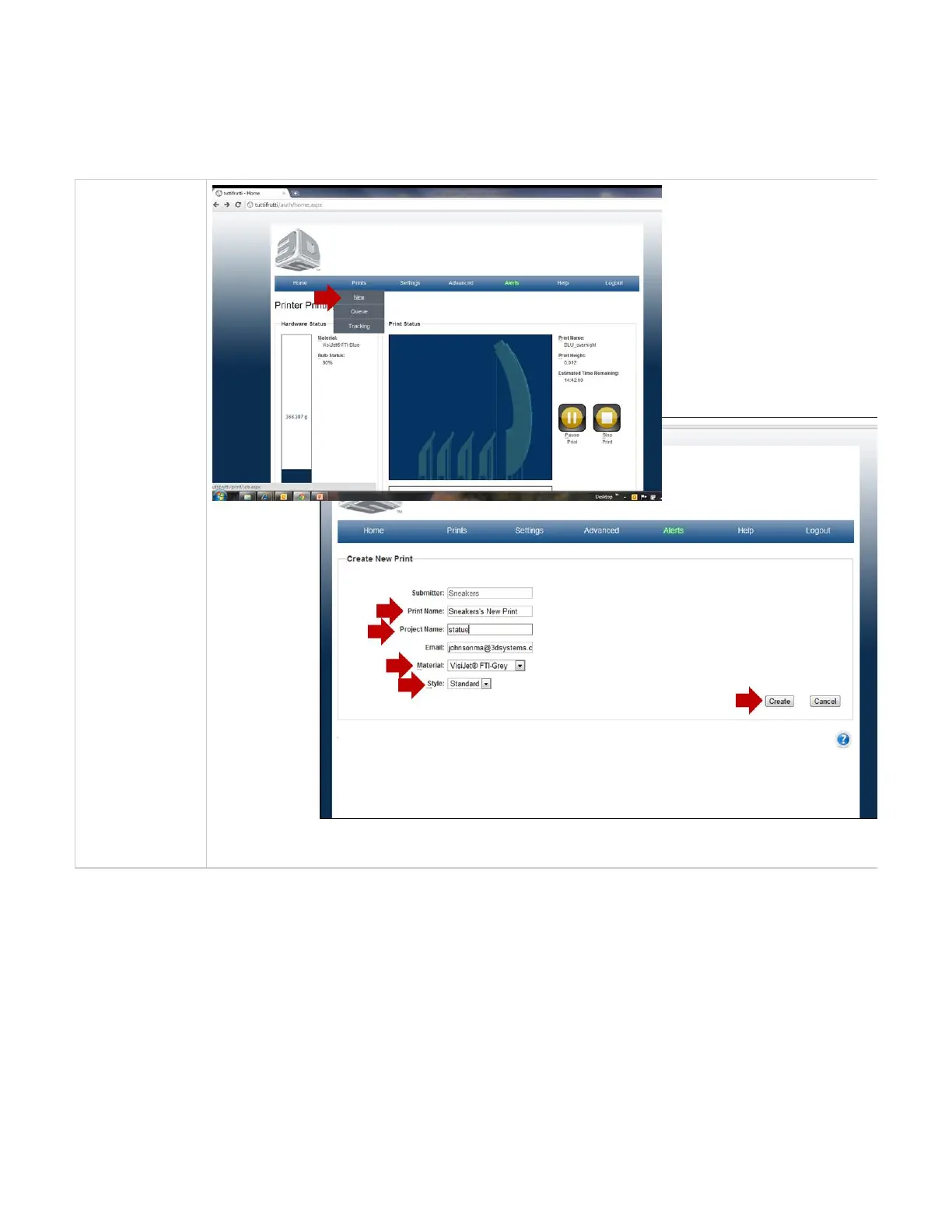
08.1.01 Create a New Print
To create a print, a print name and project name has to be assigned before a print can be viewed in Print Preview. Follow the instructions to start
the print process.
Create a
Print Name
for the part
that is being
submitted.
Assign a
Project
.Name
Select the
forMaterial
the print.
Select the
Style
"Standard"
or "Draft.
Click on
"Create" to
submit your
print to Print
Preview.
Print
Preview will
allow you to
manipulate
part on the
print
platfrom. It
also allows
you to scale,
rotate and
automatically
place part on
the platform.
Submit build
by selecting
"Submit"
button.
Slicing will
begin and
the job will
be sent to
the build
queue
without it
being saved.

Table of Contents

Related product manuals