Configuring the MVI56-PDPMV1 Module MVI56-PDPMV1 ♦ ControlLogix Platform
User Manual PROFIBUS DPV1 Master
Page 80 of 251 ProSoft Technology, Inc.
2.1 Setting Up the Project
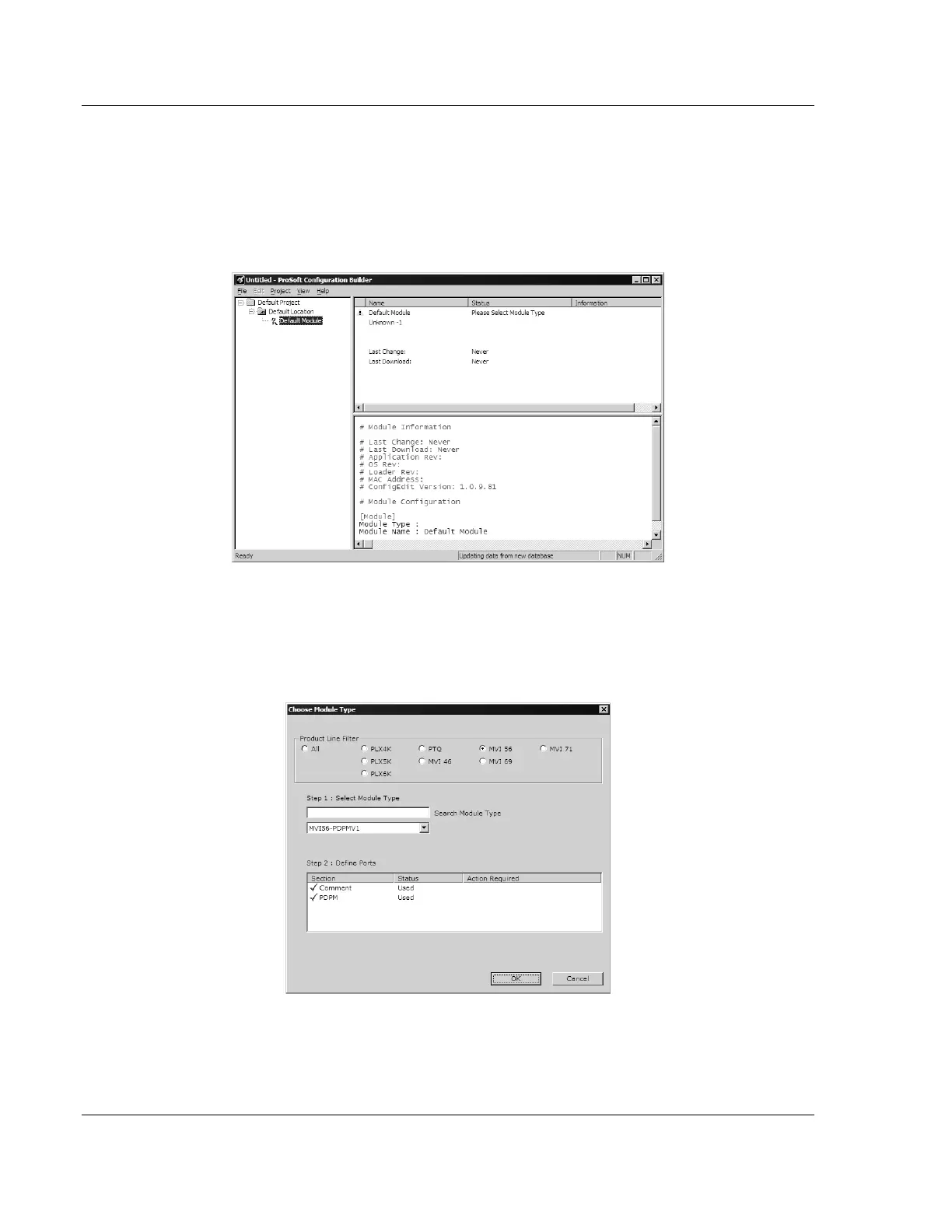
To begin, start ProSoft Configuration Builder (PCB). ProSoft Configuration
Builder’s window consists of a tree view on the left, and an information pane and
configuration pane on the right side of the window. The tree view consists of
folders for Default Project and Default Location, with a Default Module in the
Default Location folder.
Start by adding the MVI56-PDPMV1 module to the project.
1 Use the mouse to select DEFAULT MODULE in the tree view, and then click the
right mouse button to open a shortcut menu.
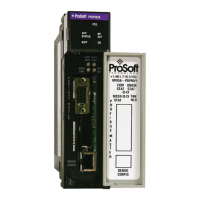
2 On the shortcut menu, choose CHOOSE MODULE TYPE. This action opens the
Choose Module Type dialog box.
3 In the Product Line Filter area of the dialog box, select MVI56. In the Select
Module Type dropdown list, select MVI56-PDPMV1, and then click OK to
save your settings and return to the main PCB window.


 To Next Page