Diagnostics and Troubleshooting MVI56-PDPMV1 ♦ ControlLogix Platform
User Manual PROFIBUS DPV1 Master
Page 184 of 251 ProSoft Technology, Inc.
4.3.4 Using the Diagnostic Window in ProSoft Configuration Builder
To connect to the module’s Configuration/Debug serial port
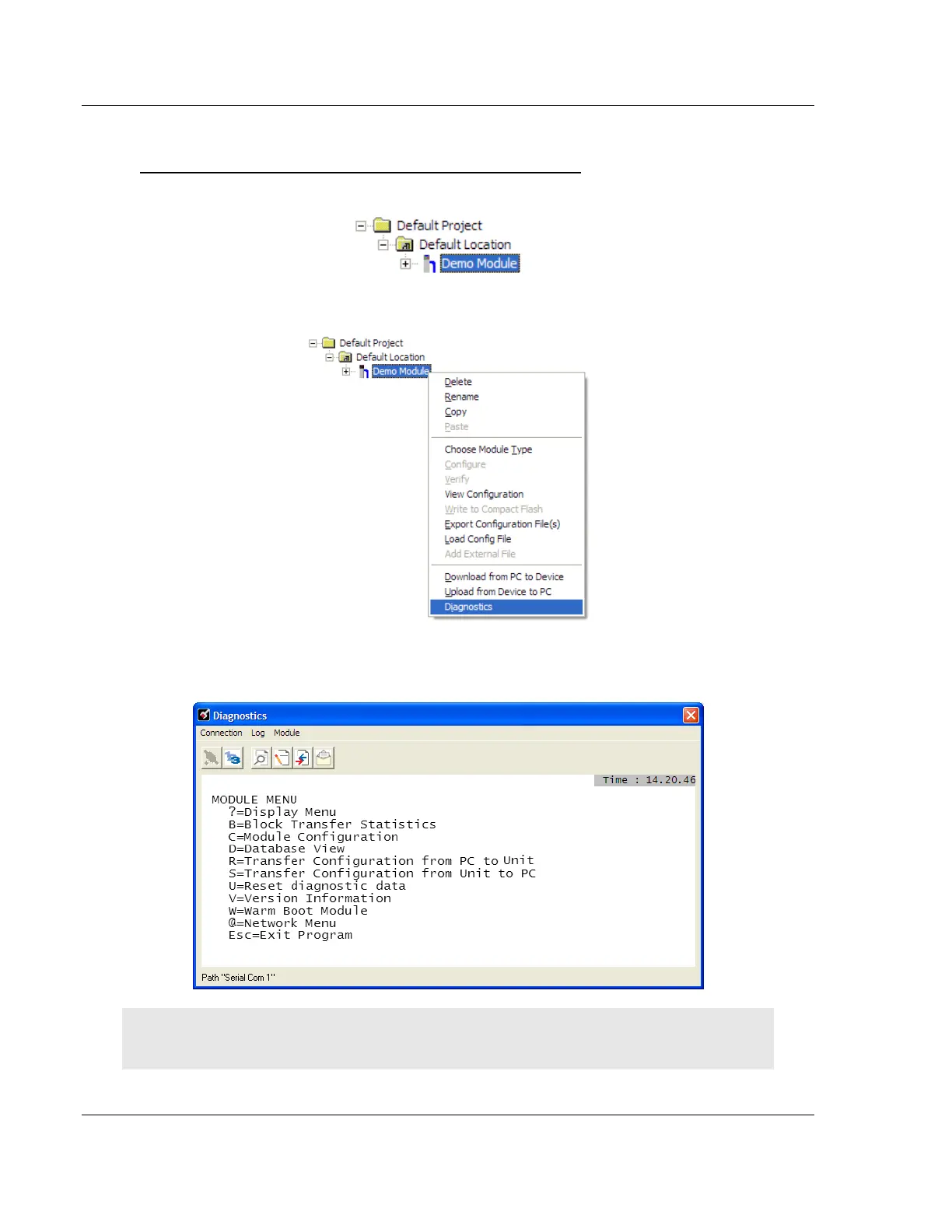
1 Start PCB, and then right-click the module icon.
2 On the shortcut menu, choose DIAGNOSTICS.
This action opens the Diagnostics dialog box.
3 Press [?] to open the Main menu.
Important: The illustrations of configuration/debug menus in this section are intended as a general
guide, and may not exactly match the configuration/debug menus in your own module.


 To Next Page