MVI69E-MBS ♦ CompactLogix Platform Adding the Module to RSLogix
Modbus Serial Enhanced Communication Module User Manual
ProSoft Technology, Inc. Page 35 of 154
June 28, 2017
2.6 Adding Multiple Modules in the Rack (Optional)
Important: This procedure is for multiple MVI69E-MBS modules running in the same
CompactLogix or MicroLogix 1500-LRP rack
You can add additional modules of the same type to the rack.
1 Add a new MVI69E-MBS module to the ProSoft Configuration Builder (PCB)
project.
2 Export the module configuration as an L5X file.
3 Add a new MVI69E-MBS to the RSLogix 5000 project.
4 Import the .L5X file into RSLogix 5000 for the new module as an Add-On
Instruction.
2.6.1 Adding another module in PCB
1 Start ProSoft Configuration Builder.
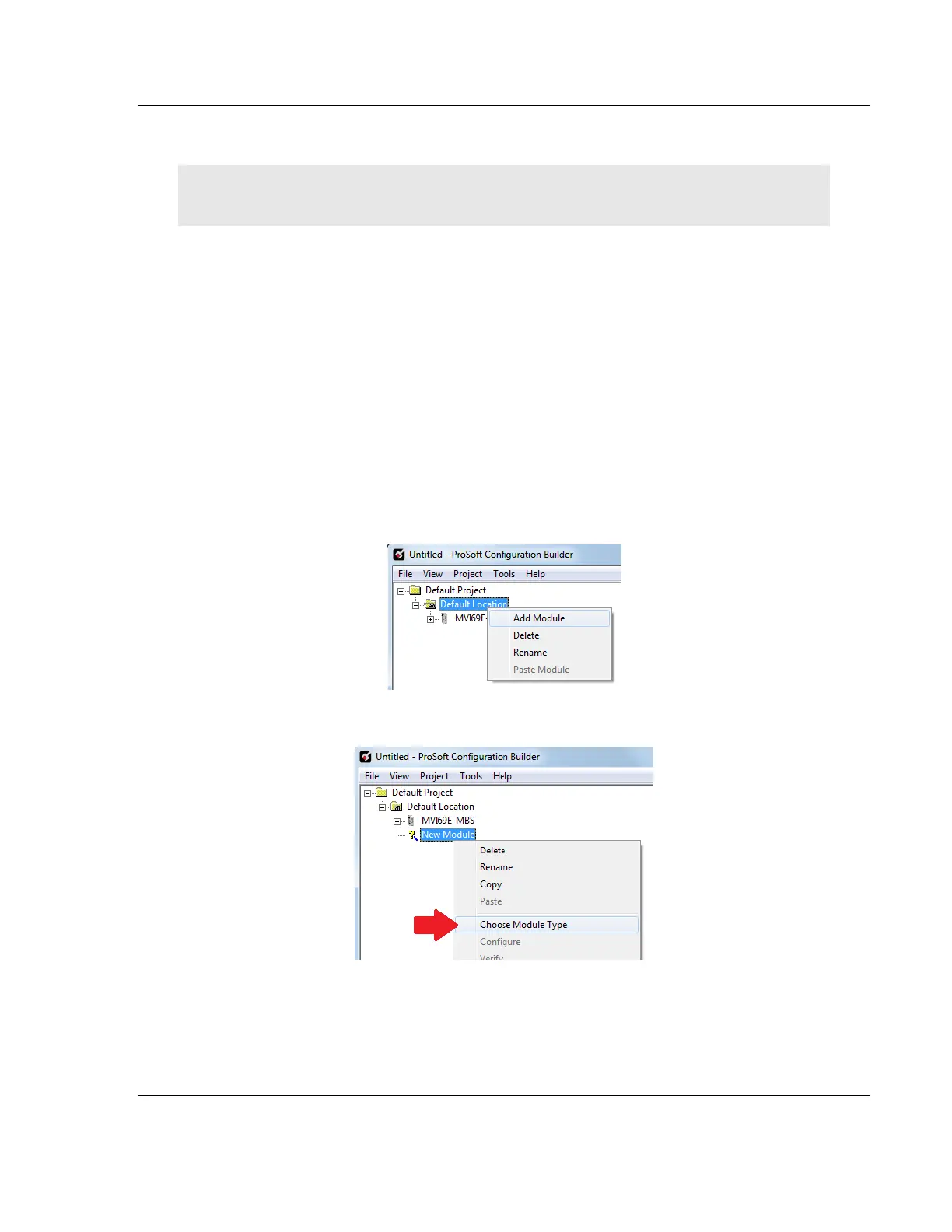
2 Right click DEFAULT LOCATION (which you can rename) and choose ADD
MODULE.
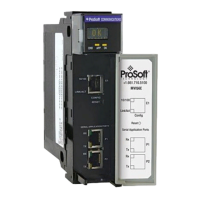
3 Right-click NEW MODULE and choose CHOOSE MODULE TYPE.
4 In the Choose Module Type dialog box, select MVI69E in the PRODUCT LINE
FILTER area, and then select MVI69E-MBS as the MODULE TYPE. Click OK.
5 Select the MVI69E-MBS module in the tree and repeat the above steps to
add a second (or more) module in the PCB project.


 To Next Page