OPERATION
69
Setting a Squelch Level for Demodulated Audio
The squelch control will allow you to suppress demodulated audio output when the carrier of the
currently tuned signal drops below a set threshold. This will prevent you from hearing white noise
when, for example, demodulating the audio from a two way radio and no transmission is being sent. To
set the squelch level:
1. From the Analyze Mode Menu, select Demod or press F1.
2. Select the Squelch icon. The audio, if previously muted, will un-mute and a horizontal cursor
representing the squelch level will appear on the spectral graph.
3. Adjust the squelch level using the rotary knob. Ideally, this level should be set just above the
noise floor so that when the audio signal drops into the noise floor, the audio is muted, but
whenever an audio signal is present, you are able to hear the demodulated audio.
Recording and playback of demodulated audio
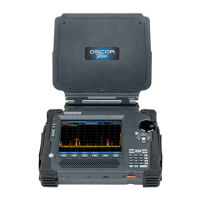
The OSCOR has the capability of recording demodulated audio as a .wav file for later playback or for
analysis on another piece of equipment, such as a PC.
To capture demodulated audio using Quick Record:
Quick Record enables the user to quickly record up to 30 seconds of audio without first having to adjust
the recording properties.
1. While demodulating an analog audio signal in Analyze Mode, from the Analyze Mode Menu,
select Demod or press F1 to enter the Demod Sub-Menu.
2. From the Demod Sub-Menu, select Capture or press F3.
3. From the Capture Sub-Menu, select the Quick Record icon. The OSCOR unit will begin capturing
audio and the Quick Record icon will change to a Stop Recording icon.
4. To stop recording the audio at any point, select the Stop Recording icon. After 30 seconds of
audio have been captured, the OSCOR unit will automatically stop recording. Once the audio
recording has stopped, a dialog box will appear on screen.
5. In the dialog box that appears, select a location (either a USB flash drive or compact flash card),
type a file name for the stored audio file and press OK. The OSCOR unit will save the captured
audio in the specified location.


 To Next Page
 Loading...