Document Server
154
3
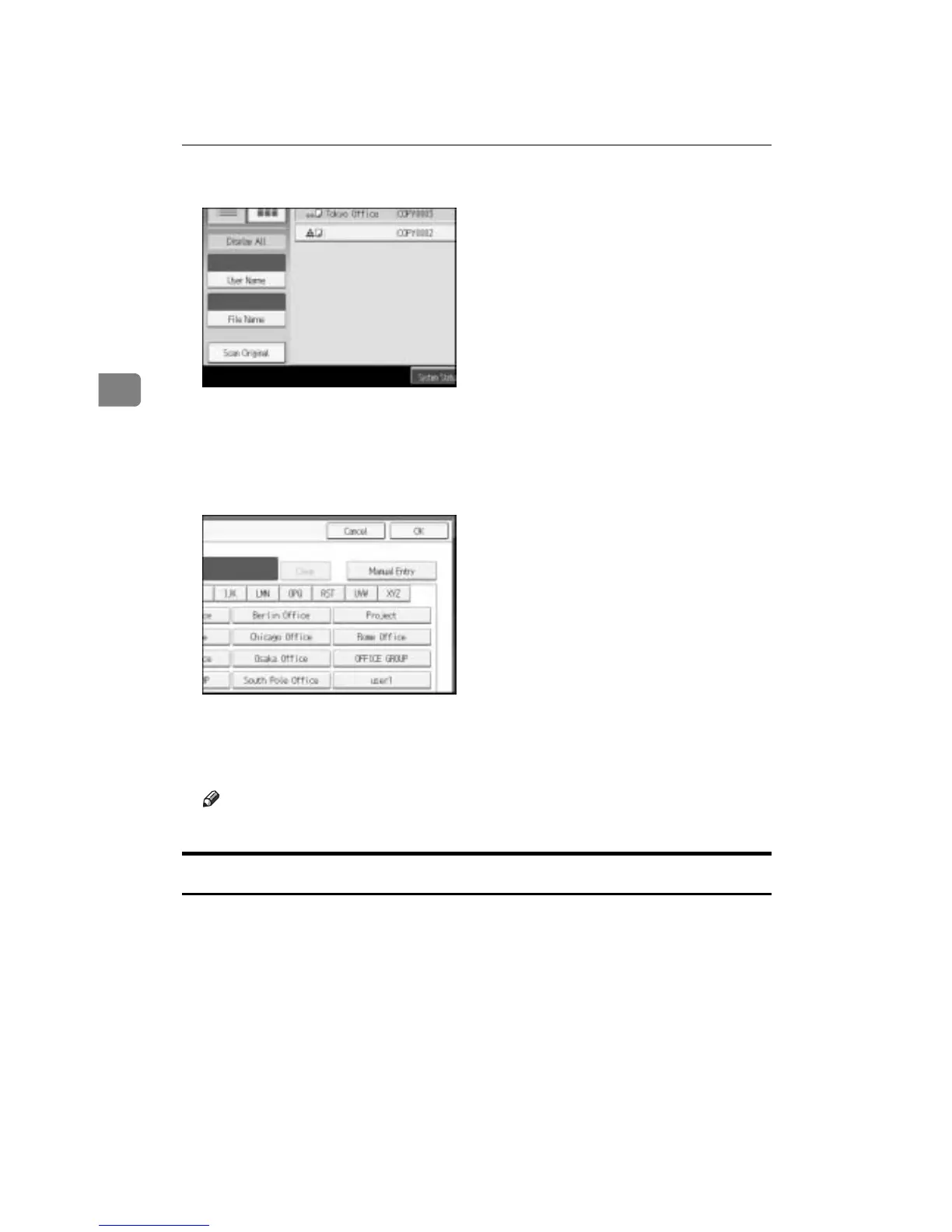
B Press [User Name].
C When specifying a registered user name, select the user name.
When using a not-registered user name, proceed to the next step.
D When the user name is not registered, press [Manual Entry] and then enter the
user name from the input screen to be displayed. Then press [OK].
E Press [OK].
A document name that matches completely from the starting character will
be searched and displayed on the document selection screen.
Note
❒ Pressing [Display All] displays ever stored document.
Printing a Stored Document
Following describes the procedure for printing a stored document.
Using Web Image Monitor allows you to print a document stored in the Docu-
ment Server from your PC.
A Press the {Document Server} key.
B Select the document to be printed.
When a password is set, enter it and then press [OK].
C When printing two or more documents at a time, repeat the operation in
step
B
.



 To Next Page