Copying
34
2
Copying from the Bypass Tray
Use the bypass tray to copy onto OHP transparencies, adhesive labels, translu-
cent paper, postcards and copy paper that cannot be loaded in the paper trays.
Important
❒ When the duplex unit is attached, the default is [1 Sided o 2 Sided]. When
copying from the bypass tray, cancel [1 Sided o 2 Sided] in [Dup./Combine/Se-
ries]. You can change the initial settings. See “Programming Defaults in Initial
Display”.
❒ Paper that has a vertical length of 90-305 mm (3.6-12 inches) and a horizontal
length of 148-457.2 mm (5.9-18 inches) can be copied from the bypass tray.
However, when paper larger than 433 mm (17.1 inches) in size is used, the pa-
per may become wrinkled, may not be fed into the machine, or may cause pa-
per jams.
❒ The machine can detect the following sizes as regular size copy paper: 11" u
17"L, 8
1
/
2
" u 11"L, 5
1
/
2
" u 8
1
/
2
"L. If you want to use the size of paper other
than the above, be sure to specify the size.
❒ When copying on OHP transparencies or paper heavier than 81 g/m
2
(about
70 kg, 21 lb.), you need to specify the type and size of paper with “Special
Original”.
❒ The maximum number of sheets you can load at the same time depends on
paper type. The maximum number of sheets should not exceed the upper lim-
it.
❒ When copying paper lighter than 59 g/m
2
or tracing paper, you need to spec-
ify the paper type.
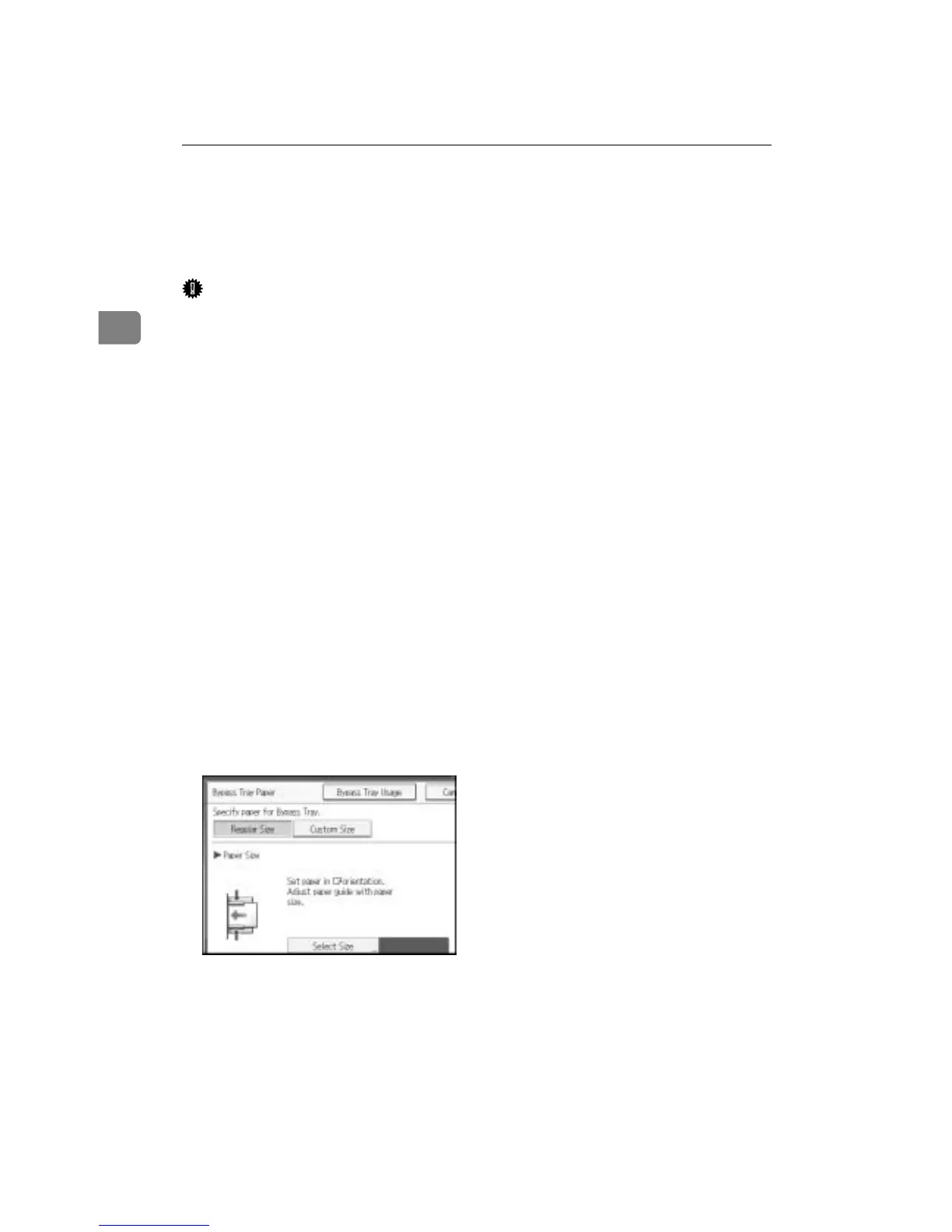
❖ [Bypass Tray Usage]
Press [Bypass Tray Usage] to display a description on using the bypass tray.



 To Next Page