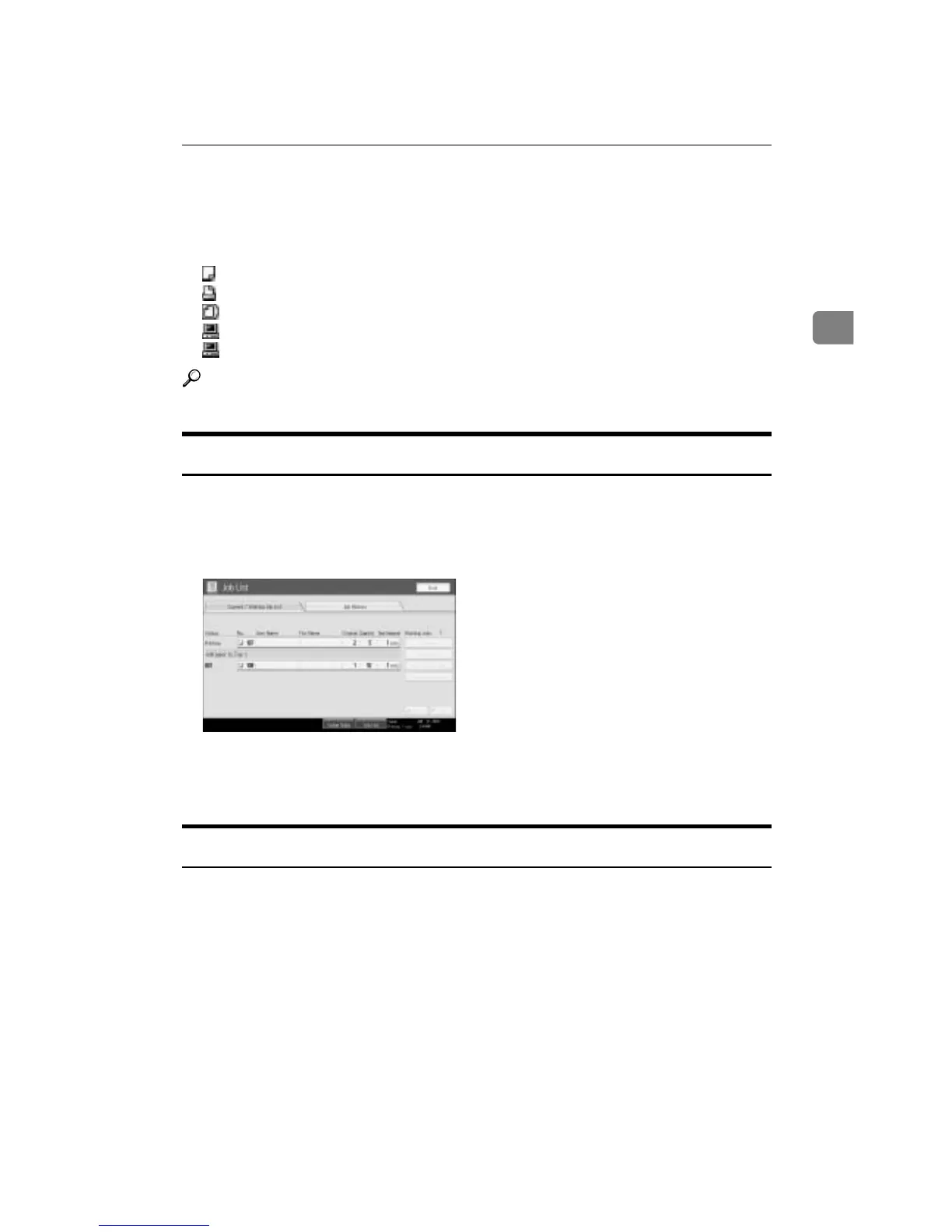
Job List
31
2
A Switches between job lists for each function.
B Switches between [Current / Waiting Job List] and [Job History].
C Displays reserved job numbers.
D Displays the function used to print jobs.
: Job printed using copy function
: Job printed using printer function
: Job printed using Document Server function
: Job printed using DeskTopBinder
: Job printed using Web Image Monitor
Reference
See “Print Priority”, General Settings Guide.
Checking Jobs in the Print Queue
You can check the contents of jobs in the print queue.
A Press [Job List].
B Select the job whose contents you want to check.
C Press [Details], and then check the contents.
D Press [Exit].
Changing the Order of Jobs
You can change the order in which print jobs in the job list are served:
A Press [Job List].



 To Next Page