Color Functions
43
2
F Selects the new color.
You can adjust the density of each color in four steps.
To select User Color, press [User Color], and then select the color.
G After selecting all colors to be converted, press [OK] three times.
H Place the originals, and then press the {Start} key.
Note
❒ The width of the color to be converted can be adjusted in five levels. If the
color width is set to [Wider] and red has been specified, colors, which are
close to magenta or orange, will also be converted. The color width can be
adjusted in User Tools. This adjustment will be valid in “Erase Color”. See
“Color Sensitivity”, General Settings Guide.
❒ When you want to change the converted color in step
F
, press from [Con-
version 1] to [Conversion 4] and make the selection again.
❒ When changing more than two colors, repeat steps
D
to
F
.
❒ The full color counter will advance by “1”.
Erase Color
Copies by erasing a certain color in the image of the original.
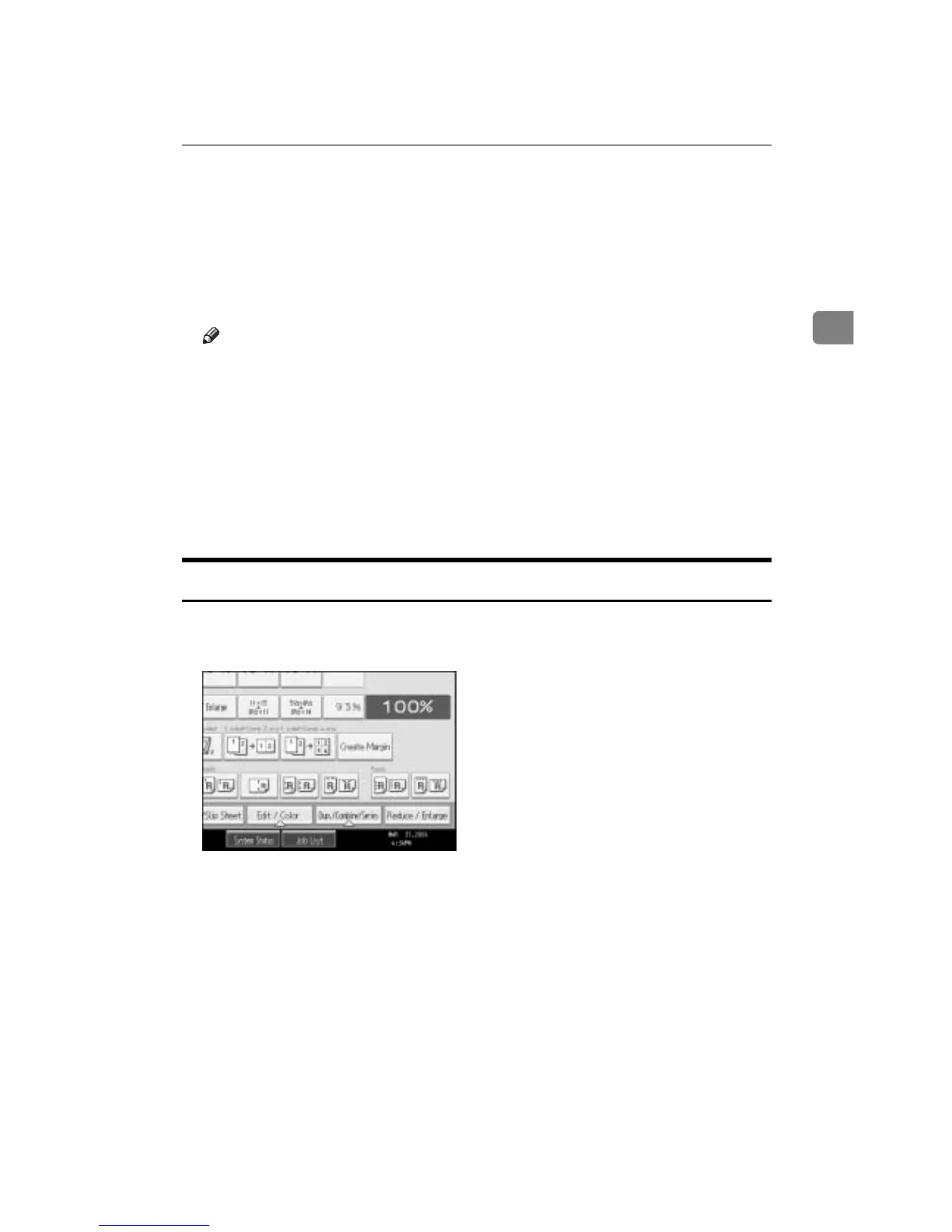
A Press [Edit / Color].
B Make sure that [Color] is selected before pressing [Erase Color].
C Select the color to be erased.
It is possible to select up to 4 colors.
D After selecting all colors to be erased, press [OK] twice.
E Place the originals, and then press the {Start} key.



 To Next Page