Copying from the Bypass Tray
39
2
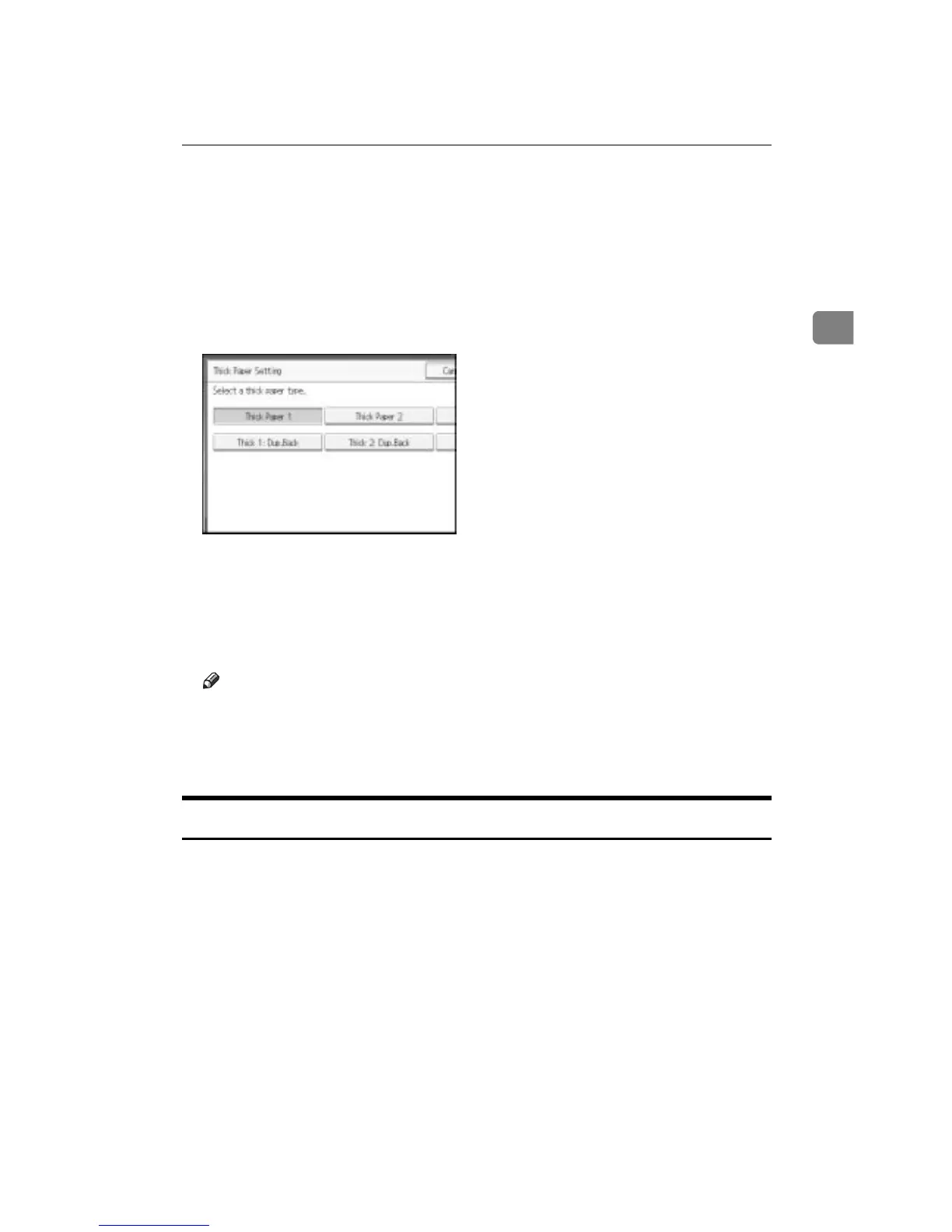
D Press [Select Thick Paper].
E Select paper type (one of [Thick Paper 1], [Thick Paper 2], [Thick Paper 3], [Thick
1: Dup.Back], [Thick 2: Dup.Back], and [Thick 3: Dup.Back]), and then press [OK].
Select [Thick Paper 1] when copying paper whose weight is between 106 g/m
2
(28.5 lb.) and 169 g/m
2
(45.0 lb.).
Select [Thick Paper 2] when copying paper of 220 g/m
2
(58.5 lb.) or less.
Select [Thick Paper 3] when copying paper of 253 g/m
2
(67.3 lb.) or less.
F Set the paper size, and then press [OK] to return to the initial display.
G Place the original, and then press the {Start} key.
H When the copy job is finished, press the {Clear Modes} key to clear the set-
tings.
Note
❒ If Internal Tray 1 is not selected for the output paper tray, copies are deliv-
ered to it.
❒ For thick paper, print speed is slower when compared to printing on plain
paper.
When Copying onto Envelopes
When copying onto envelopes, select the paper type.
A Open the bypass tray, and then insert the envelopes with the side you want
to copy face-down until the beeper sounds.
B Align the paper guide to the envelope side by pinching the clip.
C Press [Bypass], and then press the {q} key.
D Press [Select Thick Paper].
E Select [Thick Paper 1], and then press [OK].
F Select the paper size.



 To Next Page