Copier Functions
63
2
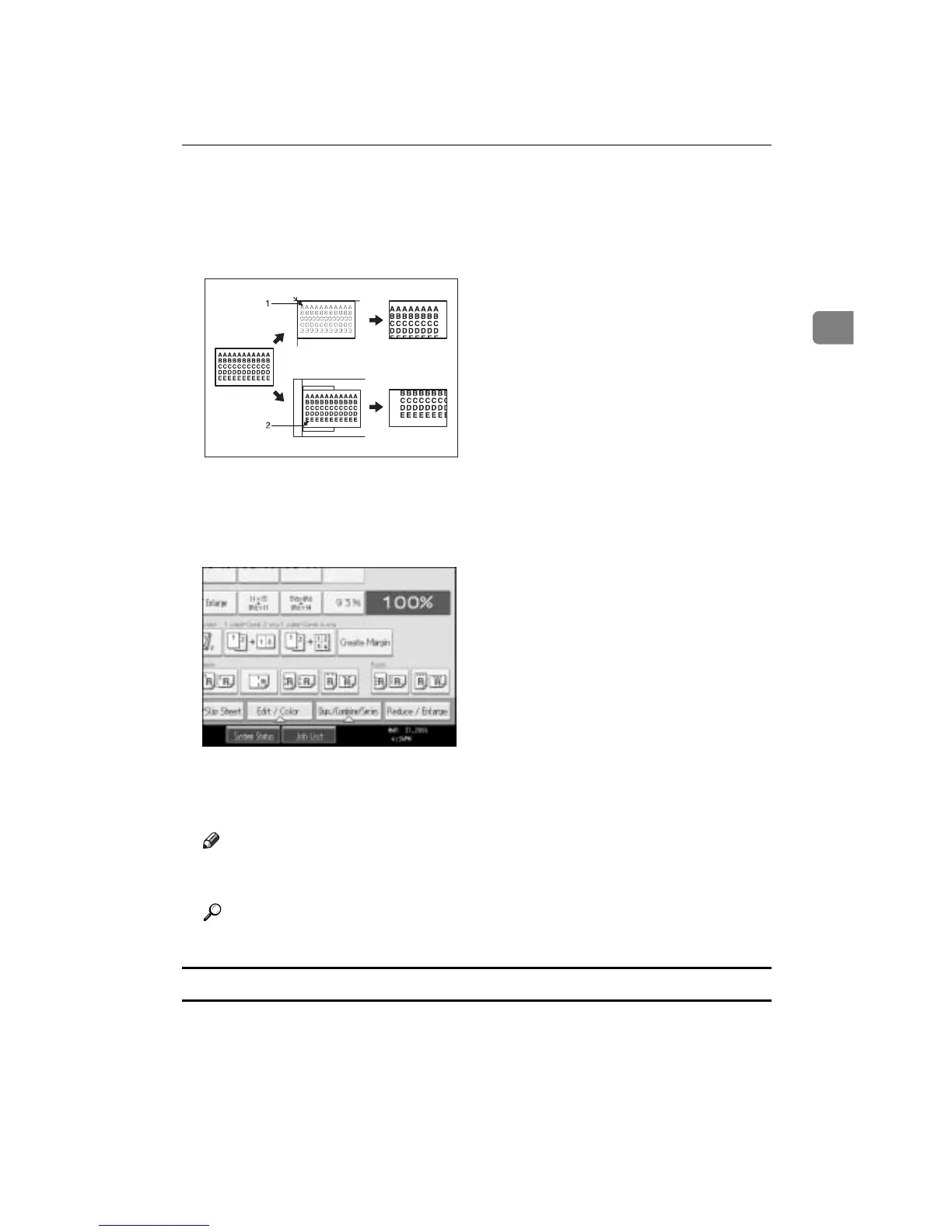
❖ Base Point
The base point of Reduce/Enlarge differs depending on how the original is
scanned. When the original is placed on the exposure glass, the upper left cor-
ner will be the base point. When it is placed in the ADF, the bottom left corner
will be the base point.
A Base point when placed on the exposure glass.
B Base point when placed in the ADF.
A Press [Reduce / Enlarge].
B Select a ratio, and then press [OK].
C Place your originals, and then press the {Start} key.
Note
❒ To select a preset ratio on the initial display in step
A
, press the shortcut
reduce/enlarge key and go to step
C
.
Reference
See “Shortcut R / E” and “R / E Ratio Priority”, General Settings Guide.
Create Margin function
The Create Margin function reduces the image to 93% of its original size to place
the reduced image at the center. By combining it with the Reduce/Enlarge func-
tion, you can further increase a margin.
GCKA031e



 To Next Page