AX10 Palletizing Solution
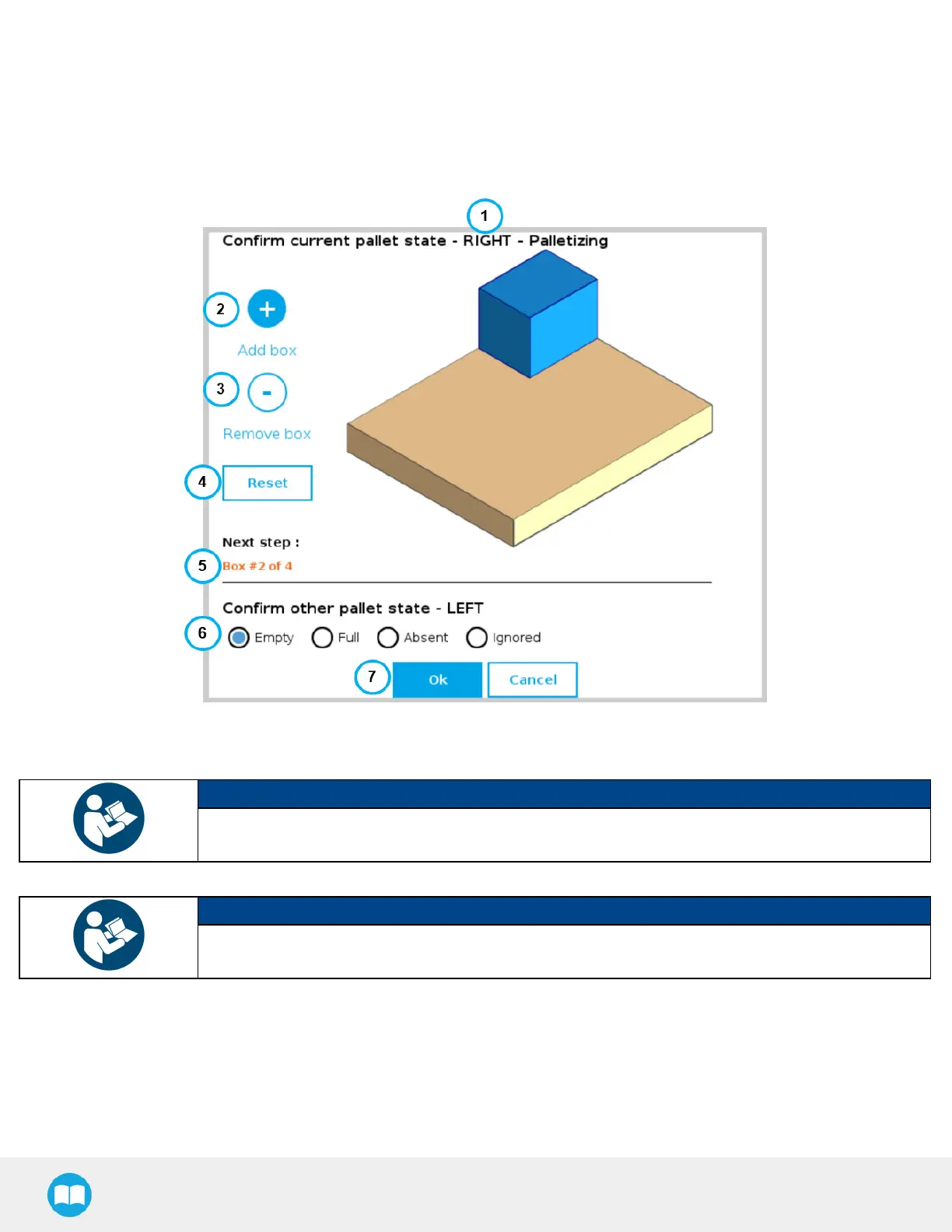
5.4.3. Program Start - Pallet Viewer
If the option to Validate pallet state at program startup has been selected in the Settings Menu section of the Palletizer node, a
Pallet viewer pop-up will display upon the start of the robot program for the user to confirm the state of the pallet.
If the multi-recipe feature has been enabled in the Settings menu of the Palletizer node, the Pallet viewer will automatically use
and display the default recipes selected in the Home View section of the multi-recipe Palletizer node.
1. This callout shows the pallet on which the robot is currently working.
2. The Add box button is represented by a plus (+) symbol; tap the button to add a box to the pallet.
NOTICE
Should the Pallet viewer not display the current state of the pallet, the user can tap this button to add
boxes so that it represents the exact state of the pallet prior to the start of the program.
3. The Remove box button is represented by a minus (-) symbol; tap the button to remove a box from the pallet.
NOTICE
Should the Pallet viewer not display the current state of the pallet, the user can tap this button to
remove boxes so that it represents the exact state of the pallet prior to the start of the program.
4. The Reset button can be tapped to clear the pallet of any and all boxes; the Pallet viewer will then reflect the empty state of
the physical pallet, provided that the physical pallet is actually empty.
5. This indicates the step that will occur next in the palletizing workflow.
6. The Confirm other pallet state section prompts the user to select the state of the other pallet (LEFT if the current pallet is the
RIGHT one, or RIGHTif the current pallet is the LEFTone).



 To Next Page