81 / 327 - EN -
10.1.10. Saving on USB flash drive
The control system does not overwrite any files that have already been created on the inserted USB flash drive. It is
recommended that you regularly move files that have already been generated from the USB flash drive to a computer,
to save the files for evaluation and not to exceed the storage capacity of the flash drive.
10.2. Wi-Fi module
10.2.1. General description
The control unit can be connected to a wireless network (Wi-Fi).
10.2.2. Functions possible with Wi-Fi
Various functions between the control system (kiln) and a computer, tablet or smartphone can be carried out using
a Wi-Fi connection. The Wi-Fi connection is mainly used with ROHDE myKiln app (see Section 10.4.).
Possible function:
• Measured values recorded by the controller can be sent wirelessly to a computer, tablet or smartphone for
evaluation.
• The kiln operation can be observed and monitored in real-time from a computer, tablet or smartphone (ROHDE
myKiln app).
• Firing program data can be loaded onto the controller using ROHDE myKiln app.
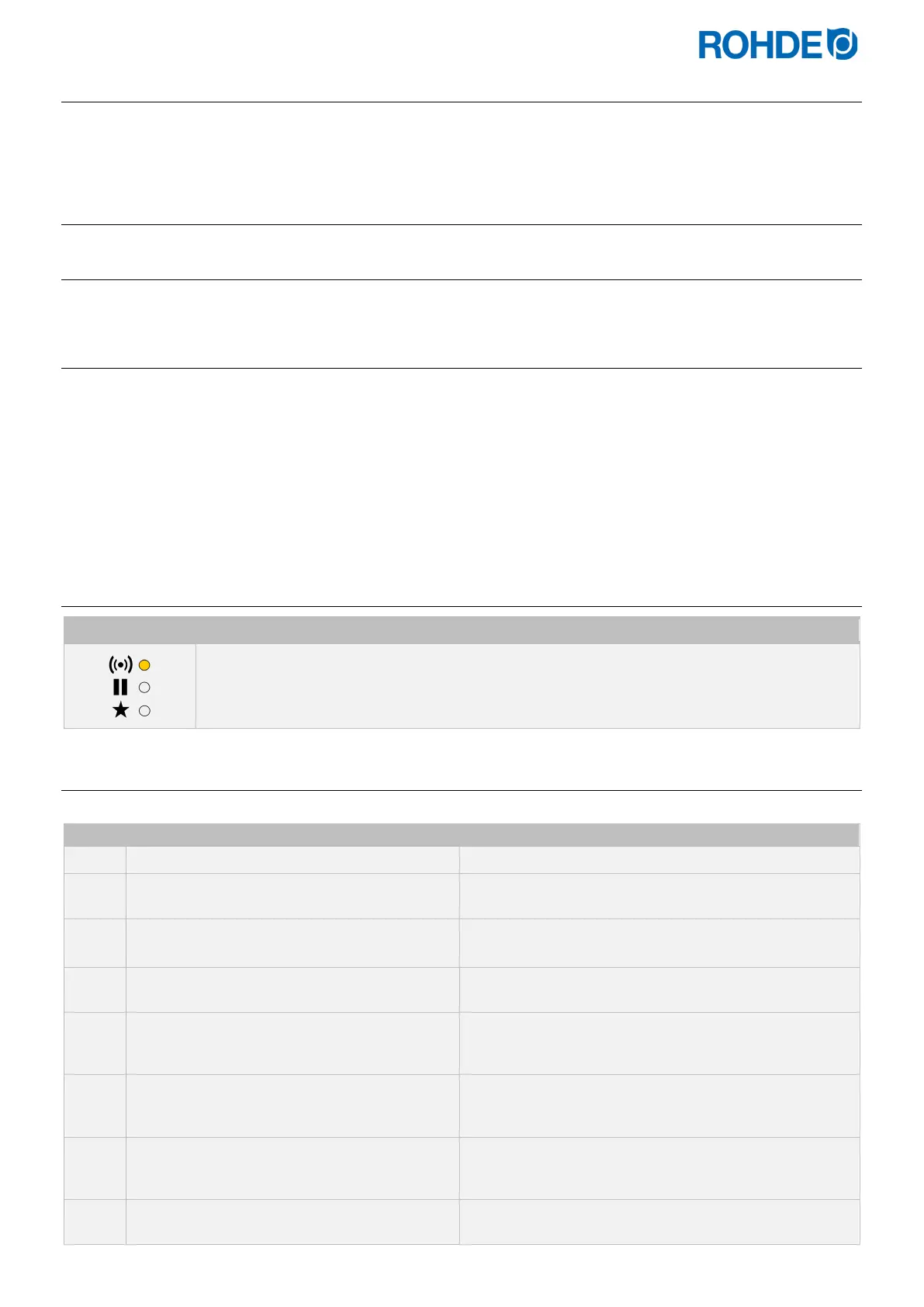
10.2.3. “Data transmission” indicator
Display Description
The “Data transmission” indicator light flashes when information is being sent over the wireless
network.
10.2.4. Establishing a connection via a Wi-Fi router (WPS function)
Connecting the control unit to a wireless network (Wi-Fi):
Step Description of the process Remark
Switch the control unit off.
Press the d key and switch on the control
unit.
Press and hold the d button while switching on.
Hold down the d key until “PAIRING”
appears in the main display.
Release the d key.
The control unit is ready to connect to a wireless network
(Wi-Fi).
Press the WPS key on the wireless router.
Information on the WPS key on the wireless router can
be found in the router's instruction manual and generally
on the Internet.
After a few seconds, “PAIR” disappears from
the main display and the control unit shows
normal information in the main display.
The control system is now permanently
connected to the wireless network (Wi-Fi).
If this procedure was unsuccessful, repeat the steps
starting with step 1 or try the connecting as described in
section 10.2.4.
Connecting the computer, tablet or
smartphone to the Wi-Fi.
Available networks can be searched for on the computer,
tablet or smartphone in the system settings.


 To Next Page
 Loading...
