Wireless Router RNX-N150RT User Manual
If you find error when you go to a website after entering the DNS addresses, it is likely that
your DNS servers are set up improperly. You should contact your ISP to get DNS server
addresses.
Get IP with Unicast DHCP- A few ISPs' DHCP servers do not support the broadcast
applications. If you cannot get the IP Address normally, you can choose this option. (It is rarely
required.)
Click the Save button to save your settings.
2. If your ISP provides a static or fixed IP Address, Subnet Mask, Gateway and DNS setting,
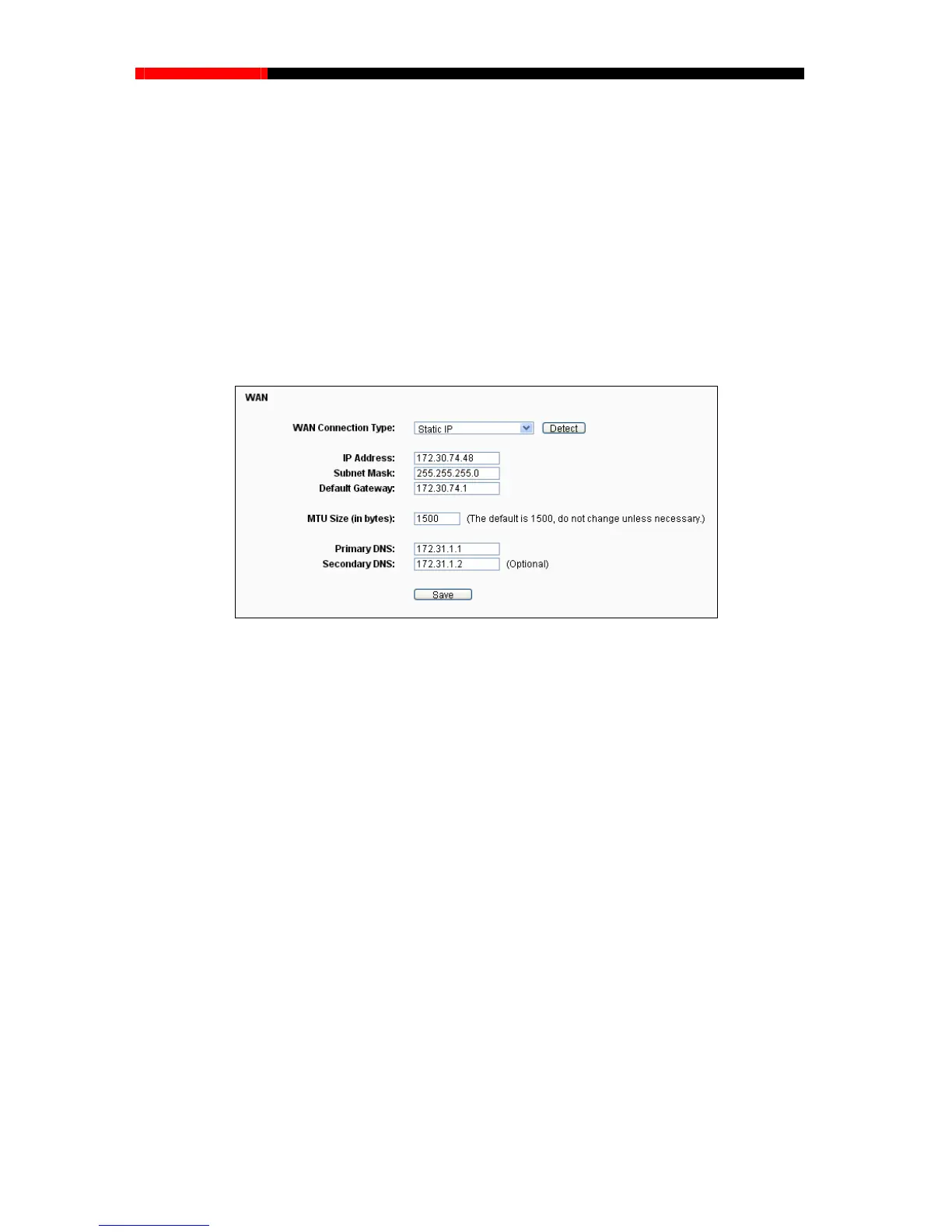
select Static IP. The Static IP settings page will appear, shown in Figure 4-10.
Figure 4-10 WAN - Static IP
IP Address - Enter the IP address in dotted-decimal notation provided by your ISP.
Subnet Mask - Enter the subnet Mask in dotted-decimal notation provided by your ISP,
usually is 255.255.255.0.
Default Gateway - Enter the gateway IP address in dotted-decimal notation provided by
your ISP.
MTU Size - The normal MTU (Maximum Transmission Unit) value for most Ethernet networks
is 1500 Bytes. It is not recommended that you change the default MTU Size unless required
by your ISP.
Primary/Secondary DNS - Enter one or two DNS addresses in dotted-decimal notation
provided by your ISP.
Click the Save button to save your settings.
3. If your ISP provides a PPPoE connection, select PPPoE option. And you should enter the
following parameters (Figure 4-11):
- 38 -



 To Next Page