Configuring Wireless Settings
Configuring Wireless # (WLAN Number) Settings
Ruckus Wireless Outdoor AP 100.1.0 User Guide, 800-70863-001 Rev A 103
Changing Access Controls for a WLAN
By default, the Disable WLAN access restrictions option is selected, which allows
any wireless station to gain access to the wireless network. If you want to change
this setting, follow the instructions below.
1 Go to Configuration > Wireless/Radio 2.4G/Radio 5G.
2 Click the Wireless # (WLAN number) tab for which you want to configure the
access control settings.
3 Click the Edit Settings button next to Access Control.
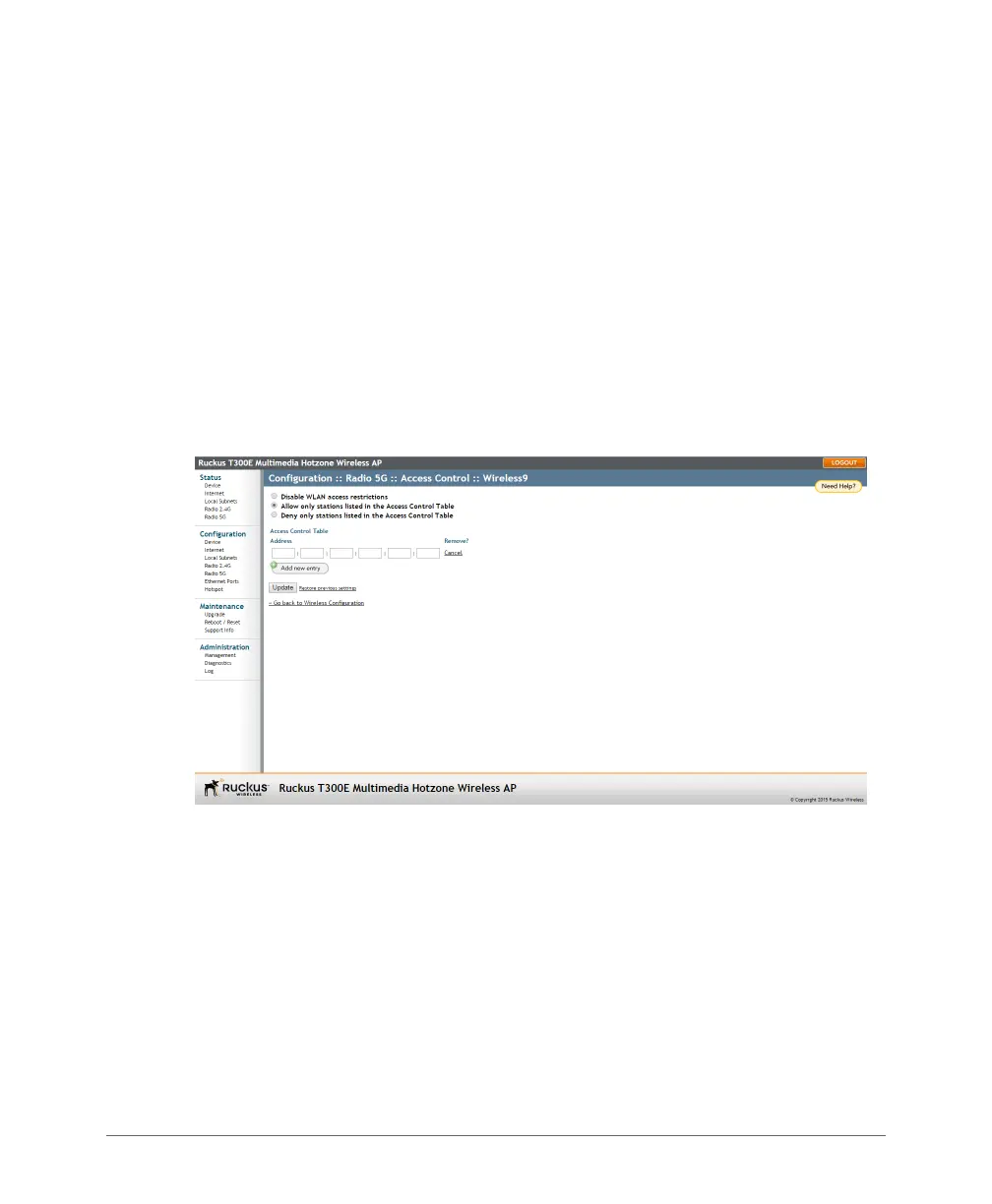
4 Select the radio button for the desired access control. (For a description of the
options, refer to Access Control List (ACL) Options.) The Access Controls Table
appears.
Figure 41. Access control settings
5 To add a MAC address to the Access Control table, click the Add new entry
button.
6 Fill out the Address text boxes: Six text boxes appear in which you enter the
desired MAC address, in hexadecimal digit form, two characters in each box.
Allowable hex-digit characters are 0-9, a-f, and A-F.
7 Click Update to save your changes. Assuming all parameters you entered are
acceptable, that row is added to the table. You have completed adding an entry
to the MAC address table.









 To Next Page