Configuring Internet Settings
Configuring L2TP Connection Settings
Ruckus Wireless Outdoor AP 100.1.0 User Guide, 800-70863-001 Rev A 81
Configuring L2TP Connection Settings
You can implement transparent bridging with Ruckus Wireless APs by using L2TP
(Layer 2 Tunneling Protocol) tunneling. By tunneling traffic from a Ruckus Wireless
AP to a centralized data center, access controllers with policy enforcement software
can apply rules and services. In a typical WLAN implementation, these rules include
a captive portal to authenticate users’ credentials.
In the case of L2TP, the Ruckus Wireless AP functions as a remote bridge. As such,
it forwards traffic into PPP sessions over the L2TP tunnel. This implementation
ensures that you have complete visibility into MAC addresses of users, as individual
Wi-Fi clients are essentially placed (bridged) onto the ISP’s core network.
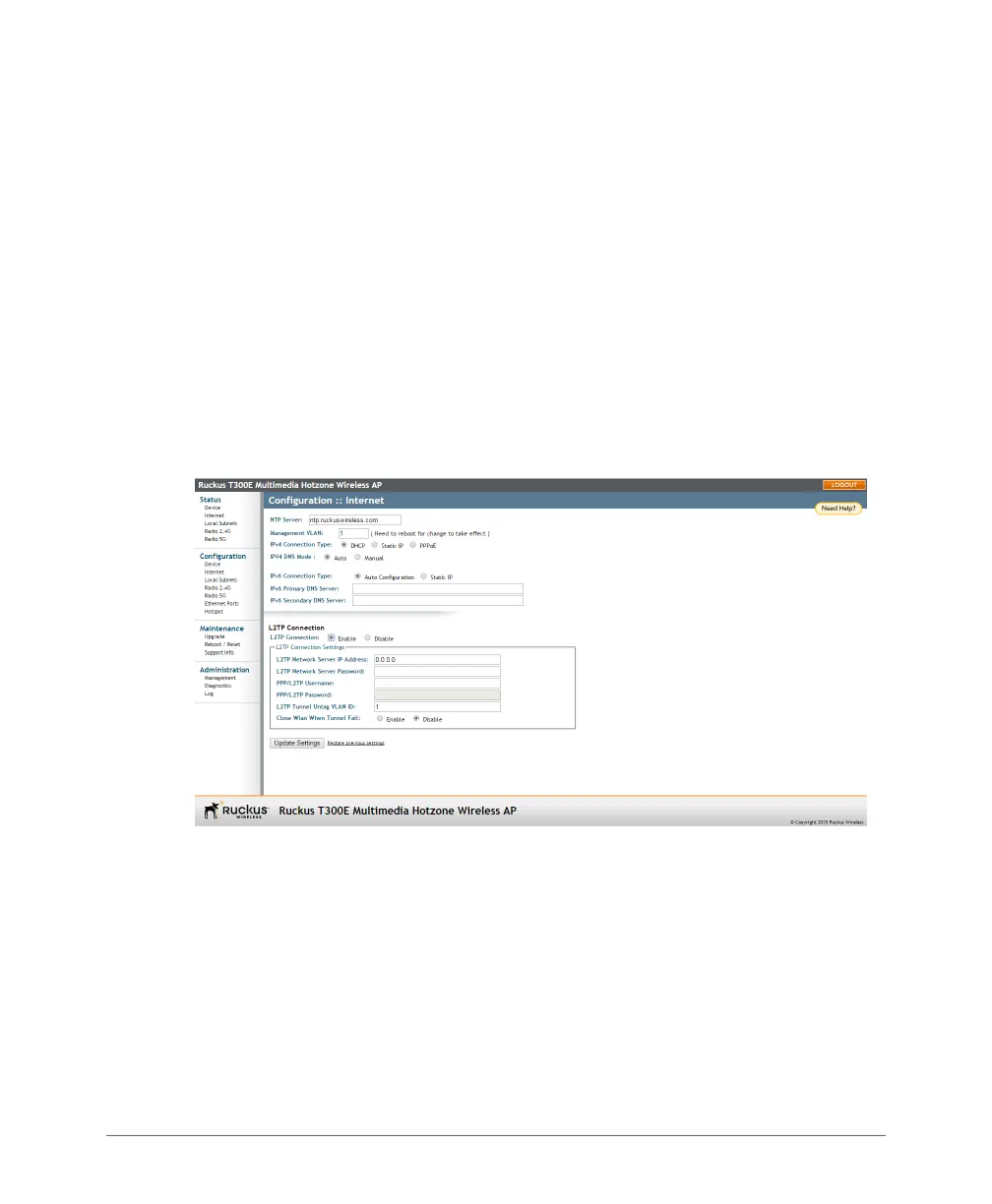
1 Go to Configuration > Internet.
2 At L2TP Connection, click Enable.
Figure 31. L2TP Connection
3 In L2TP Network Server IP Address, type the IP address of the L2TP network
server (LNS) to which the device connects.
4 In L2TP Network Server Password, type the L2TP server password.
5 If your network requires PPP authentication, configure the following fields for
L2TP/PPP authentication:
• PPP/L2TP Username: Type your PPP user name.
• PPP/L2TP Password: Type the password for the account.
• L2TP Tunnel Untag VLAN ID: Enter the Untag VLAN ID for the L2TP tunnel.











 To Next Page