Chapter 2. Introduction 2 - 11
be displayed in the User Defined Key area of the monitor.
TB/LR Dial-button
In 3D View-MPR, this dial-button adjusts ROI boundaries.
TB stands for Top-Bottom and LR stands for Left-Right.
Marker/Ref Dial-button
Allows the user to enter a BodyMarker over an image.
Moves the reference slice horizontally in 3D View.
Text
Button Allows the user to place text on an image.
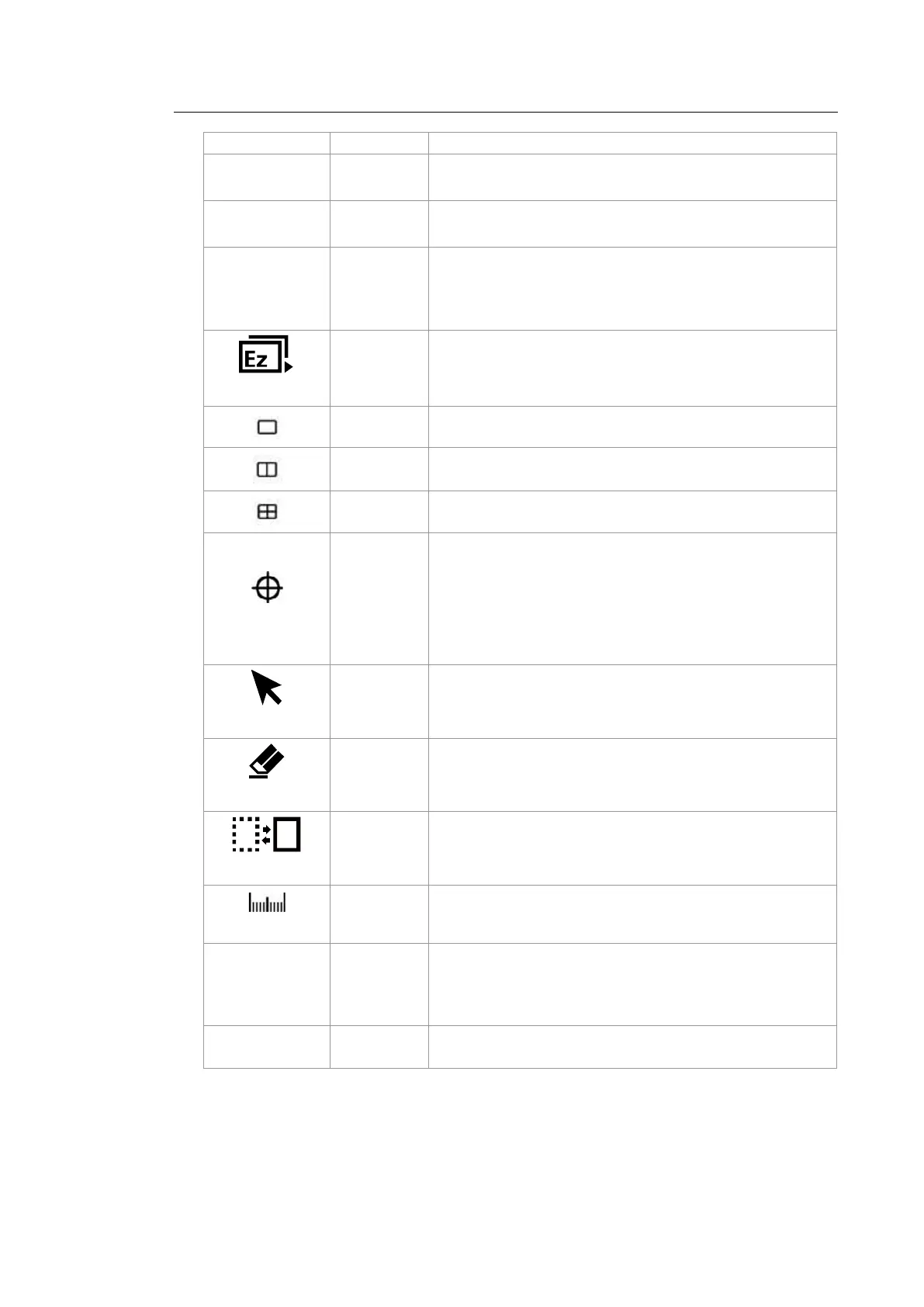
Ez Exam+
Dial-button Use the Ez Exam+ and Preset Change features.
Button In this mode, only the image is displayed on the screen.
Button Compares two independent images.
Button Compares four independent images.
Set/Exit
Button
This button is used to assign user-defined functions. The
function of each button can be set in Utility > Setup > User
Defined Key.
– Set: Selects an item or value using the trackball or changes
the function of the trackball.
– Exit: Exits the function currently being used and returns to
the previous state.
Pointer
Button
When this is pressed, an arrow marker appears to point to
parts of the displayed image.
Clear
Button
Deletes text, indicator, BodyMarker, and measurement result,
etc. displayed on an image.
Change
Button This is used to change the current trackball function.
Calculator
Button Starts measurements by application.
Caliper
Button Starts to measure distance, circumference, area, and volume.
Trackball
Trackball
Moves the cursor on the screen and scrolls through Cine
images.



 To Next Page