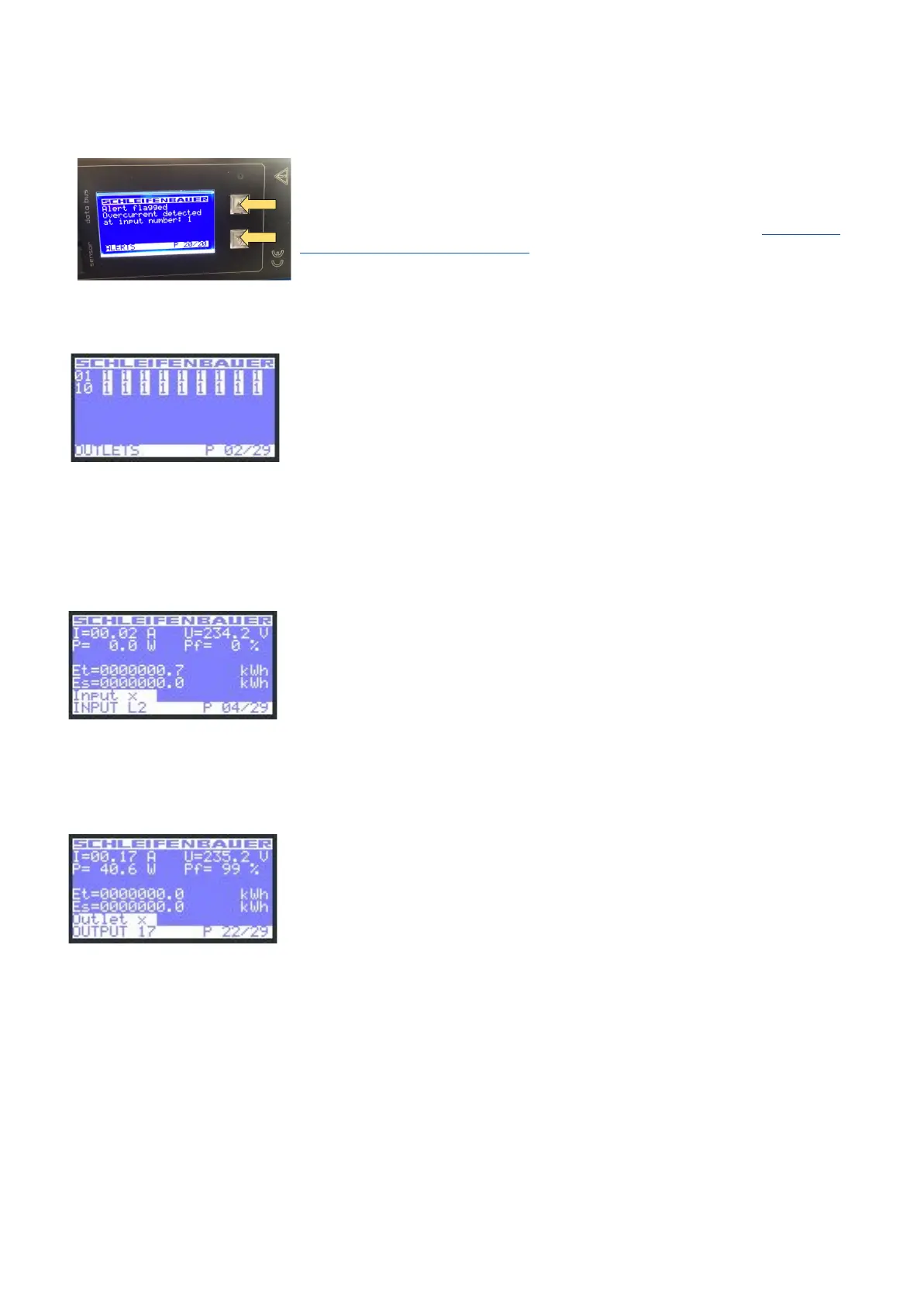
How to get back to the first page?
No alerts (= no blinking display) => shortly press both the scroll buttons (see yellow
arrows).
You will see the first screen in the display.
If there are alerts, first clear these by pressing both scroll buttons (see: “How to stop
blinking display? … local alert reset” ) then press both the scroll buttons to jump to
the first page
How to check an outlet status locally?
Note: every row on the display shows the
state of 9 outlets. So the first ends with
outlet 9, the second row starts with outlet
10
In the “outlets” display you can see how many outlets the PDU has and what their
individual state is.
An overview of the possible states:
0 = off
1 = on
s = scheduled to go off
S = scheduled to go ON
p = power cycling
How to check input and/or outlet measurements?
Example: input page
Note: “Input x” shows the name of the
Input. This information can be configured
from the Web Interface, Inputs tab or from
the other interfaces.
Example: outlet page
With the scroll buttons you can scroll through the pages. The total amount of
pages varies and depends on the configuration of the PDU. For example: the more
outlets the higher the total amount of pages.
In the upper example you see that page 4 of 29 is displayed.
In the lower left corner of the displayed page, you see the subject of the shown
information. In this example: input measurements of L2.
So, when you search for outlets, you need to scroll through the pages until you
reach the “outlet” sections. See lower example
Displayed information can be:
I = current [A]
P = power [W]
U = voltage [V]
Pf = power factor [%] (= real power ÷ apparent power)
Et = energy total [kW]
Es = subtotal energy [kW]
V252_User manual
Schleifenbauer PDU



 To Next Page